Tools and Processing
Panorama
Follow along to learn the necessary steps to analyze a flight using the Panorama add-on!
Creating a Panorama layer
Open your project and select the create ‘Panorama’ button located in the panel on the lefthand side of the screen


Change Layer Name

Select ‘Choose File’ to upload images. This File must be the Stitched Panorama created by your drone not the 25 individual photos to create the Panorama.

Panorama requires an JPG/JPEG file that is Stitched by your Drones Software
Select the individual Panorama file then select ‘Open’


Verify you have the correct Panorama by selecting ‘View Panorama’


Select ‘Upload’ to begin the Uploading & Processing


Once the file is done uploading, Select ‘Back’

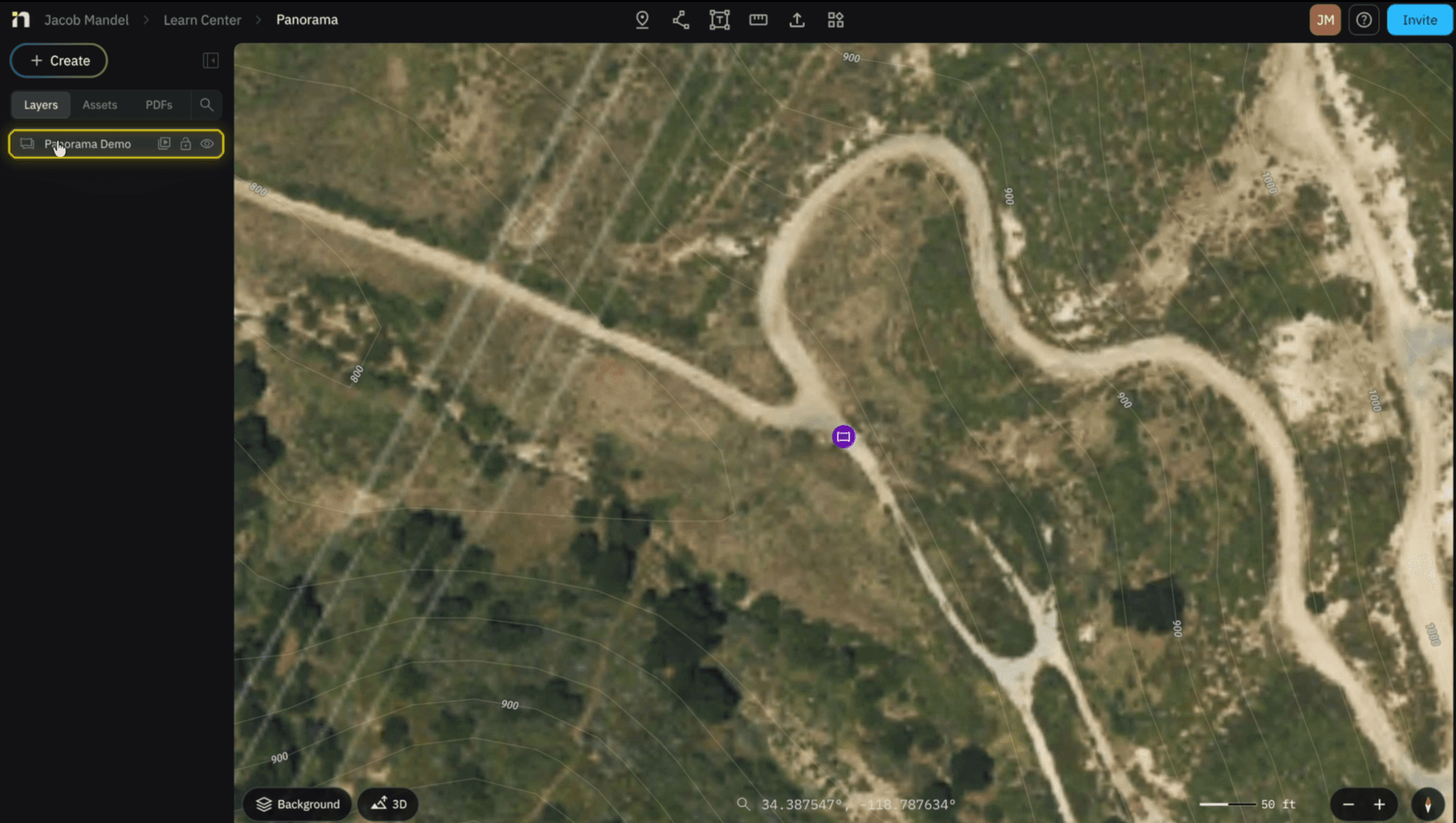
By Selecting our ‘Panorama’ the 2 different ways we can view it is by selecting the ‘Icon’ or clicking ‘View Panorama’ in the Inspector Panel

To Export your Panorama Select ‘Data’ in the Inspector Panel, Export, Download Image


Related to Tools and Processing