Tools and Processing
Map Frame
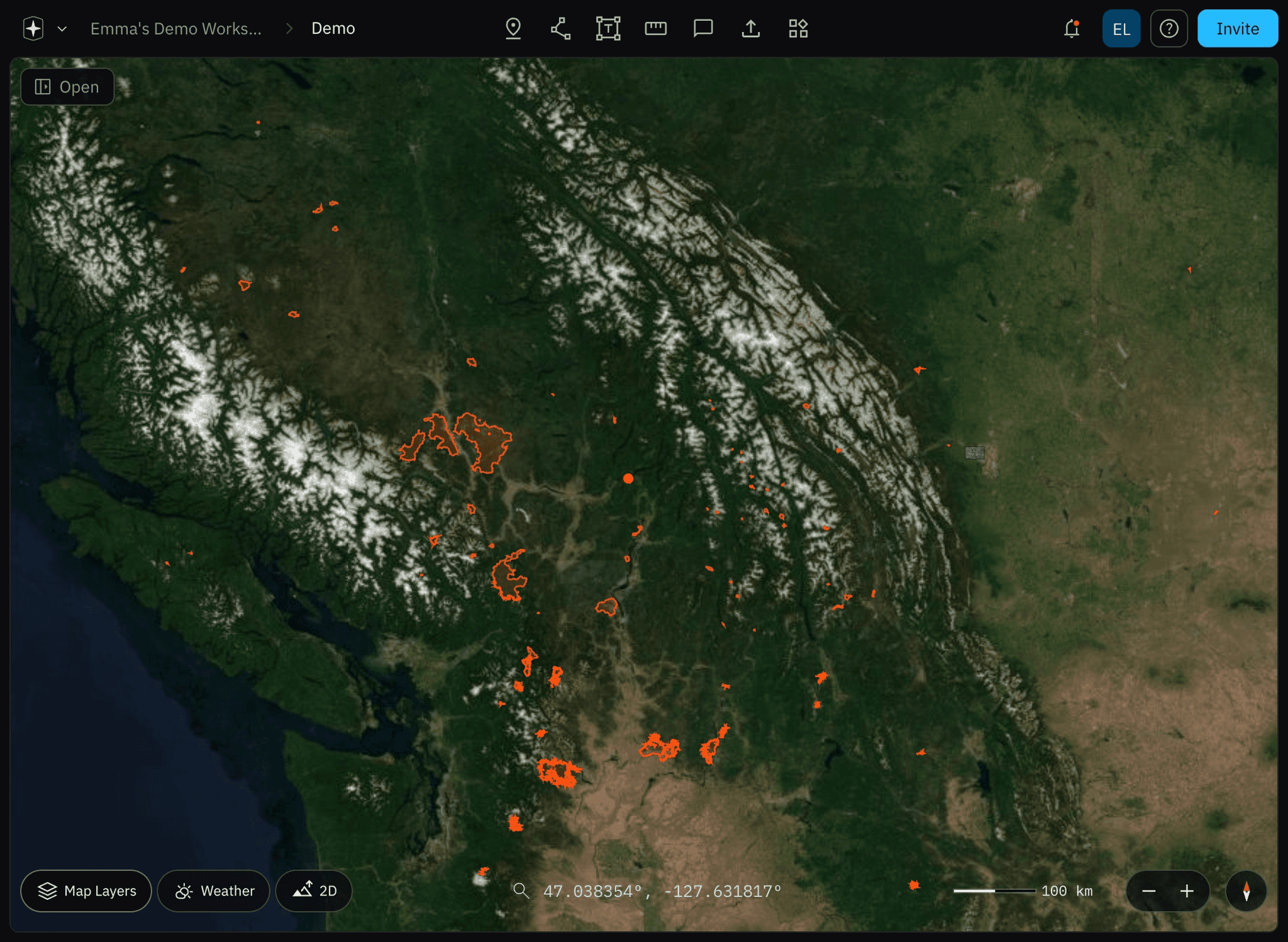
The map frame gives you a clear picture of the world around you. Layer in map details, live overlays, and weather; switch to 3D to see the shape of the land, then search, zoom, and rotate to focus on exactly what matters.
Map Layers
Select Map Layers at the bottom left of the map to choose what your map shows. The panel has three parts: Details, Overlays, and Base Map. To organize the layers in your own project, see Navigating the Layer Panel.
Details
Turn on any combination of details:
Map Labels: Place and street names.

Contours: Lines that join points of equal elevation, so you can read the shape of the land.

Shading: Shading that shows the shape of the terrain.
Buildings: 3D building shapes across cities. Zoom in and tilt the map to see their height.

Overlays
Overlays add live and reference data on top of your map. Hover over an overlay in the panel to see what it shows, how often it updates, and where the data comes from.

Heat: Each hexagon marks a recent fire detection.

Wildfires: Active fire perimeters are outlined on the map.
Civilization: Built-up areas are shaded in blue.

Elevation: The map is colored by height, from low ground to high peaks.

Base Map
Choose the map that sits underneath everything else: Default, Satellite, or White.


Weather Layers
Select Weather to add a live weather layer to your map. Use the timeline along the bottom to move through time. Select Play to animate the layer, use the arrows to step back or forward, and select Now to jump back to the current time. Speed and Opacity sit on the left.
Wind: Wind speed from the GFS model, 10 m above the ground.

Precipitation: Rain, snow, sleet, and freezing rain from the GFS model.

Radar: Radar reflectivity from ECCC and RRFS.

Lightning: Lightning risk from the GFS model, plus detected strikes.

2D and 3D
Select 2D to switch the map to 3D, so the land rises into hills, mountains, and valleys. Select it again to go back to 2D.

Right-click and drag to tilt and rotate the map.

Search
Use the search bar at the bottom of the map to find places and layers. You can search by place name, coordinates, or layer name.
Places: Type an address or place name, then select a result to fly there.

Layers: Type a layer name, such as an orthomosaic, to find it in your project and jump to it.

Zoom, Scale and North Arrow
Select + or – to zoom in and out. The scale bar next to them shows distance at your current zoom.

Use the north arrow in the bottom left corner to rotate the map back to north.

Related to Tools and Processing