Tools and Processing
Lines and Polygons
How to Create a Polygon
Open up your project and click on the Lines and Polygon button.

Select on your map layer to outline your polygon and close it by selecting on your starting point


Edit Your Polygon in the Inspector Panel
Select the naming convention at the top of the inspector panel to rename it followed by the green check mark

View the Polygons area and Perimeter under its name
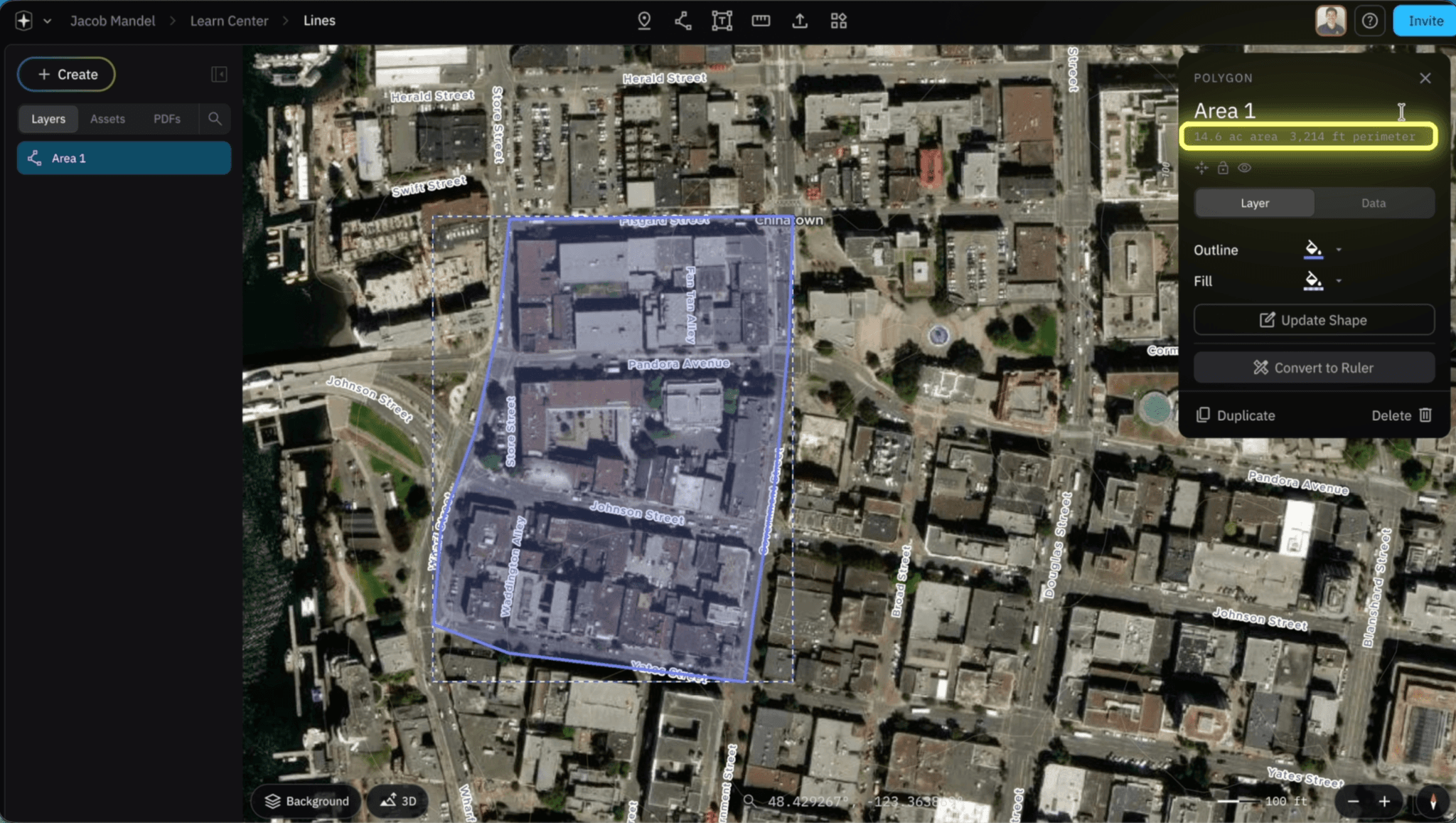
Within the Layers tab, select on outline to change the outline color

Under Outline select the Fill drop down to change the color of your area

Select on update shape to make make additional changes to your shape by selecting on the circles followed by the confirm button on enter on your keyboard


Select on Convert to ruler to see the measurements of your polygon Select the Ruler link for a tutorial on the ruler tool


Right-click for each other point you want your Polygon placed.

To finish your Polygon, click the original point you placed and right click it.

Duplicate a Polygon
Select the Duplicate button at the bottom of the inspector Panel. the duplicated layer will appear within the layers Panel

Exporting and Downloading a Polygon
Select the Data tab, followed by the file you want to download to download and export your Polygon
Delete a Polygon
Select the Delete button in the bottom right corner of the inspector panel to delete a Polygon Layer

How to Create a Line
Open up your project and click the Lines and Polygon button.

Select on the Map where you want to trace your Line followed by the Confirm button or Enter Button of your keyboard

Editing a Line in the Inspector Panel
After you Line is established the inspector Panel will appear on the right side of your screen

Change the Name of your Line at the top of the Inspector Panel, followed by the green check mark

Look the total length of your line beneath the Layer Name

Select the “Color” drop down to adjust the color of your line

Select the “Pattern” drop down to view the 4 different types of patterns
Solid

Rounded Dash
Dotted

Squared Dash
Select the “Thickness” drop down to change the Lines thickness
Thin

Thickness

Updating Your Line
Select on “Update Shape” to make further edits to your line, followed the “Confirm Button” or Enter Button on your keyboard


Convert a Line to a Ruler
Select on Convert to Ruler to see exact measurements of your Line


Follow the Steps for the Ruler Tool Here
Exporting & Downloading a Line
Select on the “Data Tab” followed by your file type then download to export your line

Duplicate a Line
Select on the “Duplicate” Button and a Line layer will be duplicated in the Layers Panel

How to Delete a Line or Polygon
Select the “Delete” Button in the bottom right corner of the Inspector Panel
Once you delete a line or polygon, you cannot get it back!

Related to Tools and Processing