Tools and Processing
Icons
Placing an Icon
Select in the “Icon Button” at the top of your screen
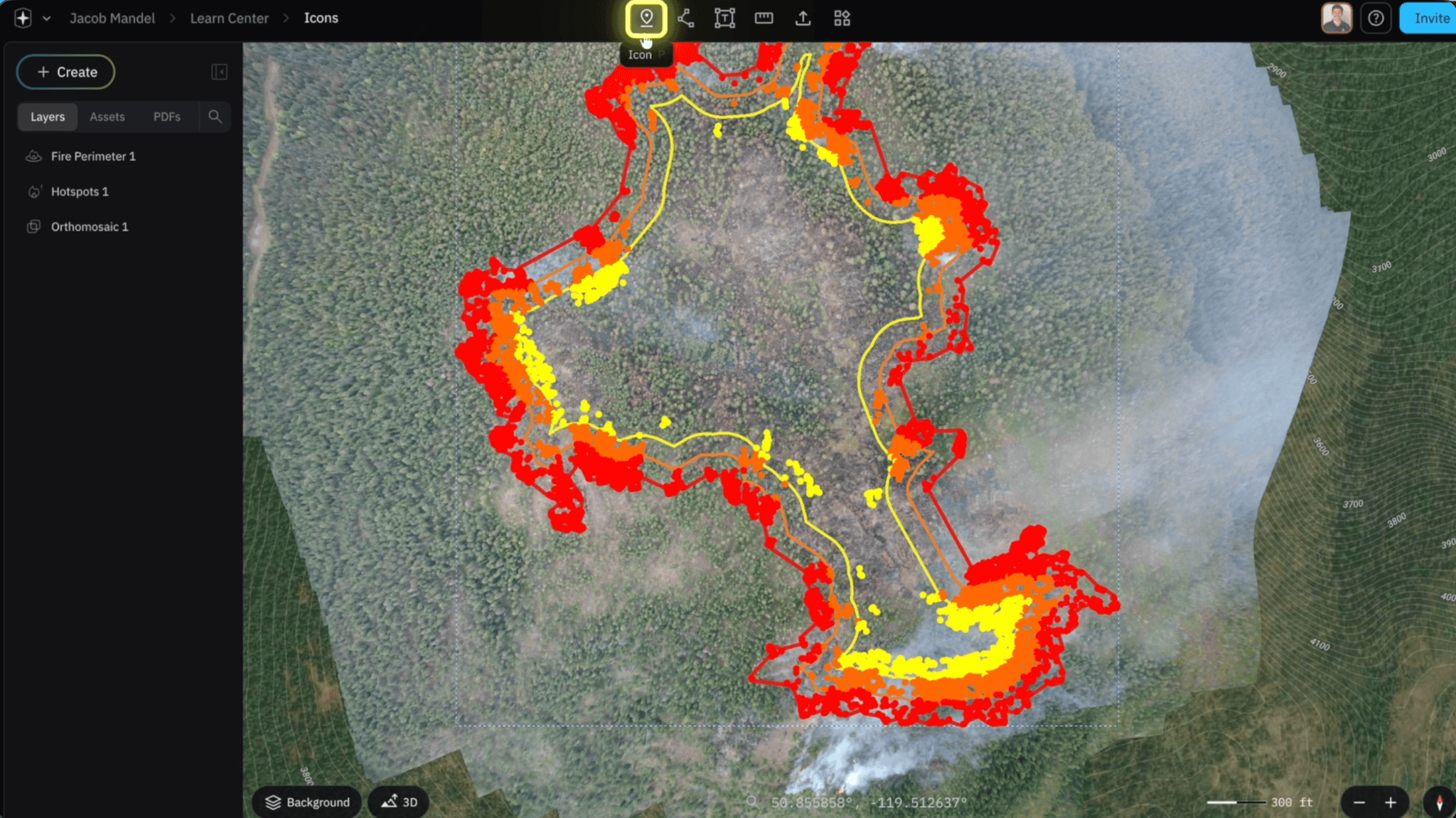
On the map view select where you want to place your Icon

Icon Packs
Within the “Inspector Panel” select on in “Icon Pack” and choose from the list below


Shapes
Numbers

NWCG - PMS 936

NFPA Emergency Management

NFPA Fire Service
NFPA General

SARCOP

British Columbia Wildfire Service

Forestry

Fire AI

Adjusting Icon Features (Shapes & Numbers)
Adjusting Shapes
After you place a “Point” on the right side of your screen the inspector panel will appear Select on the shape Icon to see various shapes.


Changing Shape Color
In the “Inspector Panel” select color to adjust the color of your shape.


Adjust Numbers
In the “Inspector Panel” Select on the Number Icon Pack

You can choose which number you want to start at and as you place more points the following number will apear


Adjusting Shapes
After you place a “Point” on the right side of your screen the inspector panel will appear Select on the shape Icon to see various shapes.
Editing Icons
Related to Tools and Processing