Tools and Processing
Live Stream - DJI Enterprise Drones
Correct Camera View
Binding the Gimbal (CAM) View with the Livestream
After Powering on your Drone and Controller Enter into the DJI Pilot 2 App

Select on Camera View

Exit out of the Pre-Flight Check list

Ensure that the Main screen view is the Gimbal (CAM) view. If CAM or Gimbal is located on the minimized screen in the bottom right select on it to make sure the FPV View is in me minimized view in the Bottom Right


Select on the Back button on your controller or on the Screen to enter back into DJI Pilot 2 Main screen

Livestream Link Through Nova
After Entering into your project Select on the Create tab in the top right

Select on the Livestream Add on

Select DJI Enterprise Controller

Follow Accessing Novas On Controller App to connect the Livestream Link

Accessing Novas On Controller App (OCA)
On the DJI Pilot 2 App Main screen choose “Cloud Services” with the Cloud Icon

Select on “Open Platforms”

Enter the URL Provided by Nova on your laptop - https://dji.app.mapnova.com followed by the Blue Check mark and Connect button in the top right


After the Nova Login page appears Enter your Email and Password Followed by the Login Button

Selecting the proper Workspace
At the top of the screen to the right of the Nova Logo is where your Workspace is Located. Select the Arrow drop down and Choose the Workspace you want to work within


Choosing / Creating a New Workspace
Within the Workspace Folder on the Left side of your screen Choose the desired Folder and Project you want to start a Livestream in. (To create a new project Follow to step 2)


Within the Workspace tab on the Left side of your screen Select the + Project Button to create a New Project

From the Project Page select on the Pencil Icon next to “Untitled” to change the name of your project for easy navigation to the Project on your computer

Starting a Livestream
On the Controllers project view Select on Livestream Followed by Confirm


On the Start Livestream app Select on “Start Session”


Once a Livestream has started you can choose Share to send the livestream link to individuals, emails, or mission groups you’ve previously created.


Select the back arrow on your controller or on your screen to Navigate back to the DJI Pilot 2 App

Select the Enter Camera View button and Begin Flying

Exit out of the Pre-Flight Check List

When you see a cloud icon with a recording button in the top left your Live Stream is active

Livestream Views from your Laptop
After you’ve entered into the project your Livestream has started in, The Livestream will appear in a minimized View in your Layers Panel

By Selecting on the Layers Panel Livestream the Livestream will appear on your Map View as a seperate tab that can be moved wherever on the screen.

By hovering your Cursor over top the Livestream two Boxes with appear in the top left corner. Select the Box that is has 3/4 of it filled to enter into a Full Screen View


To exit out of the Full Screen View select the X in the top right corner of the screen

Sharing the Livestream
At the Bottom of your screen Under (Altitude ASL, Vertical Speed, Horizontal Speed, and Wind Speed) Select the Share Button

From within the Share Tab, Nova Offers 3 ways to share a Livestream Link. The First is by entering Emails and Phone Numbers individually or Selecting on the Pre Created Email List
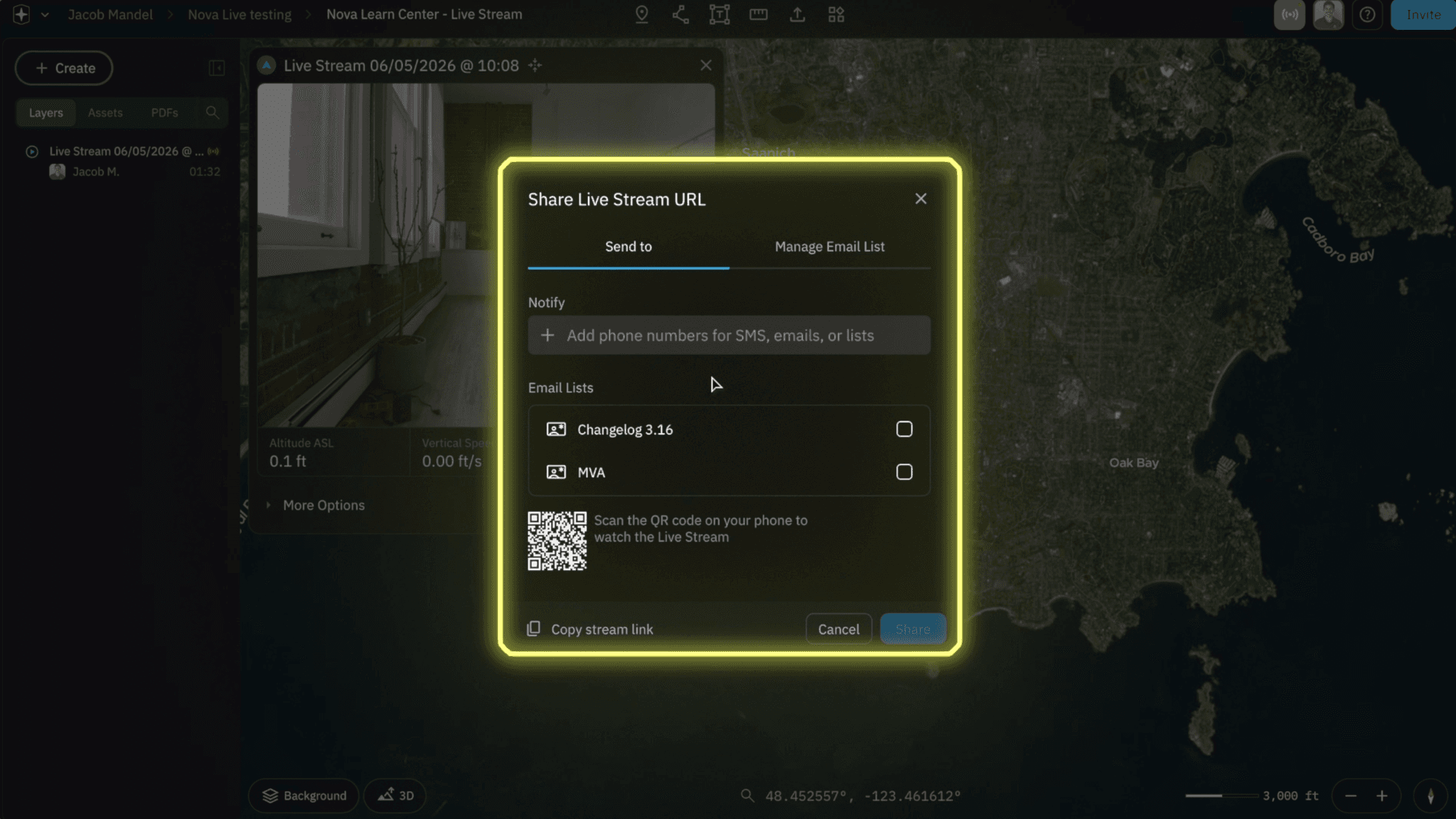

The second is by scanning the QR code with a Mobile Device

The Third is by Copying the Livestream Link in the bottom Left corner and Sending it out Via Email / Text or Pasting into a new Tab

More Options
At the Bottom of your screen Under (Altitude ASL, Vertical Speed, Horizontal Speed, and Wind Speed) Select the More Options drop Down

Under Visibibility You can Disable your Flight Path and Drone Icon from your Map view

Ending a Live Stream
From your Controller Exit out of your Camera View to the DJI Pilot 2 App

Select on Cloud Services (Cloud Icon)

From the Active Livestream Page Select on End Session


After a Livestream had Ended it will be imbedded into your Nova Layers Panel to Rewatch

Exporting and Downloading a Livestream
Select on the Livestream in your Layers Panel
From Within the Inspetor Panel Click on Data and then the Export Drop Down

Select the Video Footage (MP4 File) or Flight Path (KML, SHP File) followed by Download to Download to your Hard-dive

Deleting a Livestream
From within the Inspector Panel Select Delete in the Bottom Right Corner


Related to Tools and Processing