Tools and Processing
Hotspots & IR Orthomosaics
Before you fly, head to our Data Collection Best Practices page to ensure you have the best quality data for your map!
Uploading Infrared Data
In your project, Select the “Create” Button in the Layers Panel

Select “Hotspots”

Select “Layer Name” to rename your Hotspot Layer

Select your Method of upload. When uploading images, Nova will stitch together your Hotspot Orthomosaic and automatically place Hotspots. You can also import your own Hotspot File.


When importing Photos we can either select individual files or an entire folder

When Photos are imported into they will go into staging and each photo will be represented by a gray box, these Photos are also geo-referenced so you can see your flight path on your map


If you conduct another flight you can add more files or folders directly below your stages images

We always want to Select “Show Overlap” to ensure our Overlap is sufficient Front (80%) side (70%). The green on the interior confirms our IR Ortho will stitch together perfectly, where if it was red we may encounter a much less desirable Ortho.

When we Select “Process After Uploading” it will allow us to upload those current photos to the cloud and upload more images after. If Process after uploading is left on they will upload and instantly start processing your hotspot layer

Once Upload is Selected our images will begin uploading to the cloud then begin processing


When processing is complete select on “Done”

Navigate through the Hotspot Modal
When you Select a Hotspot it will turn Blue and a minimized view will appear

To see full details and a enlarged images select “See Full Details”


Within “Full Details” You can view your Metadata with the ability to copy that Hotspots Coordinate

View the exact Hotspot by hovering your cursor over the Hotspot with the Red Bounding box around it. All Hotspots are verified with the radio metric data captured by your drone


At the top of the screen you will see “Image Overlay” When this is selected the IR Image will appear within appear within the blue bounding box within you map view

To the left of Image Overlay, We can turn on and off “Field of View”. It is represented by the Blue bounding box in your map View

When we turn on “Show List” a Column will appear on the left hand side. You will see all your photos labeled and all the Hotspots within those Photos

In the top right corner we can Manual Place a Hotspot, or Remove a Hotspots


Hotspot Features within the Inspector Panel
The Inspector Panel
When your Infrared Orthomosaic is selected the “Inspector Panel” will always appear on top right side of the screen

If we want to change the name of our Hotspot layer we can do that in the top right of out Layers Panel

Hotspot - Flight Information
From within the Inspector Panel, under the Layers Panel we can choose the Flight dropdown for our flight information
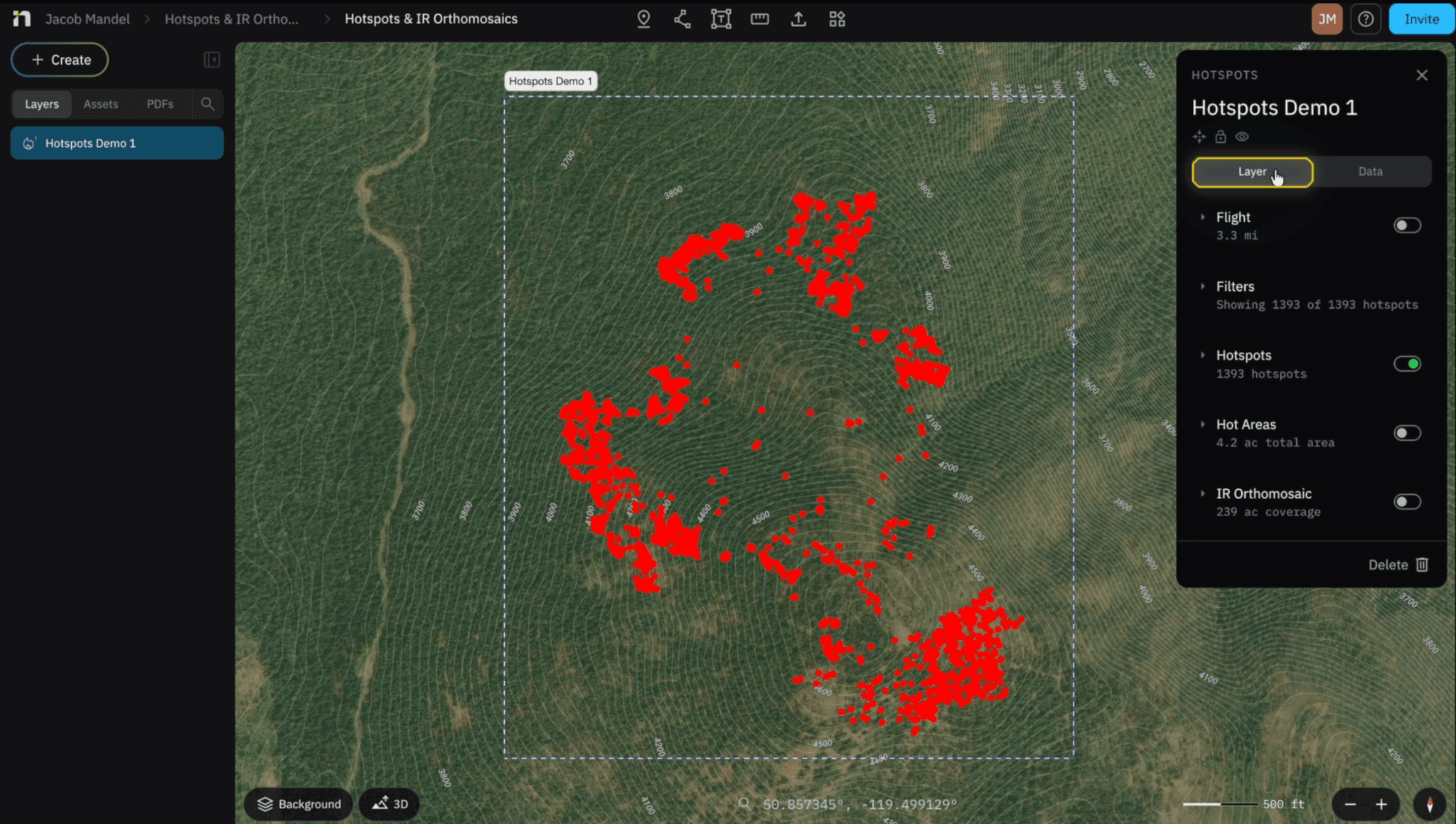
Turn on Flight to see your Drones Flight Path

We can turn on Overlap to ensure we have sufficient overlap

You can enable scan area to see the total coverage from your flight

Hotspot - Filters
Adjust your filters by selecting the “Filters” Dropdown. Your Filters will indicate how many hotspots has detected, and how many are visible on the map

the Sensitivity is the confidence the model has that it is a hotspot. I would recommend leaving this at 70% unless you are ruling a fire “Out” then I would adjust it lower.

Distance to Perimeter will adjust the colors and appearance of your hotspots after a Fire Perimeter is created.
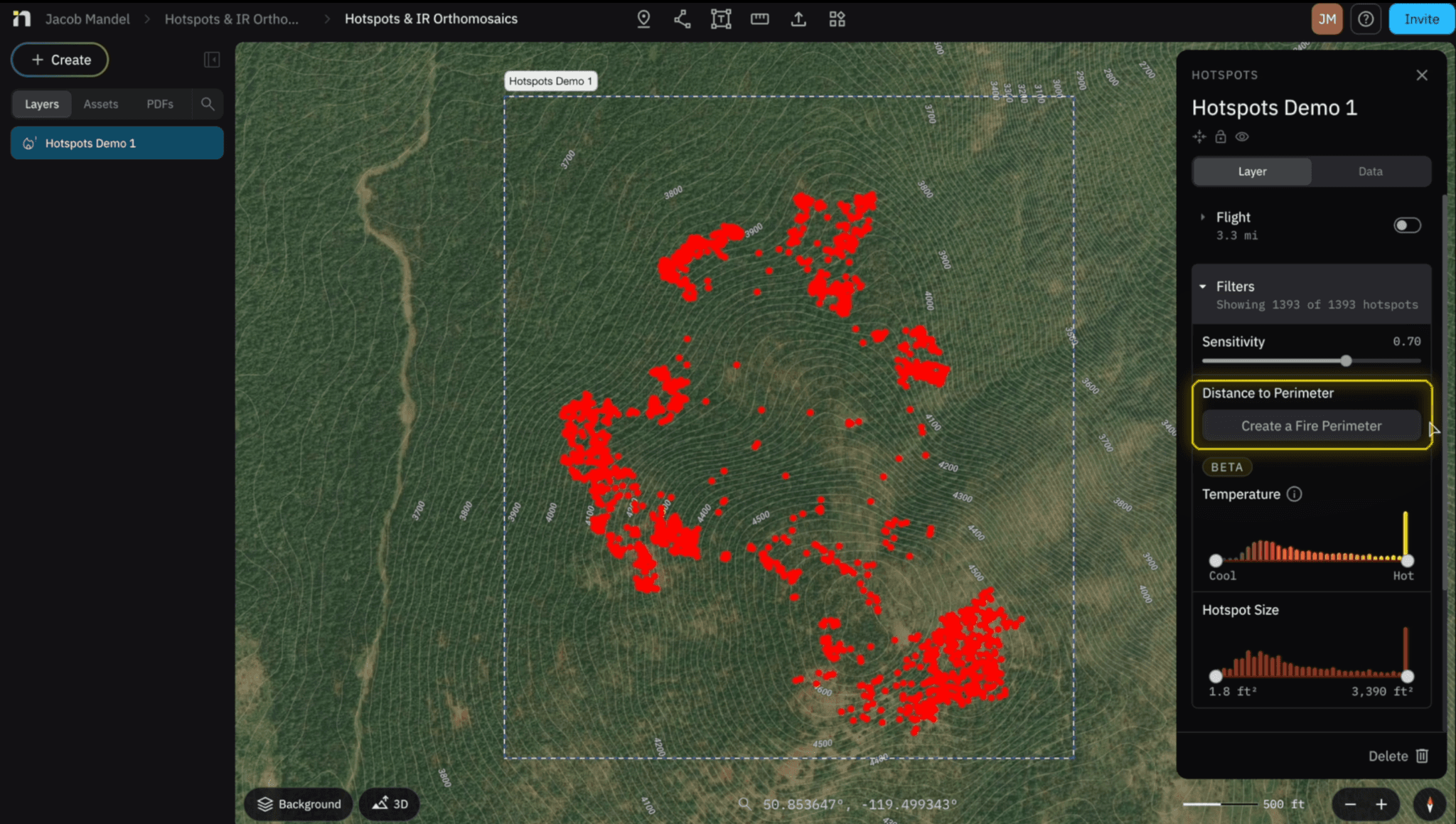
Adjust the Temperature range to see the hottest hotspots, you can also look back at the filters tab to see how many hotspots are showing on your map

Adjust the Hotspot Size to only see the largest hotspots, the filters drop down will show you you how many hotspots are visible on the map

Hotspot - Views
Select the “Hotspot” drop down for various Hotspot appearances

Hotspot “Point” View, you can turn on the relative size to see the actual size of your Hotspots


Hotspot Heat View

Hotspot Hex View

Hold Right Click or hold Control on your Keyboard and drag you mouse for a 3D View

Hotspot Hex View Flattened

Select “Show Labels” to label your Hotspots

Use the “Lasso Tool” to select multiple Hotspots at once after selecting Remove Hotspots


Select “Remove Hotspots” to remove those Hotspots

Select “Show Removed Hotspots” to see your removed hotspots on your maps a an X

Hotspot - Hot Areas
Select “Hot Areas” to view the Hotspot hot areas within your map

Outline changes the Color of your Hot Areas perimeter
Fill changes the Colour of your Hot Areas area
Infrared Orthomosaic
Select “IR Orthomosaic” to view your Orthomosaic

Exporting Data
Within the “Inspector Panel” Select Data for various Export Options

Select desired File to Export

Select “Download”

Delete a Infrared Orthomosaic
Select “Delete” to delete your entire IR Orthomosaic

Confirm you want to Delete that Hotspot Layer

Related to Tools and Processing