Tools and Processing
Orthomosaics
Welcome to Orthomosaics! Once your data has been captured, learn how to import and process orthomosaics in Nova. This page walks you through uploading and processing your imagery, using the Inspector Panel to adjust how your orthomosaic looks, and exporting your data in a variety of formats for quick and easy sharing.
Table of Conents
How to Create an Orthomosaic
Staging Phase (Stage 1)
Open up your project and click the Create Tab in the top left

RGB and infrared images can be uploaded but remember, infrared images processed using orthomosaic will not produce hotspots.
Select Orthomosaic in the Features Tab.

Change your Orthos name & Begin uploading Photos by selecting the Choose files / folder or drag and drop your images


Nova will stage your images analyzing them using important GPS metadata including Latitude, Longitude, Altitude, Date and Time, ETC.

All images (gray boxes) in staging are geo-referenced to a corresponding image (circle) placed on your map

If any issues with the data are identified, a trashcan will appear after you select a compromised photo, allowing you to delete the image(s) in question.


Before Selecting ‘Upload’ we can Add More Files, or Load From Layers
Adding more files will increase the size of your one Ortho versus having multiple smaller orthos
Load from Layers - Will pull in Orthos that have already been processed in Nova

Overlap will determine how well your images stitch together to create your Ortho. This is measured by Red which is Poor and Green which is Great. Keep in mind the outside of your Orthos will always be red because the exterior images wont have another image to stitch to.

See File Count, Upload Size, Date Created, and Date and Time processed in Nova

Processing Options : General Mode, Urban Mode, Rapid Mode, and Process after Uploading
Rapid Mode - Fastest Processing speed for Orthomosaics 10-110X Faster than Urban and General Mode (Not as high definition)
General Mode - Medium speed for processing, Typically used on wildfire for accurate hotspot placement
Urban Mode - Slowest Speed, Highest resolution, Clear edges on all structures and Crash scenes

Disabling process after uploading will upload those files to the cloud without jumping directly to the processing faze which will allow you to add more photos after multiple flights
Select Upload to initiate Phase 2 (Upload Phase)

Upload Phase (Stage 2)
While Photos are being sent to our servers Leave the Tab open / DO NOT LEAVE the project. Photos will be cut off based on the last photo that is uploaded leading to a partial Orthomosaic. Upload Speed is based on your internet connection.

Processing Phase (Stage 3)
Nova will start stitching your Orthomosaic together. We will Provide a preview before the Orthomosaic is finished stitching.


You will be notified when a Orthomosaic is complete, Select Done to confirm

Inspector Panel
Select the Layer in the Layers Panel to Open the inspector Panel on the rigth side of your screen

Modify the Orthomosaic
In the Inspector Panel in the top right corner (Layer and Data) we can select the Flight drop down and Turn on our Flight Path and Overlap


Select the Orthomosaic drop down arrow to Adjust the appearance (Opacity, Compare, Crop)

Opacity
Adjust the Opacity on your base map Layer

Compare
Select the Compare tool to reference the Ortho to the base-map Layer, Use the Arrows to the Compare split reference


Crop
Select the Crop tool to crop the exterior of your orthomosaic. Use the polygon tool to create your own perimeter or Rectangle as a preset


Exporting Data
In the Inspector Panel select on the Data tab followed by export to view exporting options

Select the Data Type to download then choose Download

Tools
By hovering over your cursor on layer in the layers panel or in the top of the inspector Panel you will see 3 Icons : Zoom In (Arrows to a Dot), Eye, Lock.
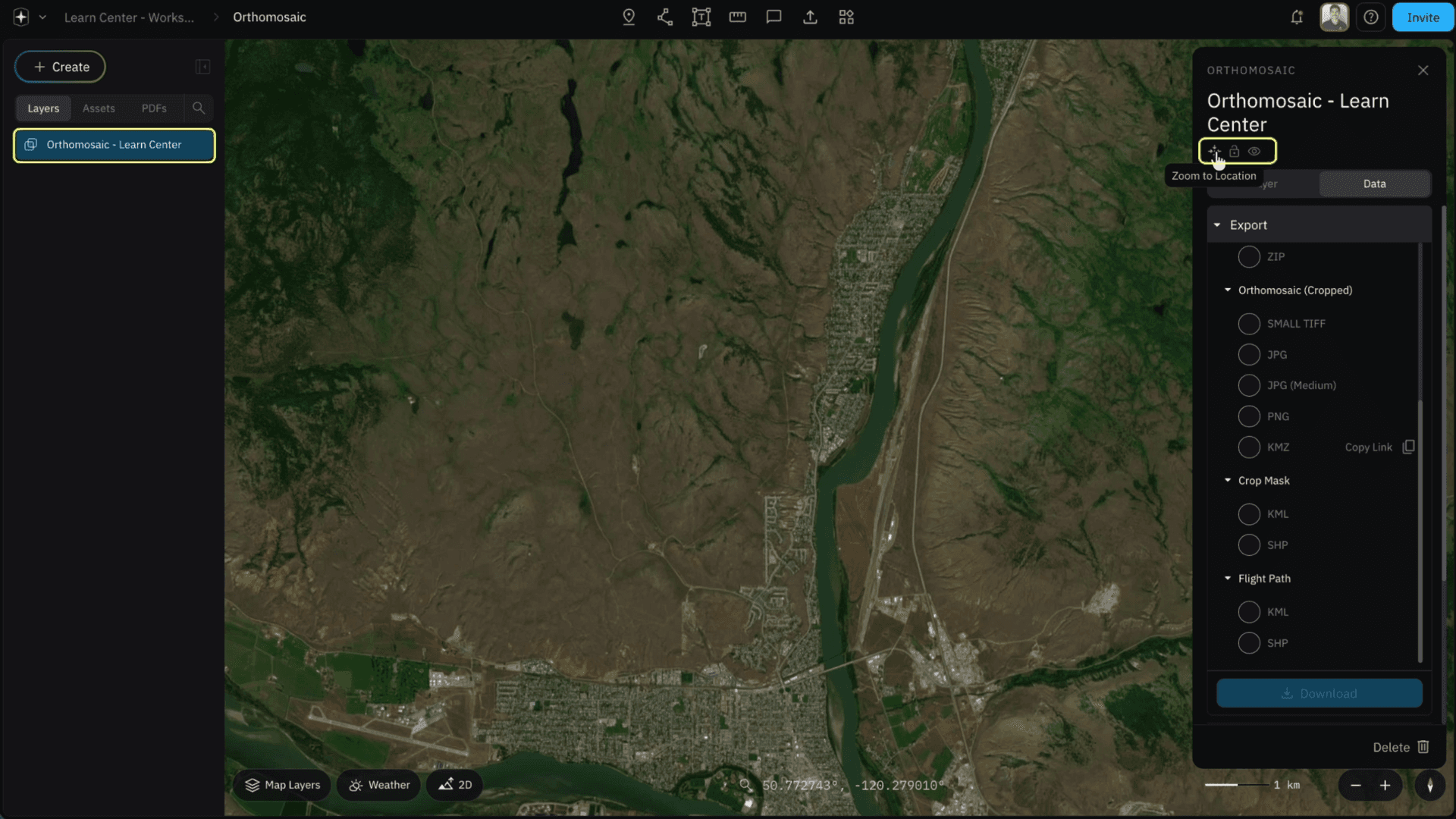
Zoom in Tool
The Zoom In tool will pull you to that exact layer wherever you are currently on your base-map layer.


Lock / Placeholder
The Lock Icon will ensure the Layer cannot be adjusted within your layers panel & wont allow modifications to your Orthomosaic

Eye / Disable
The Eye icon will disable the entire Orthomsaic from your base-map layer

Check out Integrations in the Learn Center for easier data transfers between software platforms.
Related to Tools and Processing