Foundations
TAK Integration
This article walks through how to set up your TAK integration with Nova, so you can share data directly within your TAK network. We’ll cover how to connect your account on the Nova side, how to share data once you’re connected, and what that looks like on the TAK side.
Connecting to TAK
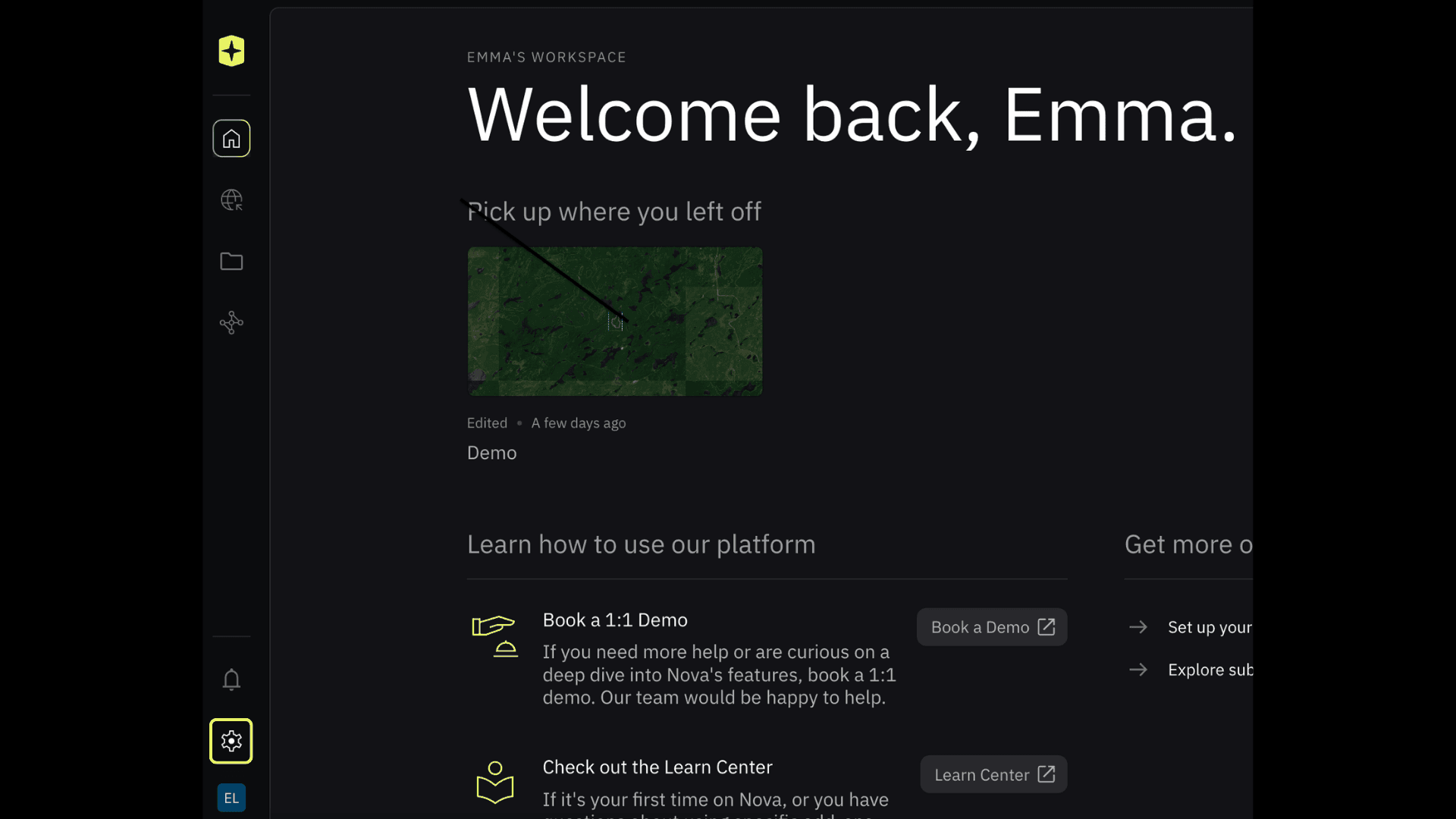
Open Settings.
Click the gear icon in the bottom left of your home screen.
Go to Integrations.
In the left-hand menu of Settings, select Integrations. This is where you can connect your Nova account to ESRI, TAK, and CalTopo.

Connect to TAK.
Click Connect and enter your TAK credentials or client package.

Enter your TAK Server URL, starting with https://.

The port is set to 8443 by default.

If your server requires a password, enter it under Password.

Add your security key.

Select Connect


Check your destination.
Under Destination, choose where Nova sends your shared layers. Server is selected by default. If you change it, click Update to save.

Sharing Data From Nova
Select the layer you want to send.
From your project, select the layer in the Layer Panel to open its details panel.

Open the Data tab.
In the details panel, click Data.

Open Integrations.
Click Integrations to expand it.

Share to your destination.
Click Share, Nova will push the layer directly to your TAK server.

Confirm it was sent.
A Success message appears under Integrations, along with when the layer was last updated.

Viewing Nova Data in TAK
When you share a layer from Nova, it arrives on your TAK Server as a mission package. Here’s where to find it and how to send it out to your team.
Open your TAK Server.
Open your TAK Server in a browser. You’ll land on the TAK Server Metrics Dashboard. Click the menu icon in the top right to open the menu.

Open File Manager.
In the menu, select Data, then File Manager.

Find your Nova layers.
Layers shared from Nova show up as mission packages, with the layer name in the filename (for example, ATAK_Sandbox_Orthomosaic_1). Click Update Time to sort the newest packages to the top.

Download the packages you want to send.
Click the download icon next to each package name to save it to your computer.

Open Send Mission Package.
From the menu, select Data, then Send Mission Package. Click Browse… and select the packages you downloaded.

Choose your contacts and send.
Under Contacts, check each person who should receive the packages, then click Send Mission Package.

Confirm it was sent.
A Successfully uploaded file message appears at the top of the page.

Related to Foundations