
Foundations
Integration With CalTopo
This article walks through how to set up your CalTopo integration with Nova, so you can send data from Nova straight to a shared CalTopo map. We’ll cover how to connect your CalTopo team account on the Nova side, how to send a layer once you’re connected, and what that looks like on the CalTopo side.
Before you start, you’ll need a Credential ID and Secret from your CalTopo team account. You’ll find these in CalTopo under Team Admin > Details, and the credential needs Update permission on the map you want to send to. You’ll also need the ID or URL of that CalTopo map.
Connecting Nova and CalTopo
Open Settings.
Click the gear icon in the bottom left of your home screen.

Select Integrations
It’s in the left-hand menu of Settings, under Workspace

Select Connect next to CalTopo.
The Connect to CalTopo window opens and reminds you where to find your credentials in CalTopo.

Select Credential ID and Secret and paste in your CalTopo credentials.
In Map ID or URL, paste the link to your CalTopo map or just the map ID, then select Connect.

Select Update if you need to change the destination map.
Once you’re connected, the CalTopo row shows the date you connected and your Destination Map. To send to a different map, enter its ID and select Update. To remove the integration, select Disconnect.

Sending Data From Nova to CalTopo
Select the layer you want to send.
Open your project and select the layer in the Layers panel. For more on layers, see Navigating the Layer Panel.

Select Data, then expand Integrations.
Both are in the feature panel on the right. If you haven’t connected CalTopo yet, you won’t see the Integrations section here.
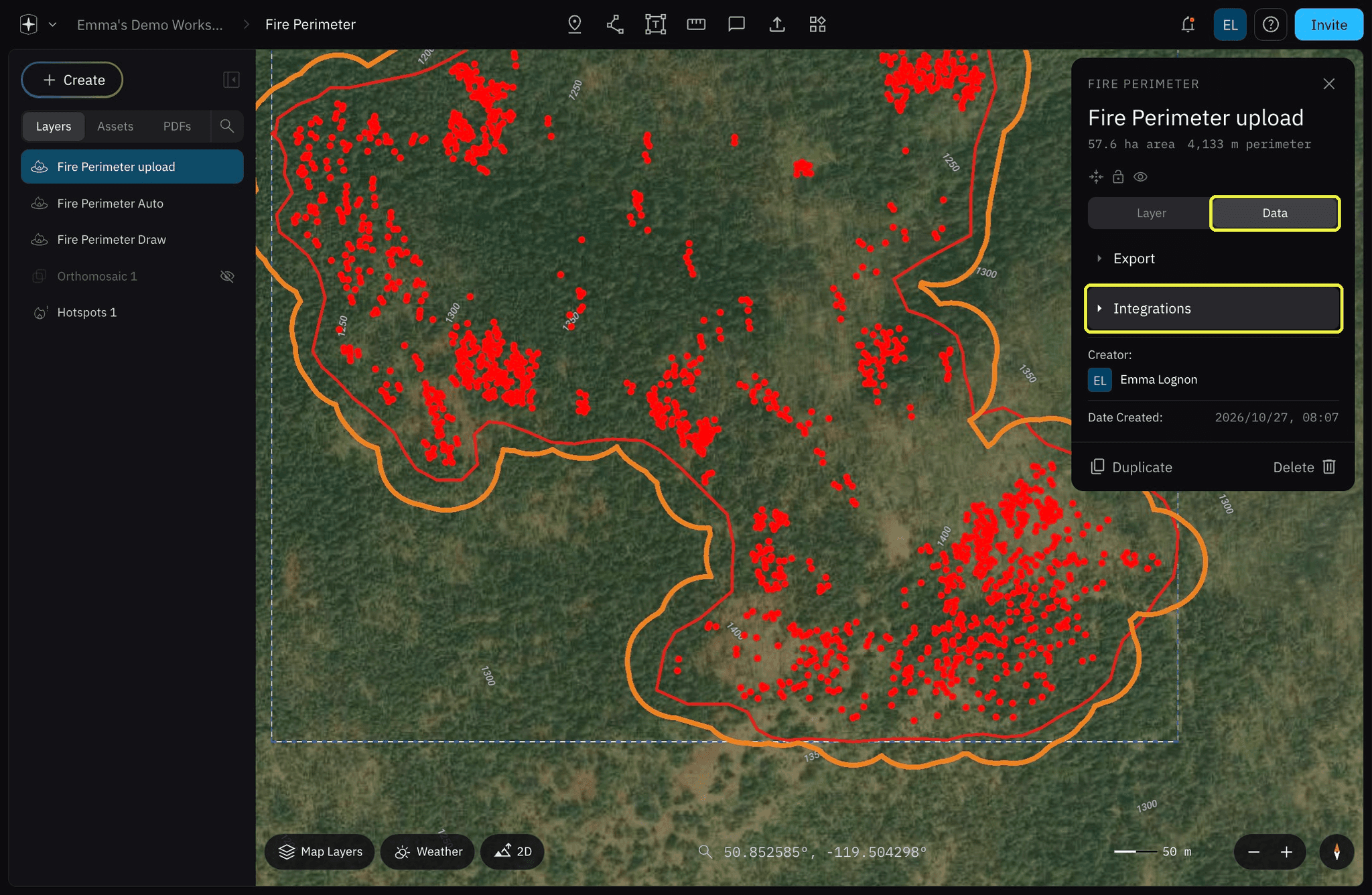
Select Send to CalTopo.

When the layer has been sent, the button changes to Success and shows when it was last updated and who updated it.
What You Can Send
Fire perimeters, points, lines, polygons and live streams show up on your destination map automatically once you’re connected. You can also send a layer from its Data tab with Send to CalTopo.

On the CalTopo Side
Sent layers appear on your destination map under Lines & Polygons, with the same name they have in Nova. Select the layer on the CalTopo map to see its area and when it was last updated.

Live Streams in CalTopo
Select the live stream in the Layers panel to watch it in Nova.
When you’re streaming, the stream sits at the top of the Layers panel with its date and time, and the video opens over the map.

Select the live stream marker on your CalTopo map.
On your destination map, the stream shows under Markers with the same name it has in Nova, at the drone’s position. Select it to see its details and a link to the stream.

Select the link to watch the stream in Nova.
The link opens the live stream in Nova, with the video next to a map. Select Zoom to Flight to jump to the drone’s location.

If you also share data to ESRI, see Integration With AGOL.
Related to Foundations


