Foundations
Settings Overview
This page helps you manage your account, your workspace, and your subscriptions in Nova. We will go over each area of the Settings page, from your profile and notifications to users, configuration, integrations, mission groups, and licenses.
Overview of the Settings Page
Welcome to the Settings page! This is your one-stop shop for managing your account, your workspace, and your subscriptions. Select the settings icon at the bottom of the left sidebar to open it. The menu on the left is organized into five groups:
Account: Update your personal details, notification preferences, and password.
Workspace: Manage the people, defaults, and connections for your workspace.
Live Stream: Organize the contacts and groups you share streams with.
Pilot Tracking: Link the accounts used for pilot tracking.
My Subscriptions: Review your licenses and add-ons.

Account
Welcome to the Account settings. Here you can manage the details that belong to you rather than to a workspace.
Profile
Your profile holds your personal details and your default preferences.
Name and Email
Your initials or photo appear at the top, followed by your First Name, Last Name, and Account Email. These fields are required.
Phone Number, Organization Name, and Title
Add optional details so teammates know who you are and where you work.
Default Workspace
Select which workspace is your default.
Time Zone
Select your time zone from the list, such as (UTC-08:00) Pacific Time (US & Canada).

Notifications
Choose which alerts Nova sends you.
Silence Notifications
Use the Silence notifications until menu to pause alerts. The default is Don’t silence.
Notification Types
Check or uncheck each item under the App column, or select Deselect All to clear the column. Alerts are grouped into Notifications (access requests, and comments, replies, and mentions), Processing (Orthomosaic, Hotspot, Colorfinder, and Satellite), and Live Stream (when any workspace stream starts, and when a person shares with you).

Password
Select Password to update the password for your account.

Workspace
Welcome to the Workspace settings. Here you can control who has access to your workspace, how it displays information, and what it connects to. To learn more about workspaces, see Workspace Management
Users
The Users page lists everyone in your workspace along with their license, paid add-ons, and workspace access. To learn more, see Inviting Users & User Privileges

Find a Collaborator
Use the Filter field to search for a person.

Invite People
Select Invite to open the Share this workspace window. Choose the workspace and role, such as Editor, then enter emails and Mission Groups separated by commas. To add many people at once, select Import CSV and drag and drop a CSV file. Review everyone who already has access under People with access, use Copy Link to share the workspace link, and select Done when you finish.

Workspace Access
Use the dropdown in the Workspace Access column to change a person’s role, such as Full - Admin.
Manage Subscriptions
Select Manage Subscriptions to manage the licenses and add-ons for your users.
Configuration
Configuration sets the defaults that apply across your whole workspace.
Workspace Name
Rename your workspace in the Workspace Name field.
Data Residency
See where your data is stored (USA or CAN).
Coordinate System and Notation
See the coordinate system your maps use, such as WGS 84 / UTM zone 11N, and how coordinates are written, such as Decimal Degrees.
Distance and Area
Choose between m/km and ft/mi for distance, and choose the unit for area, such as ha.
Time and Date Format
Set how time and dates are displayed, such as a 24 hour clock and the YYYY/MM/DD date format.
Starting Area
Select Starting Area, choose the area on the map, and select Confirm to set the starting view of your workspace map.
Select the lock icon to lock a layer in place so edits are not made to it. Locking also lets you select overlapping elements without accidentally moving them.

Integrations
Connect Nova to outside platforms to send your data where your team works. Connected integrations show the date they were connected.
ESRI
Connect to ArcGIS Online, set a Sharing Level and Destination, and select Update. Select Disconnect to remove the connection. To learn more, see Integration With AGOL
TAK
Select Connect to send hotspot, perimeter, and orthomosaic data to TAK.
CalTopo
Choose a Destination Map and select Update. Select Disconnect to remove the connection.
Select the icon with arrows pointing inward next to a layer to zoom directly to it.

Processing API
The Processing API lets you connect to Nova’s processing from your own tools and scripts instead of working in the app. Select Create Token to generate a token that authenticates your requests, then use the Documentation and Explore tabs to see what is available. Tokens expire after 24 hours, and Revoke Tokens stops existing tokens from being refreshed. Tokens are tied to your user account, so they carry access to every workspace and project you have.

Live Stream
Welcome to the Live Stream settings. Here you can organize who receives your live streams and find your stream links.
Mission Groups
Mission Groups let you save contacts and organize them into groups that are notified when you go live. Use the Groups tab to create and manage your groups and the Saved Contacts tab to keep the people you share with. To learn how to create a group and set up sharing and notifications, see Mission Groups

All Streams Link
Select All Streams Link to find the stream link for your whole workspace instead of a single Mission Group. To learn more, see All Streams Link

Pilot Tracking
Welcome to the Pilot Tracking settings. Here you can link the accounts used for pilot tracking.
Connected Accounts
This page lists the accounts you have linked to sync and receive your flights. Select Add Account to link a new account. To learn more, see Synching your DJI, Autel, and Skydio Flight Logs

My Subscriptions
Welcome to My Subscriptions. Here you can review what is included in your plan.
Licenses & Add-ons
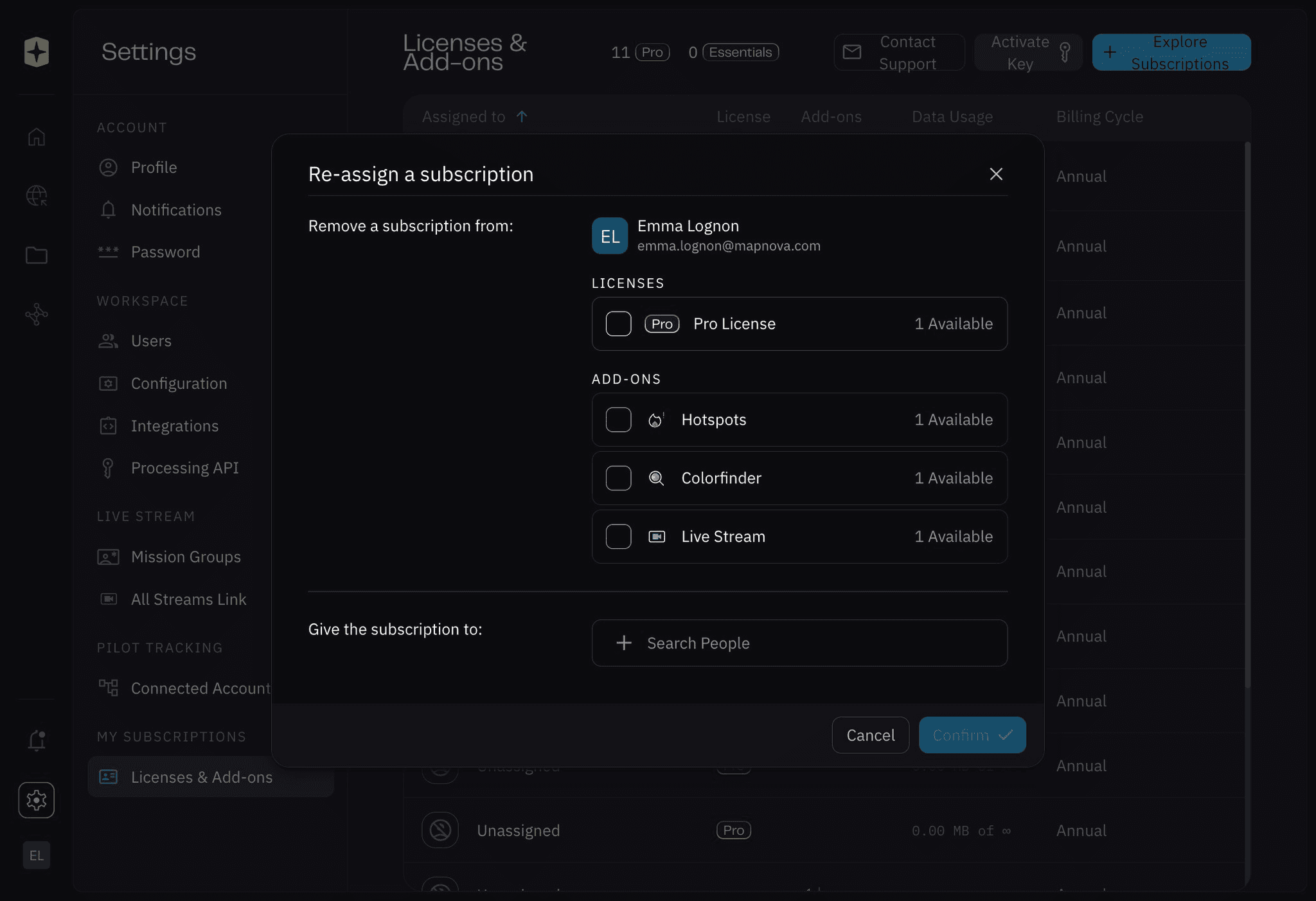
The Licenses & Add-ons page shows the licenses and add-ons in your plan and who they are assigned to. The table lists each user with their license, add-ons, data usage, and billing cycle, along with any unassigned licenses. Use Contact Support, Activate Key, and Explore Subscriptions at the top of the page, and use the menu on a user’s row to transfer or unassign subscriptions, view invoices, or manage billing accounts. To learn more, see Managing Licenses and Add-ons

Related to Foundations