Back to blog
Jun 15, 2026
Tips and Tricks

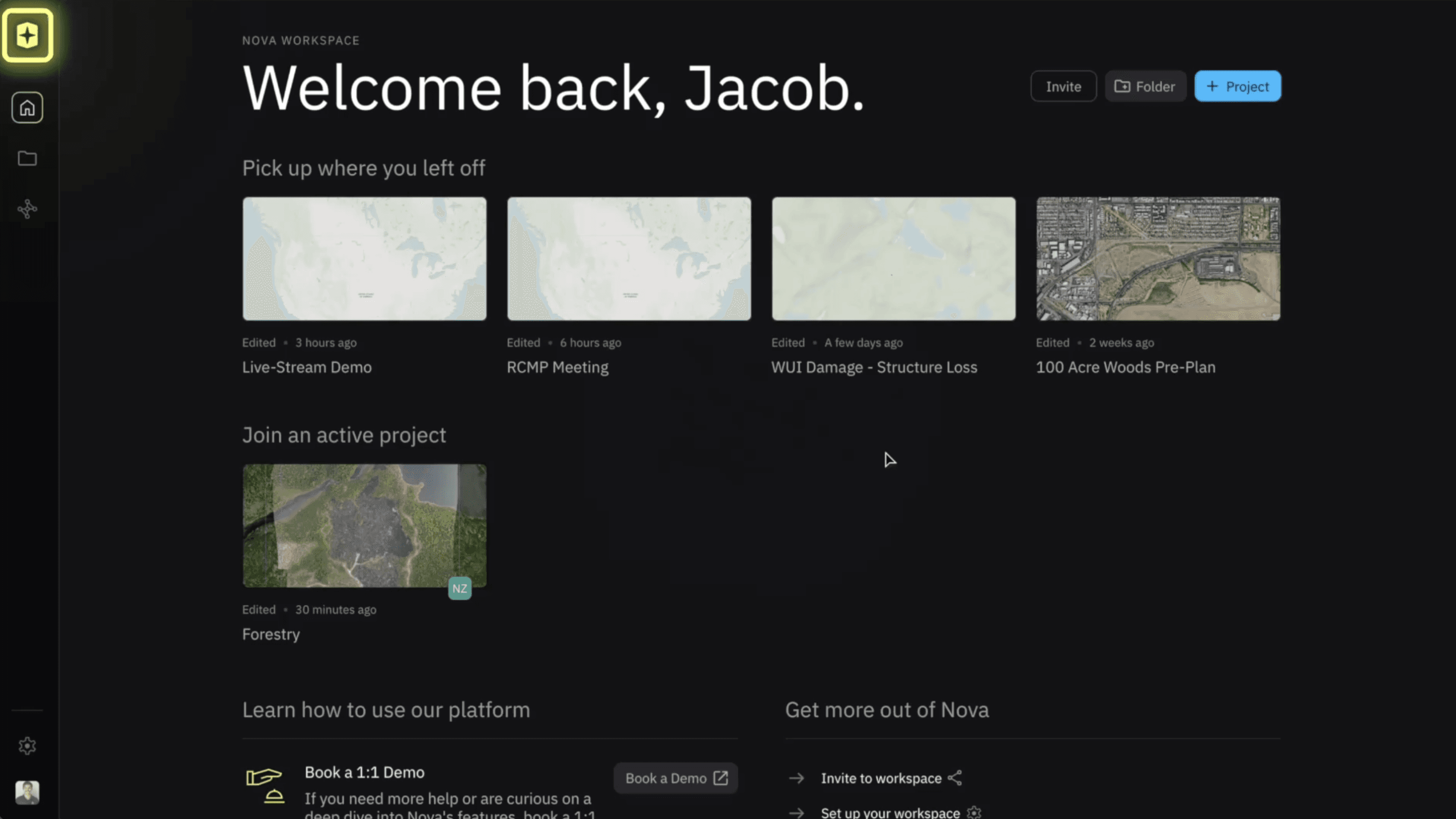
One of the most common points of confusion when getting started with Nova is workspace navigation, and it makes sense why. Nova, Aircast, and the OCA app all have their own workspace selectors, and if you're in the wrong one, your data won't end up where you expect it.
In this Just Ask Jake, we're breaking down workspace management across all three platforms so your team always knows exactly where their data is going.
In this JAJ, we'll cover:
Selecting and navigating workspaces in Nova
Managing workspaces and projects in Aircast
Navigating the OCA workspace
Why It Matters
Workspaces are the foundation of how Nova is organized. They contain folders and projects, which is where all of your high-resolution drone data lives from orthomosaics, livestreams, panoramas, and more. When data ends up in the wrong workspace or project, it creates friction: your team loses time searching for files, sharing slows down, and critical information can get missed when it matters most.
Getting workspace selection right from the start keeps everything organized and accessible.
Nova Workspace Management
Step 1: Access Your Workspaces
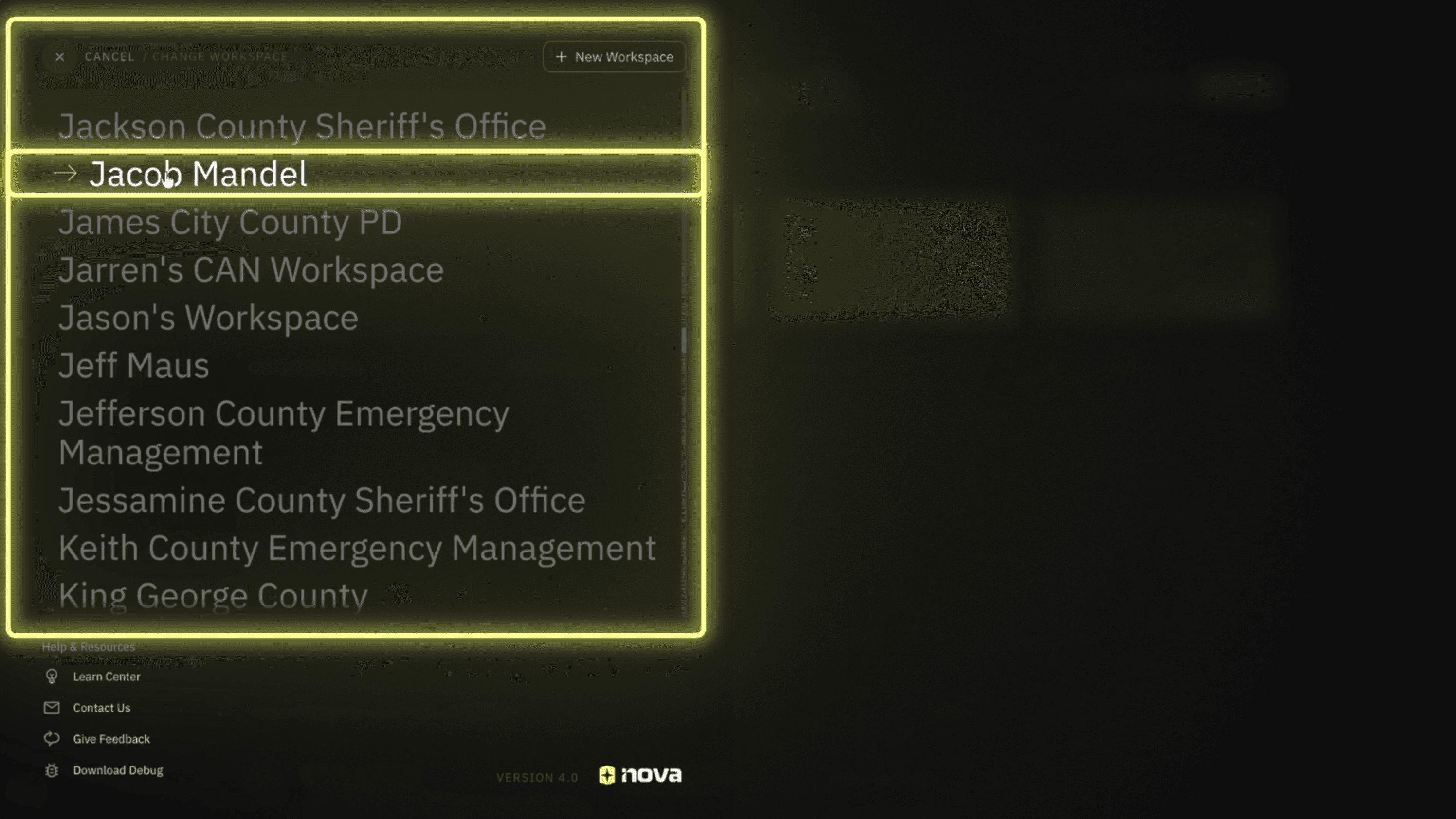
After logging into Nova, look for the Nova icon in the top-left corner of the screen. Click it to open a list of all workspaces you've been invited to.
This typically includes:
Your department or organization's workspace
Your personal workspace
Any additional workspaces you've been added to
Step 2: Navigate Folders and Projects
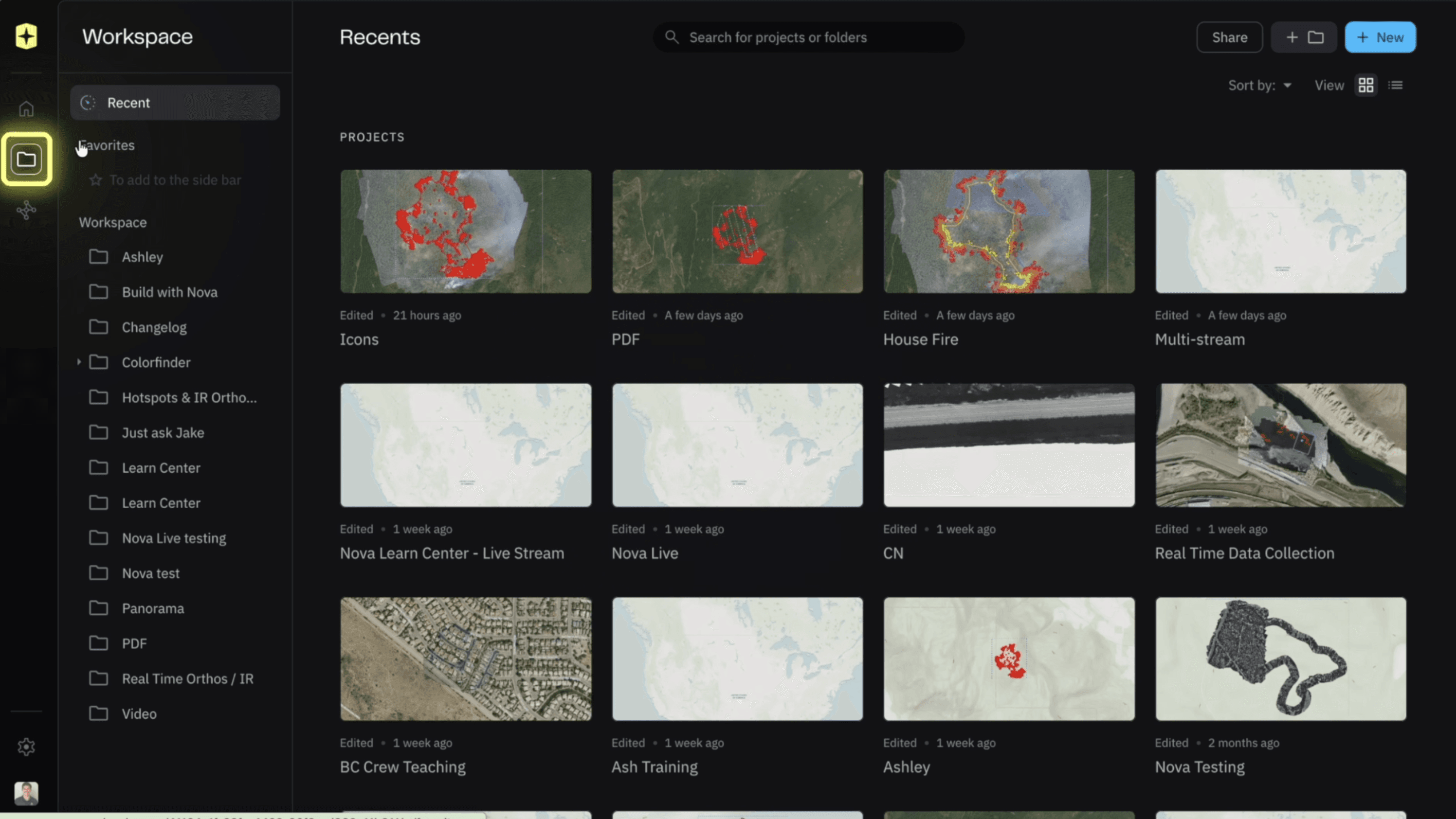
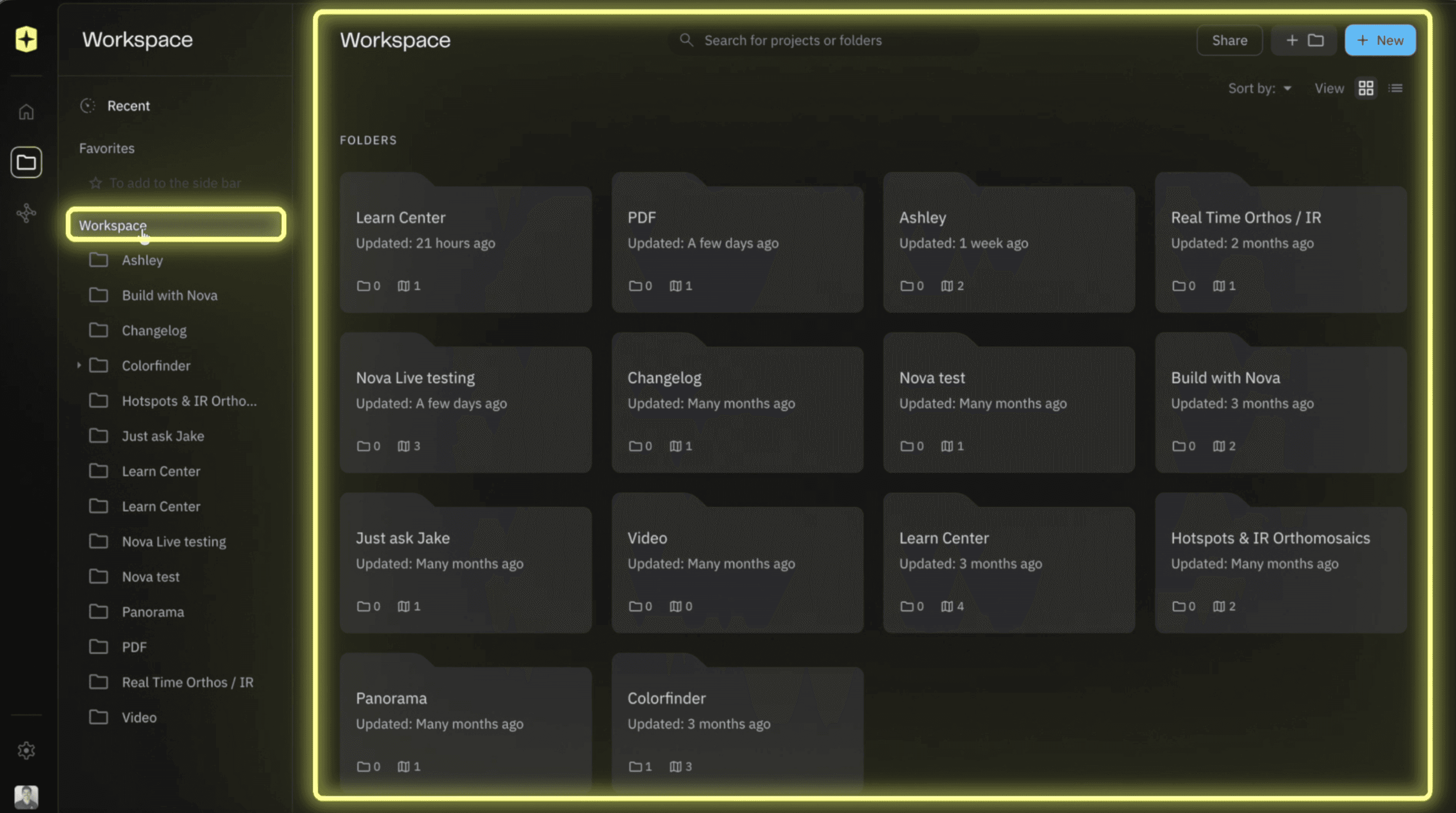
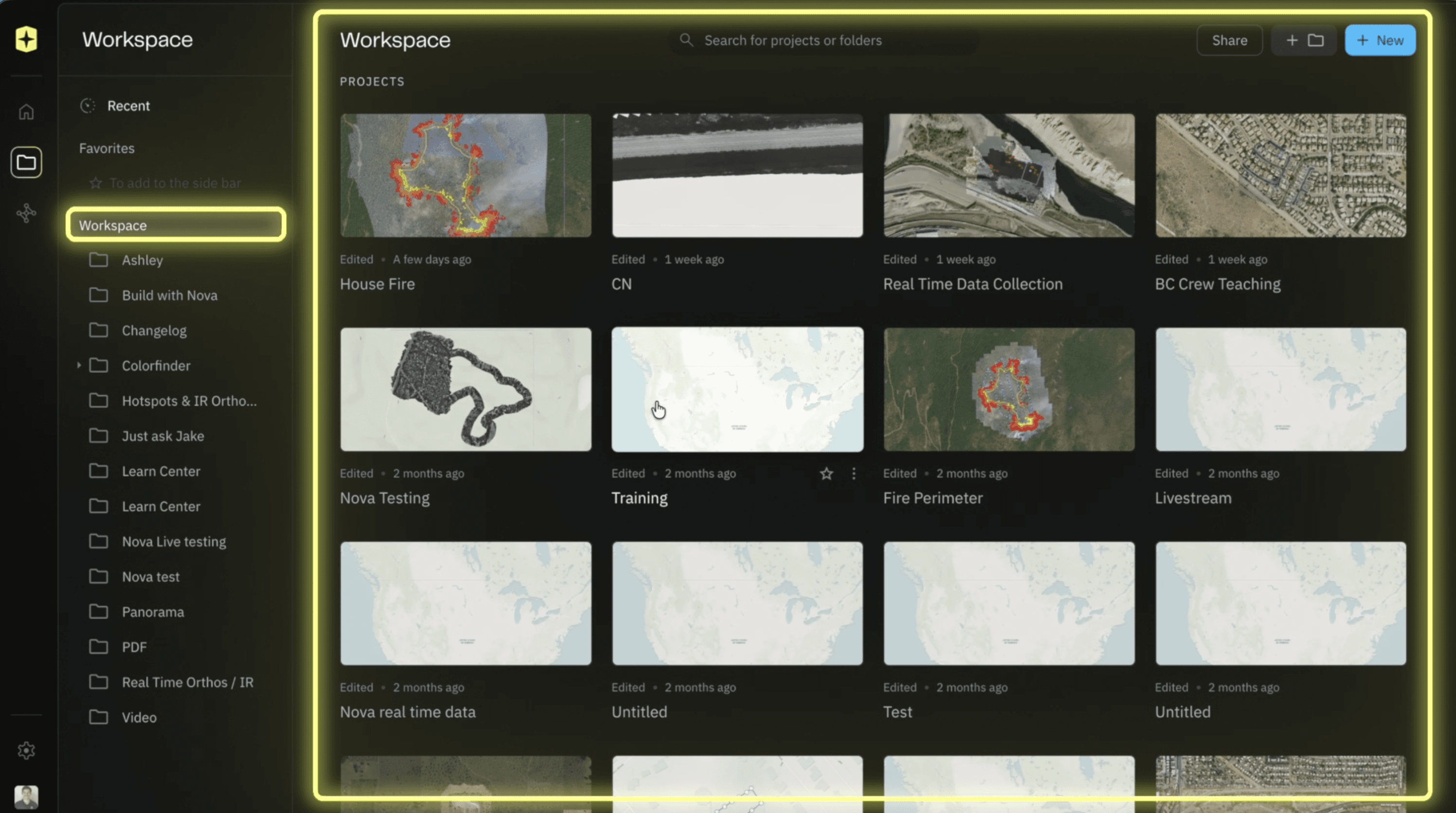
Once you've selected your desired workspace, click the Folder icon on the left-hand sidebar. This is where all of your workspace's folders and projects are stored.
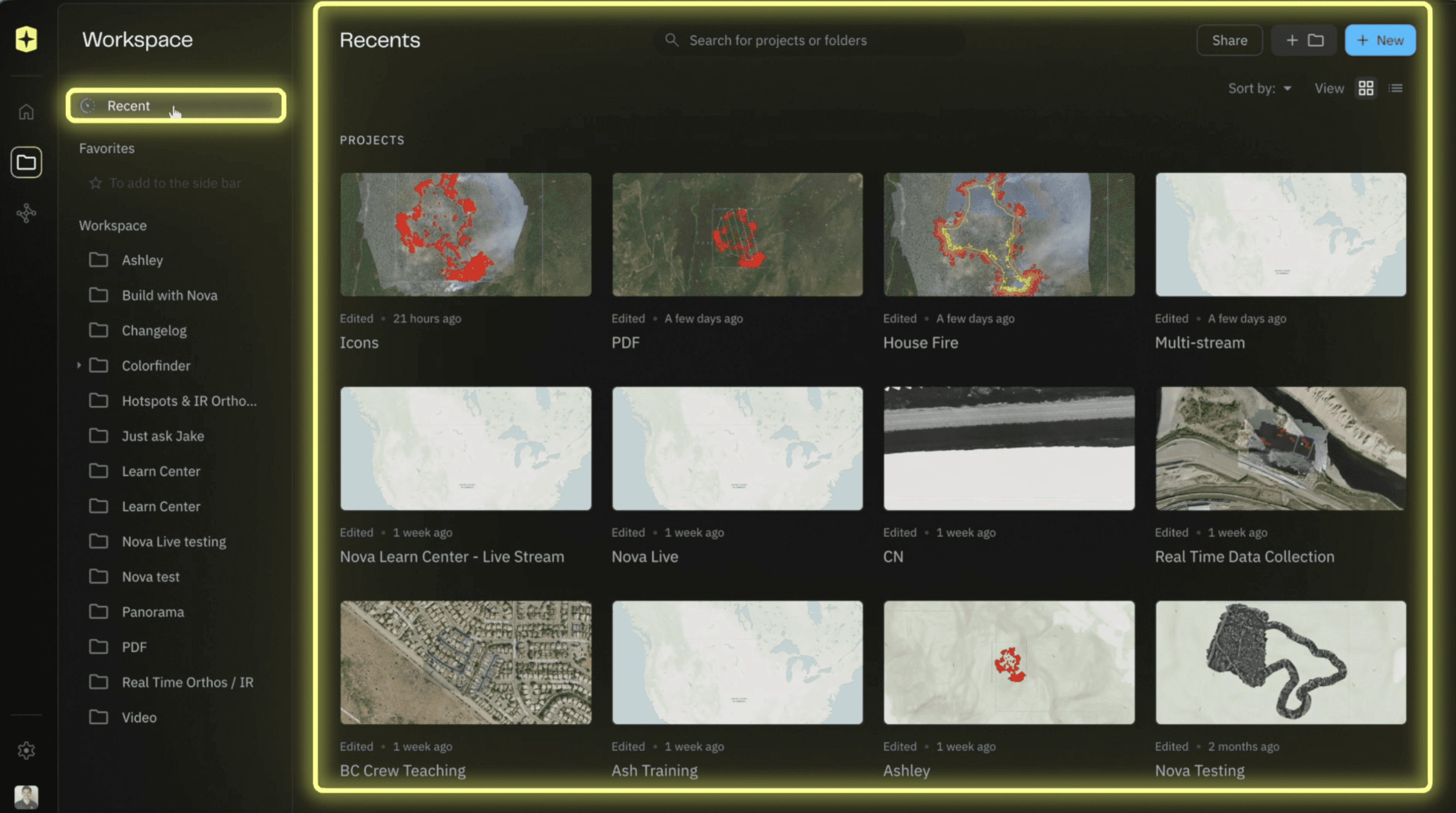
The first view you'll see is the Recent tab, which shows the projects you've been working in most recently which is a quick way to jump back into active missions.
To browse everything, select your workspace name with the blue arrow. This expands a full alphabetical list of all folders and projects for easy navigation.
Tip: If you're not seeing the data you're looking for, double-check that you're in the right workspace first. This is the most common culprit.
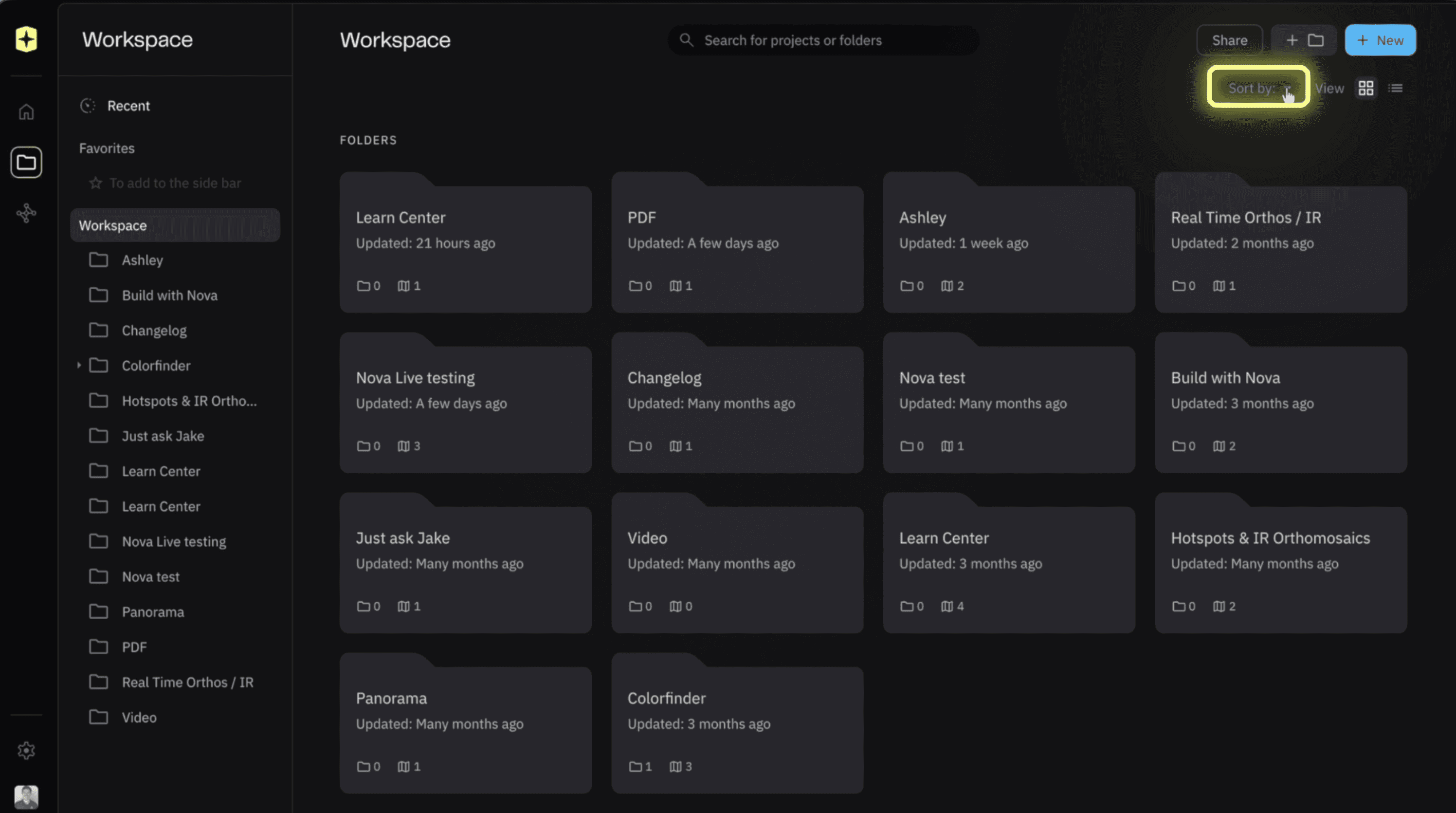
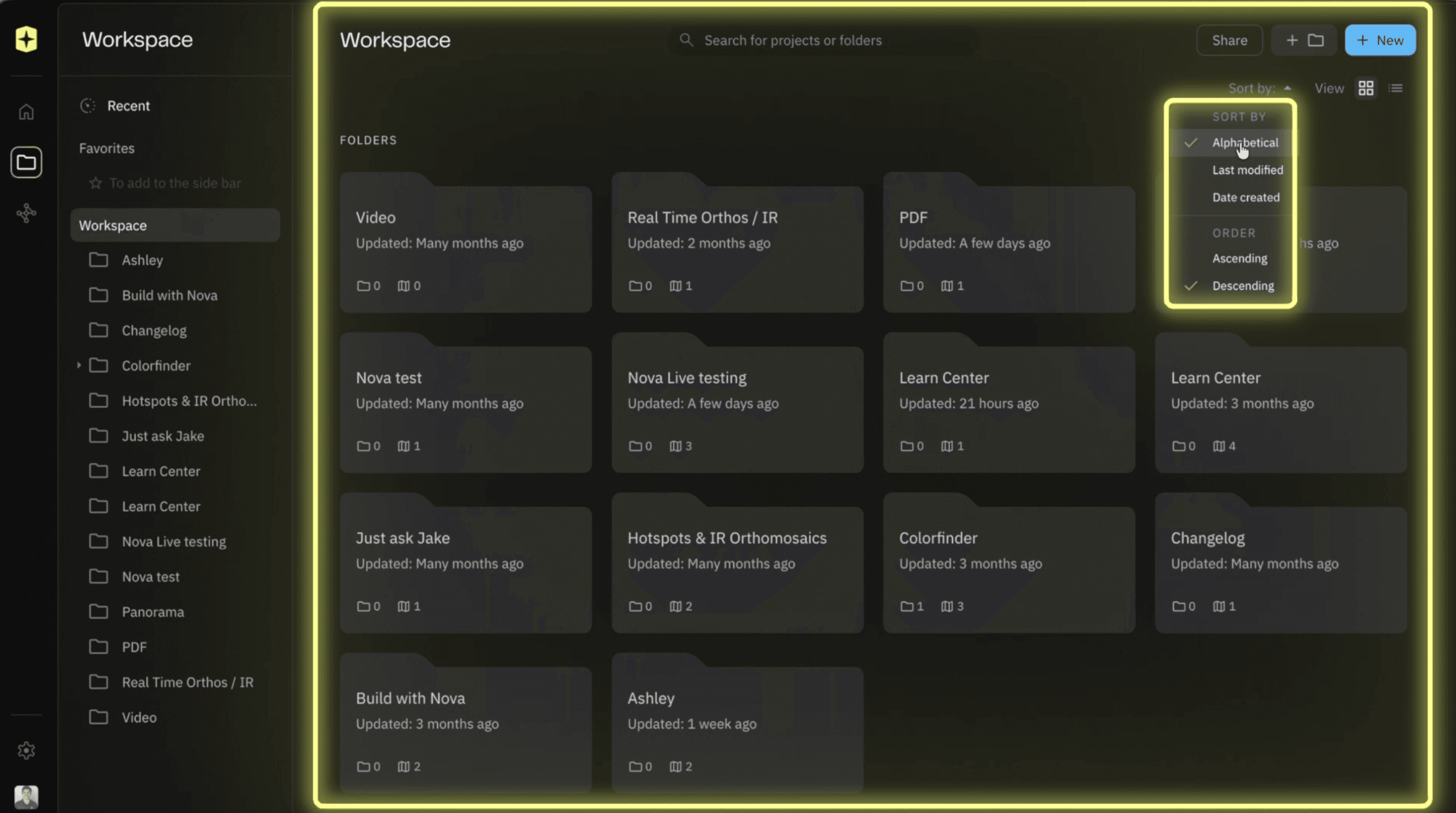
Step 3: Sort By
You can customize the worksapce layout by selcting Sort by then Selecting Alphabtical to organize all project further
Aircast Workspace and Project Management
Step 1: Check Your Workspace Before Starting
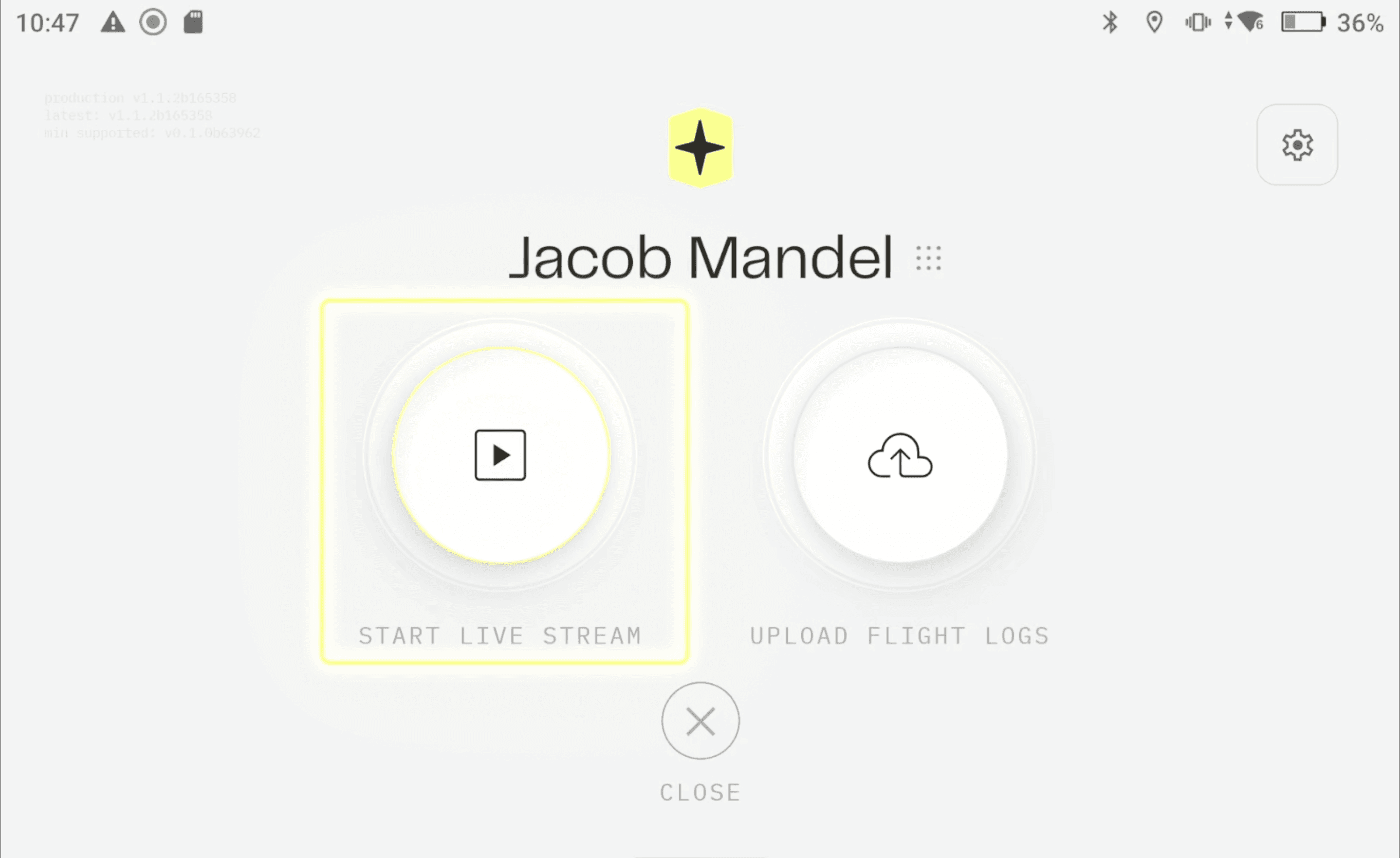
After downloading and opening Aircast, look directly above the Start button, that's where your currently selected workspace is displayed.
Important: Aircast defaults to your personal workspace. If you're planning to stream into your organization's workspace, you'll need to switch it before you begin.
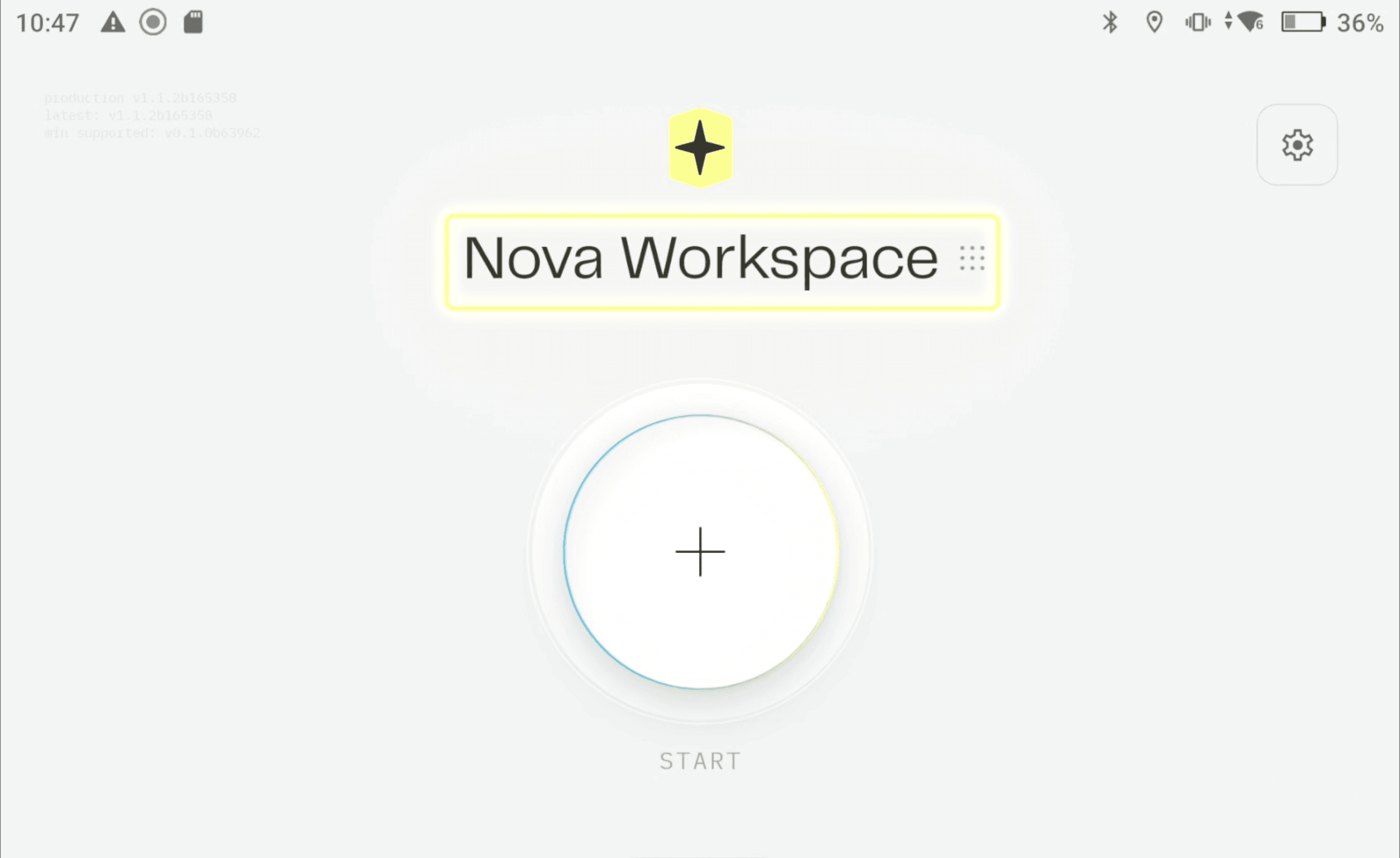
Step 2: Select Your Workspace
Click the workspace name above the Start button to see all available workspaces and select the correct one.
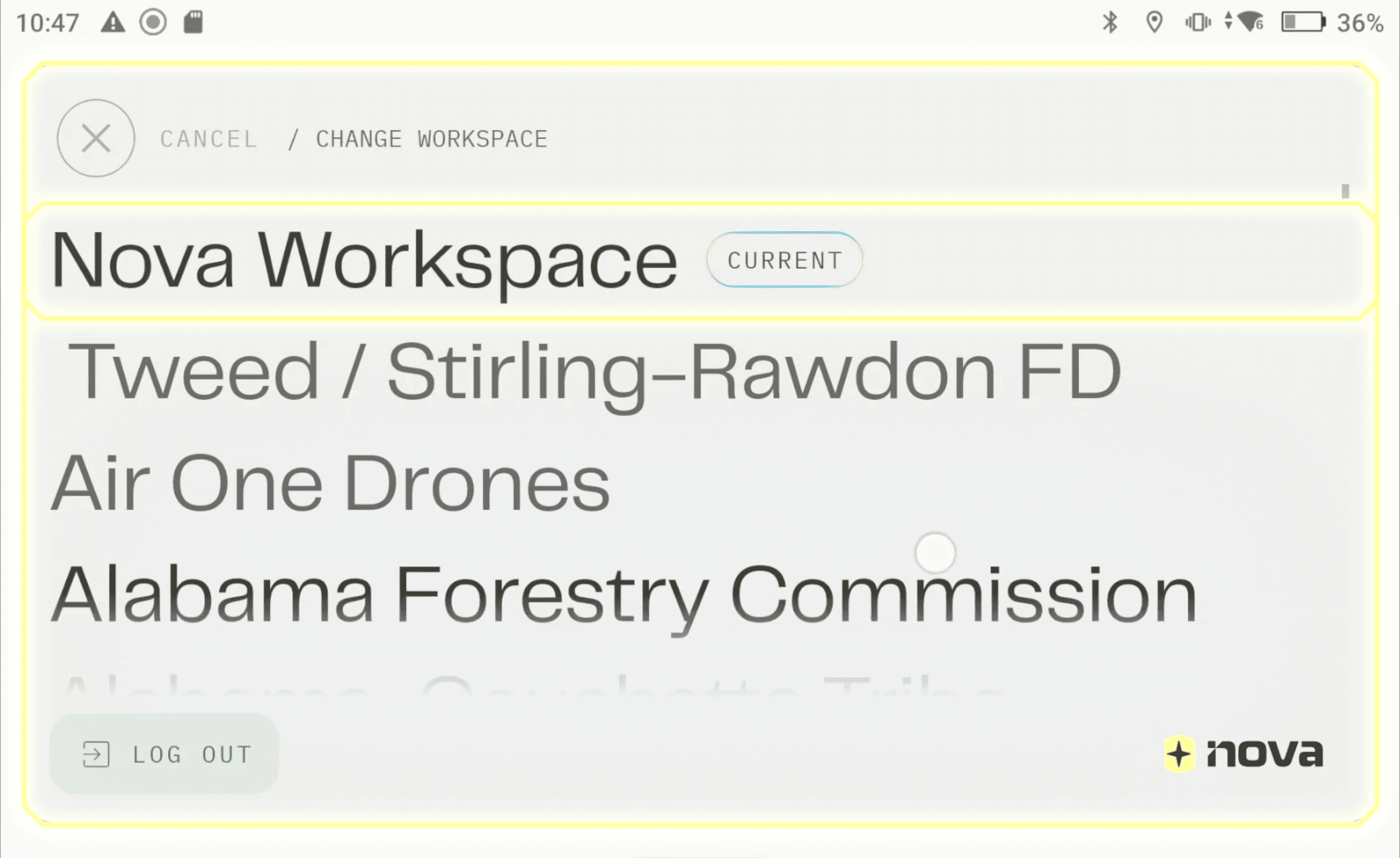
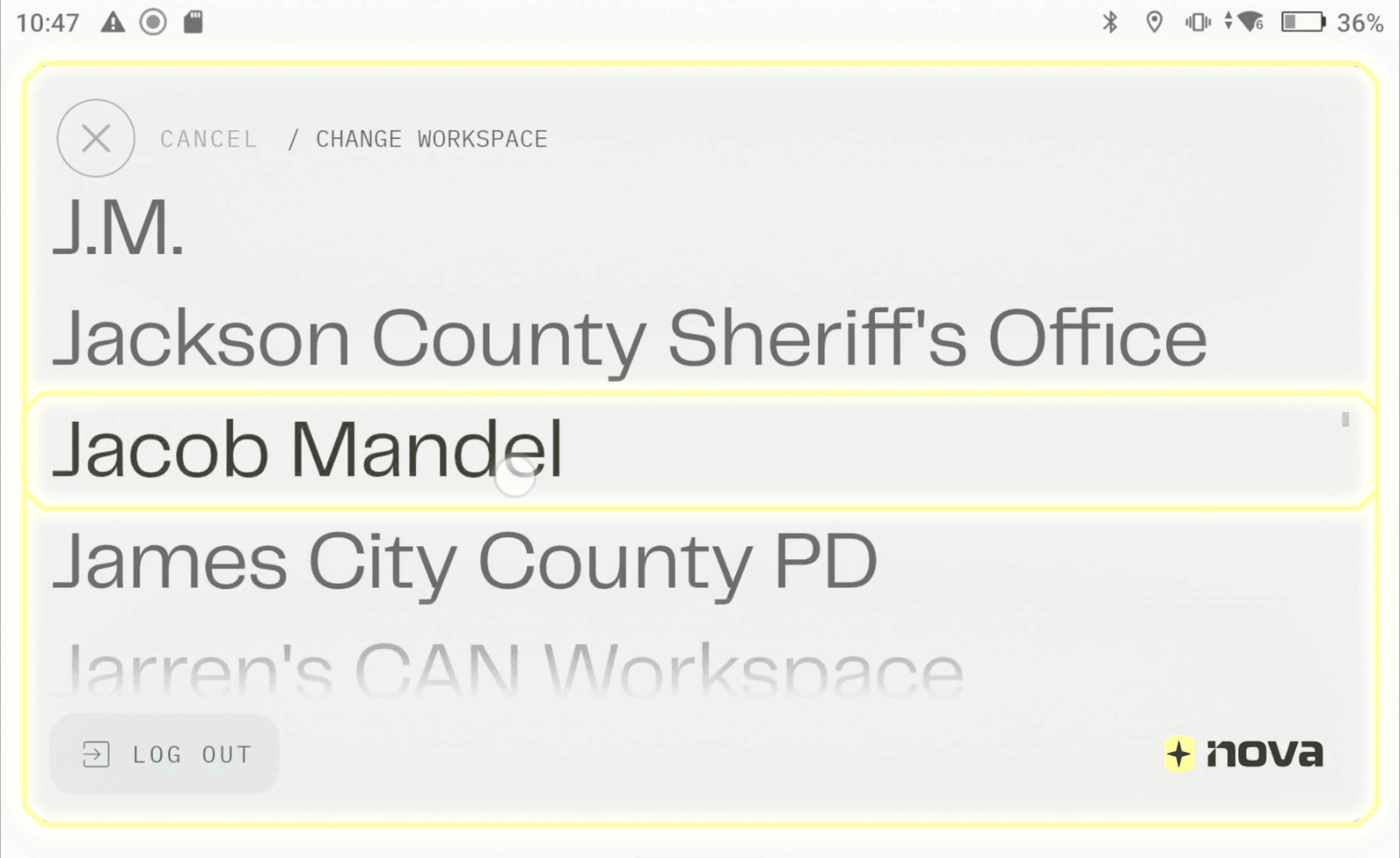
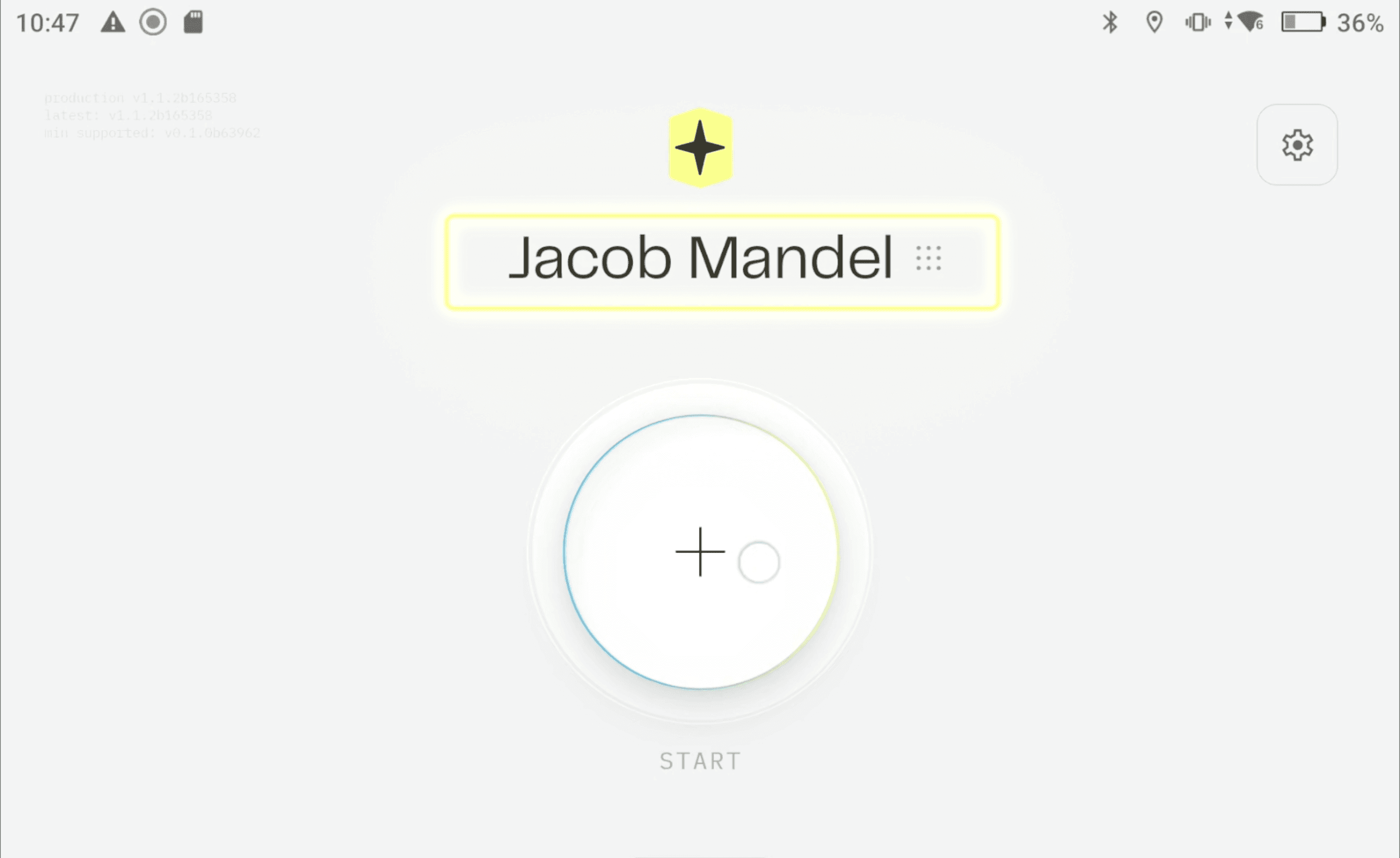
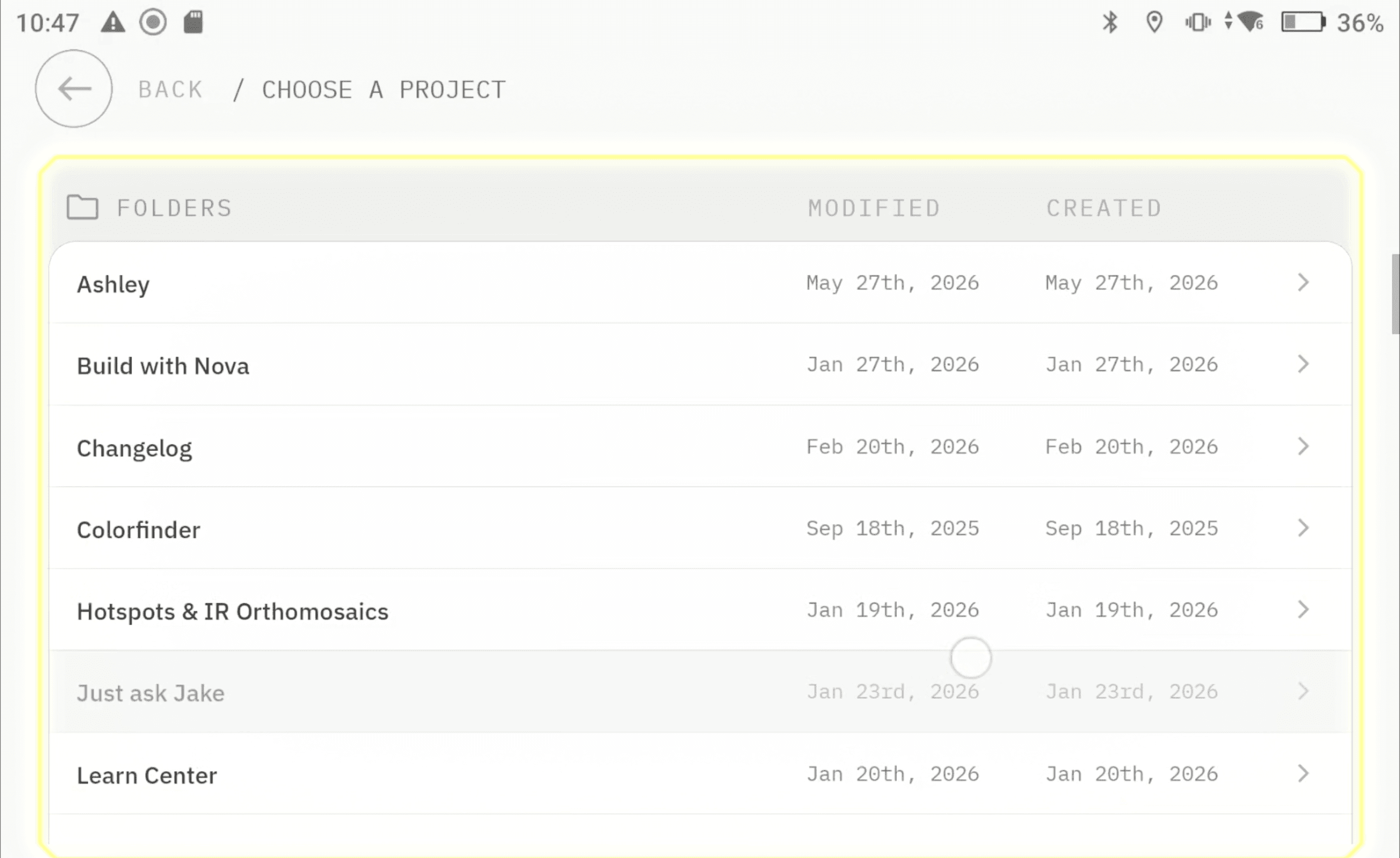
Step 3: Live stream & Choose Your Project
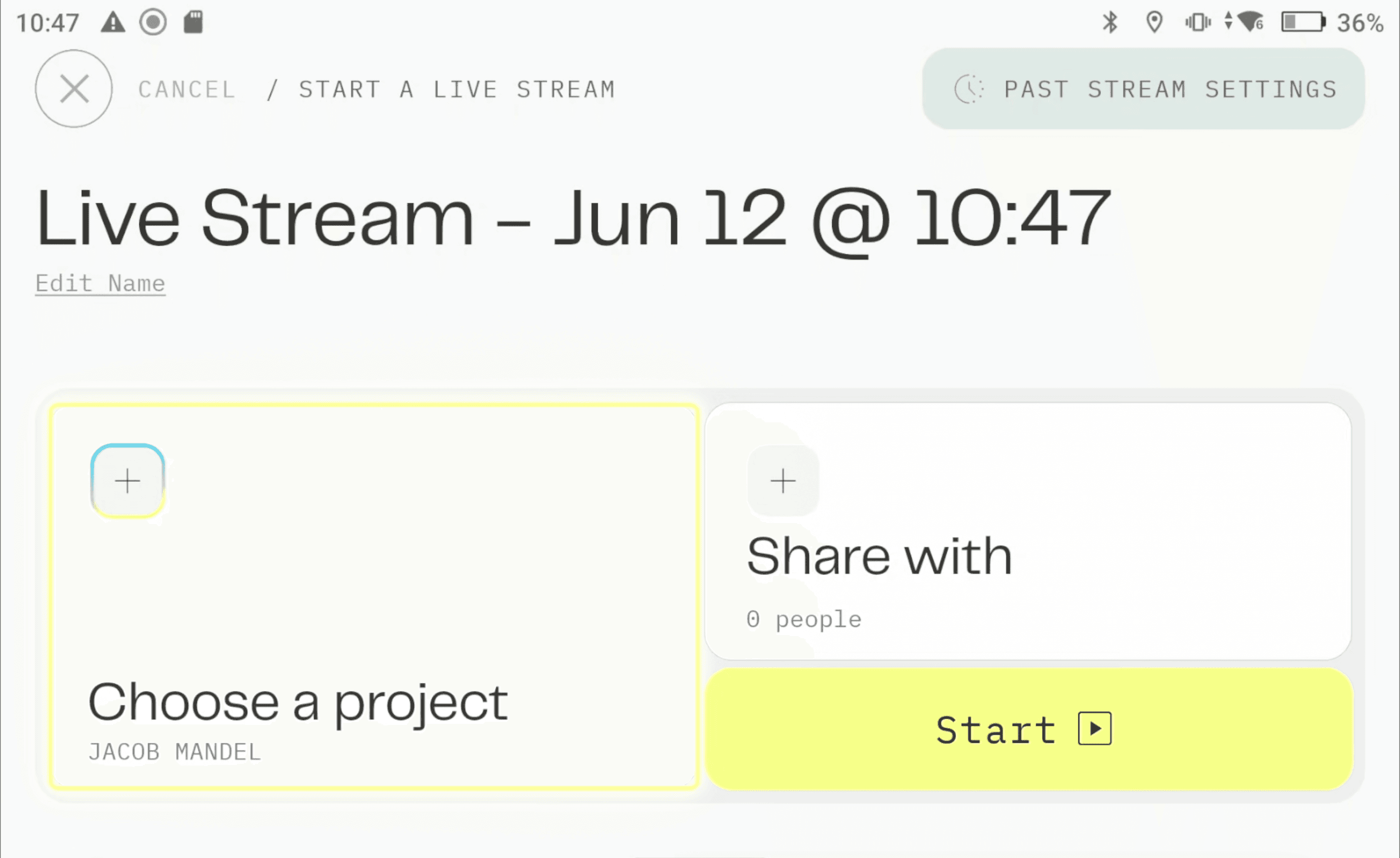
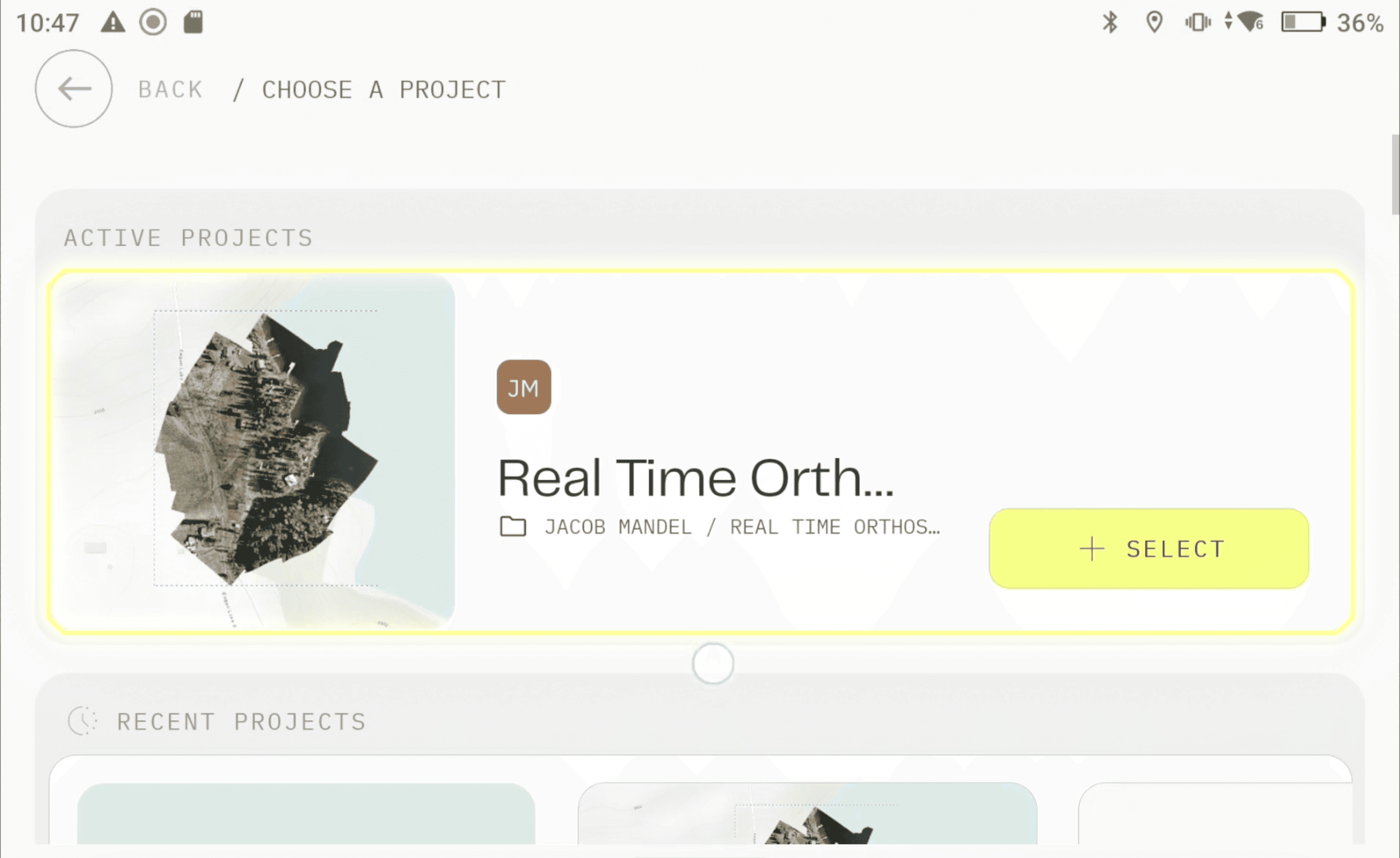
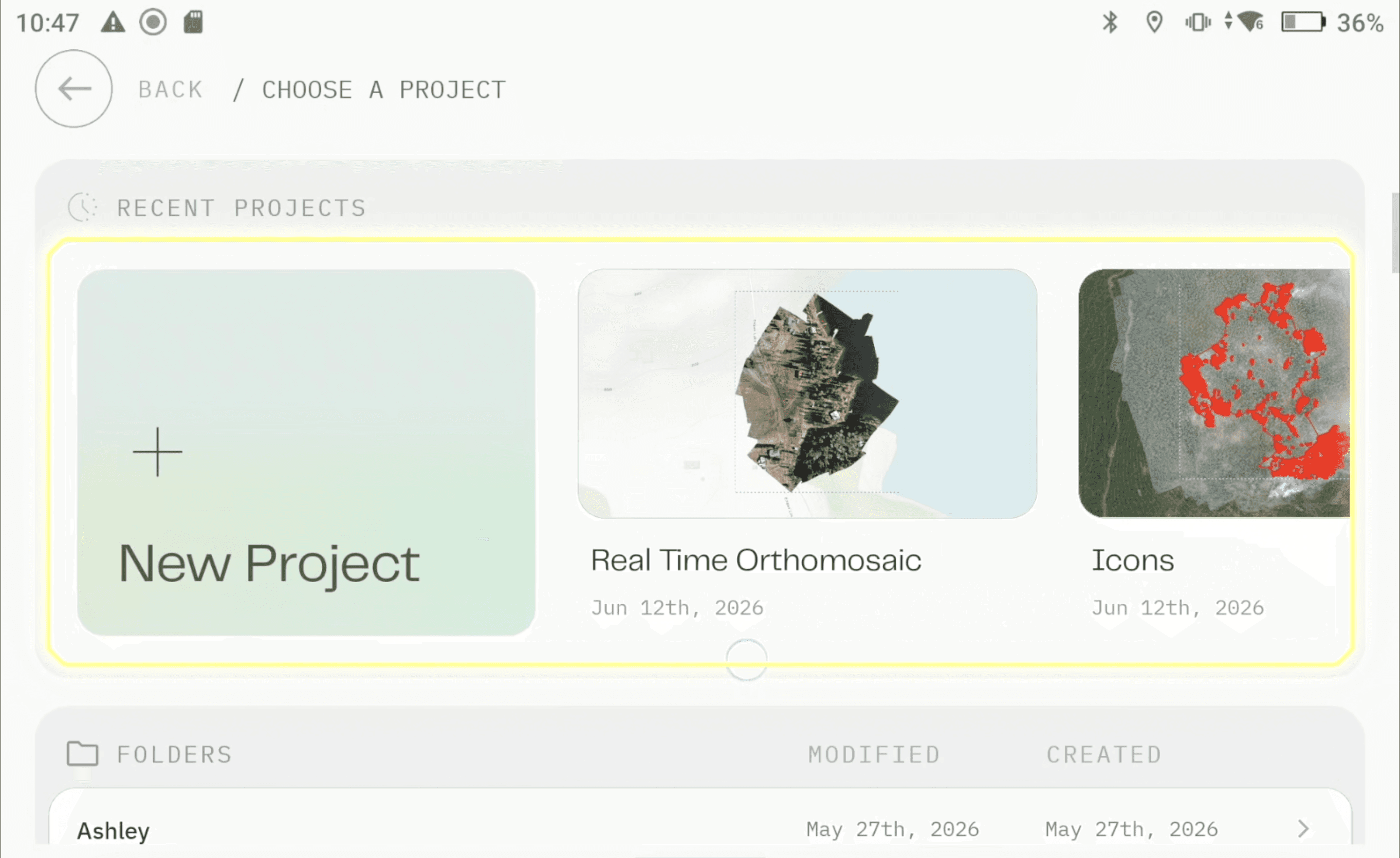
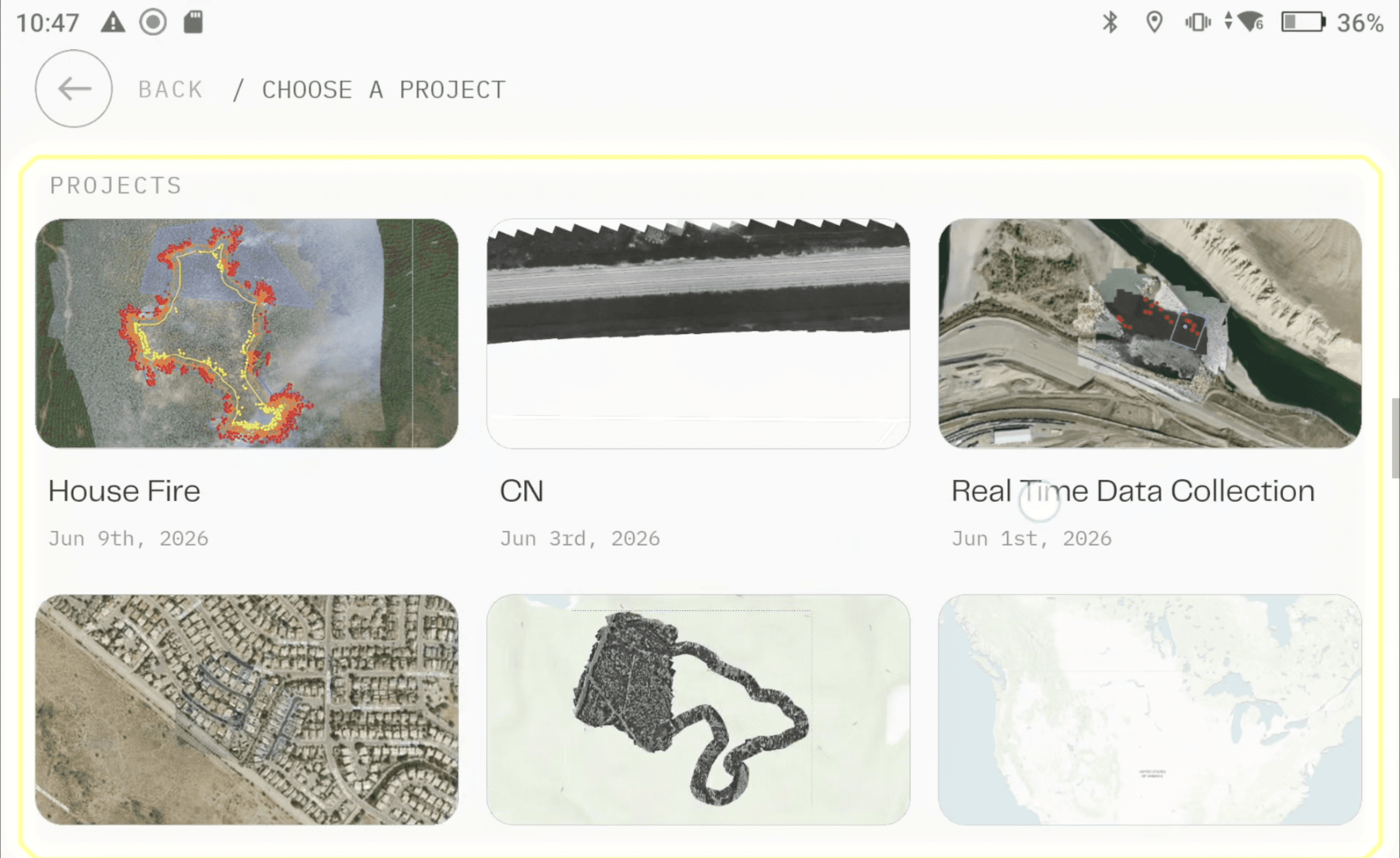
Click Start, and on the left-hand side of your screen you'll see a box that says Choose Project. Select the project where you want your livestream data to be hosted.
Getting this right before you start is key because once a stream is live, it's tied to the workspace and project you selected at launch.
Step 4: Start Your Livestream
With the right workspace and project selected, hit Start to begin your livestream. Your live data will automatically be embedded into that project.
Tip: Make it a habit to confirm your workspace and project before every flight. It takes five seconds and saves a lot of headaches later.
OCA Workspace Navigation
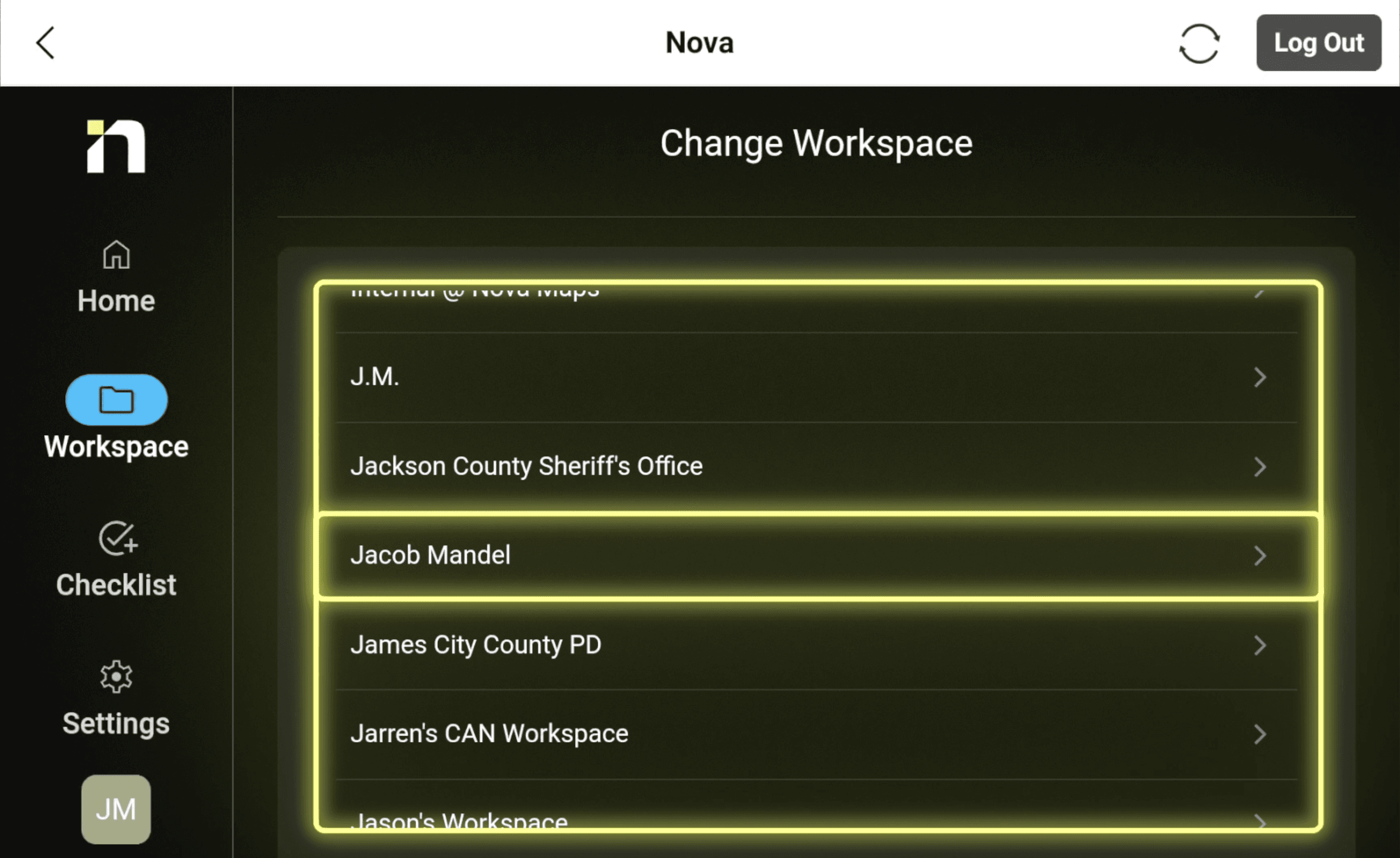
Step 1: Select Your Workspace
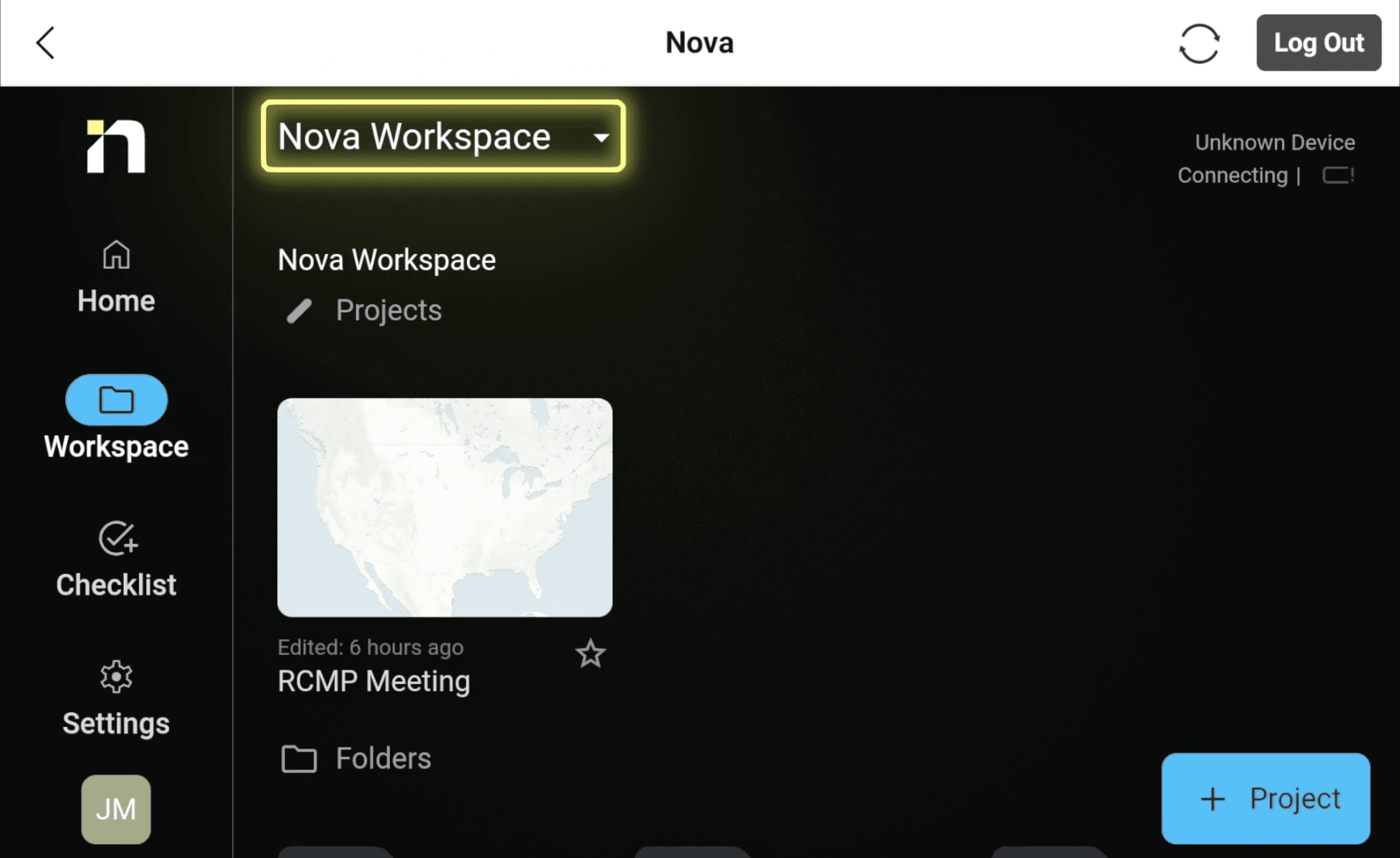
After logging into the Nova OCA and reaching the home screen, look in the top-left corner for your workspace name with a small dropdown arrow. Click it to switch to the correct workspace for your data capture session.
Step 2: Choose Your Folder and Project
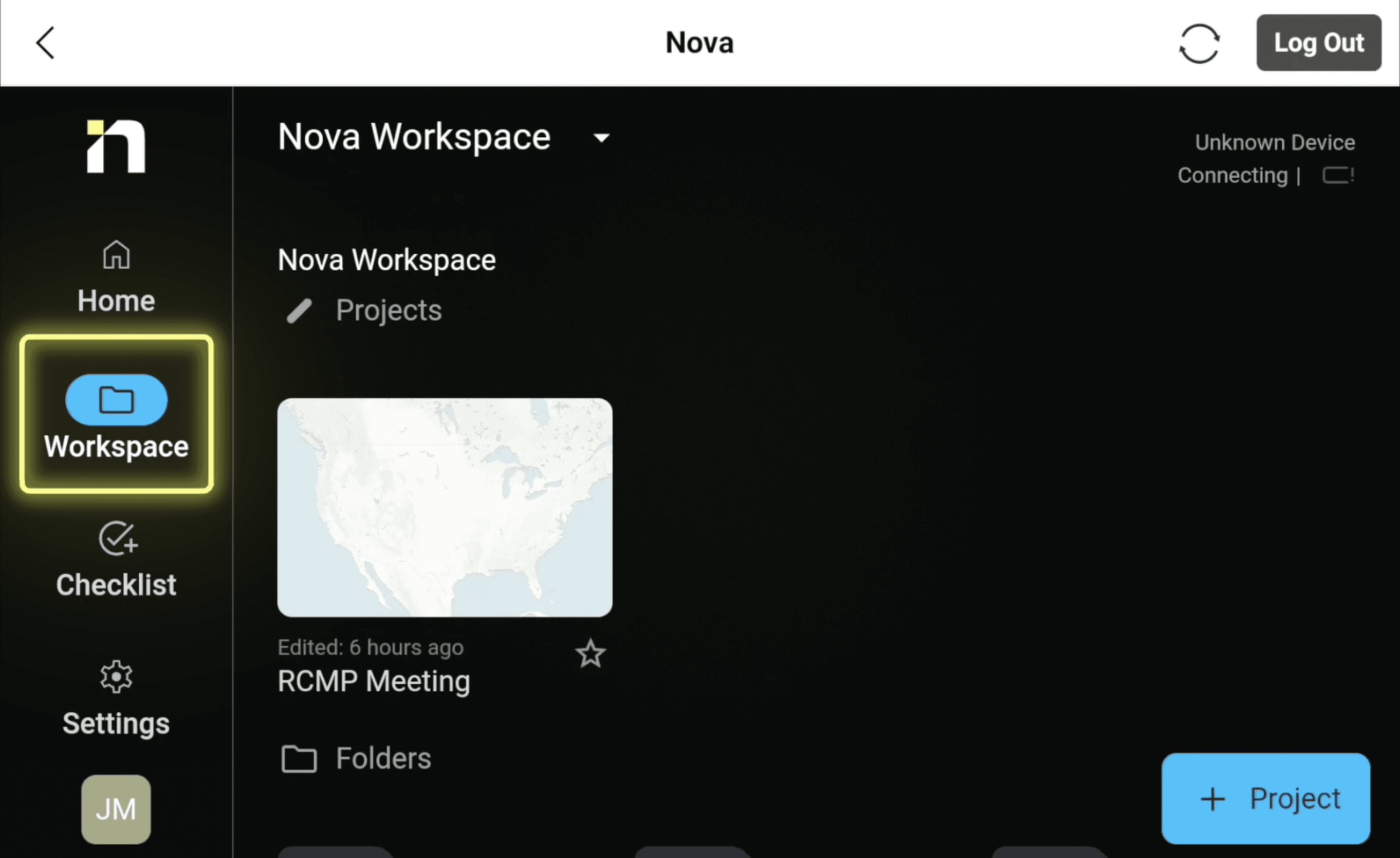
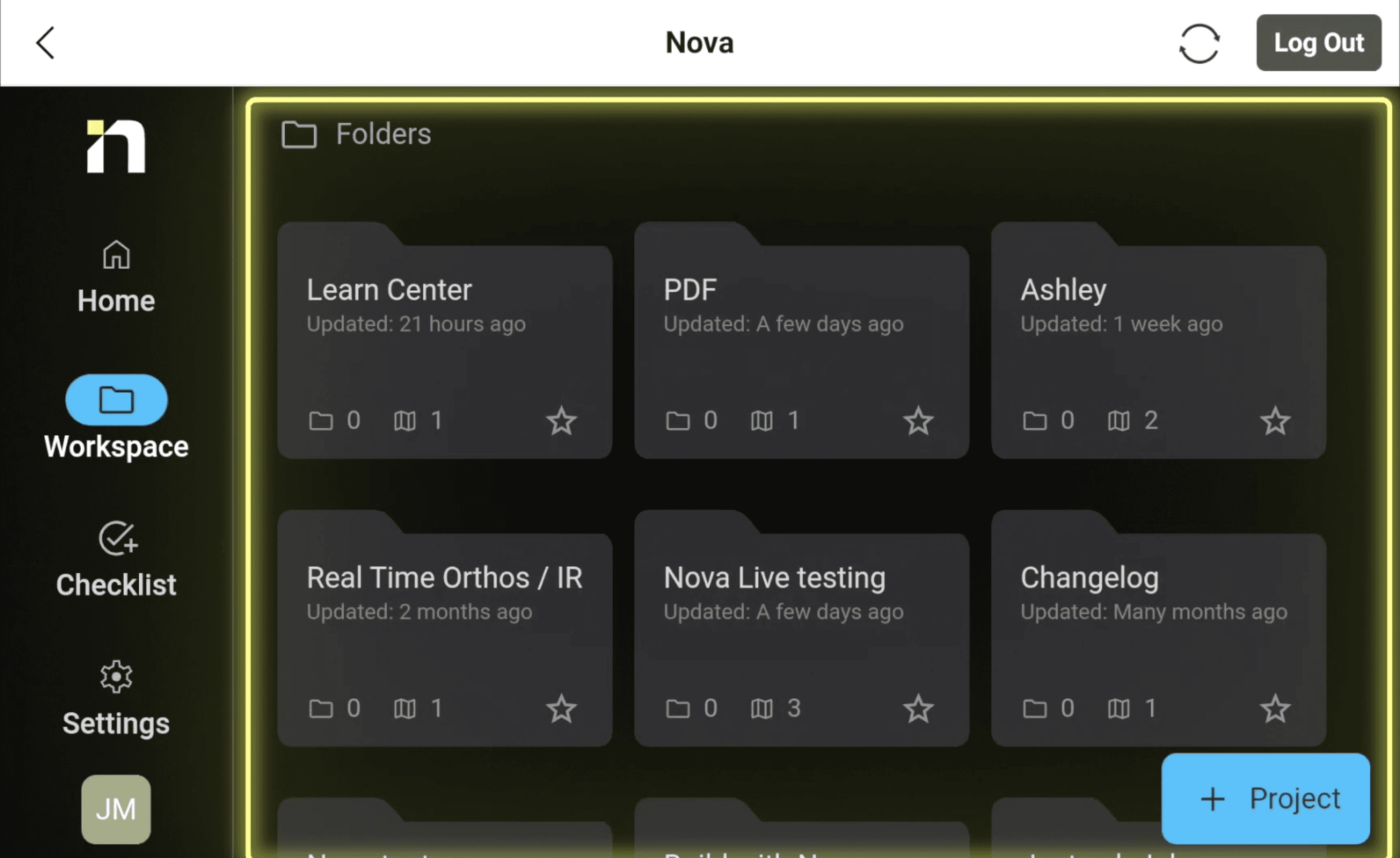
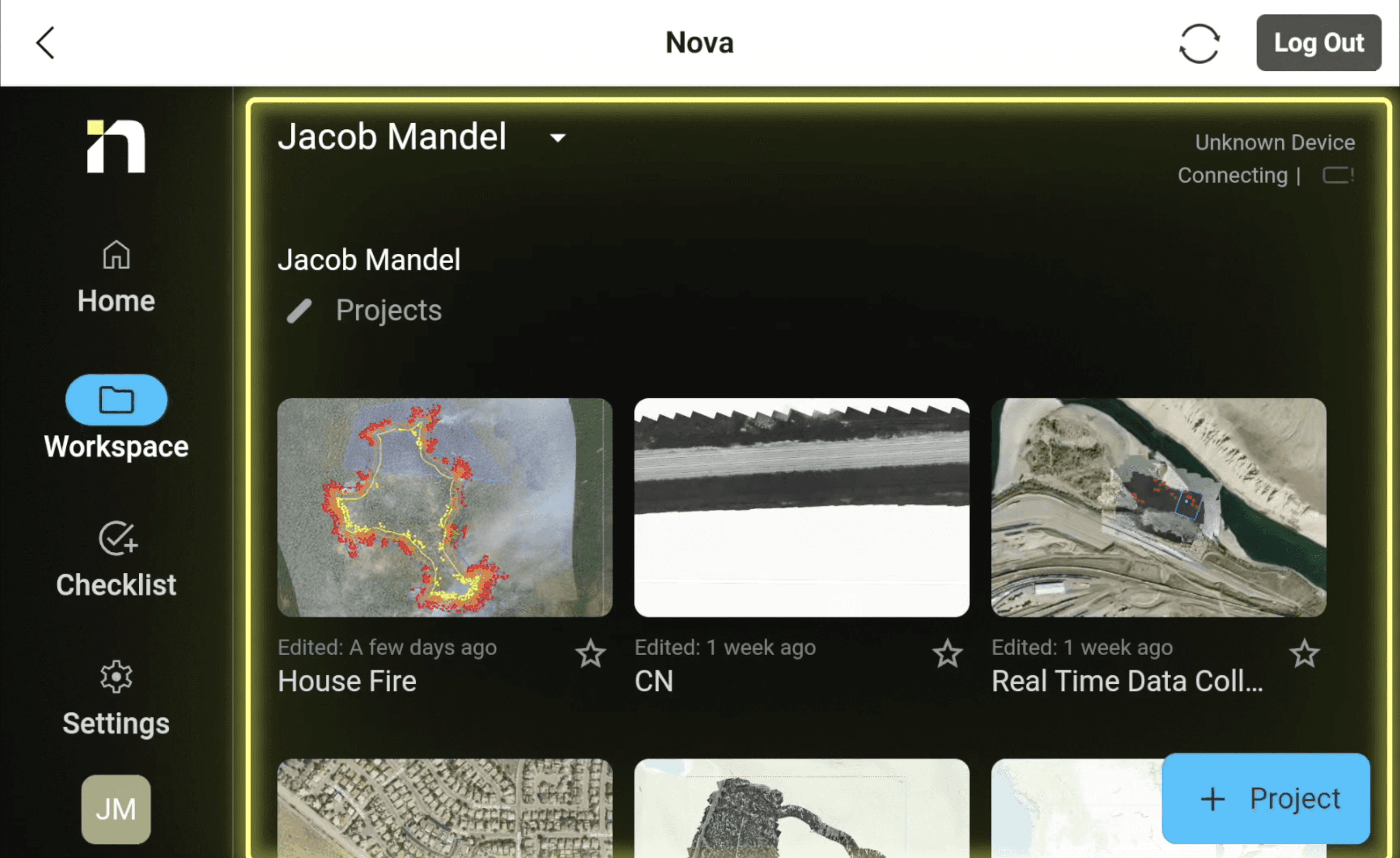
On the left-hand side of the screen, click the Folder icon to browse your available folders and projects. Select the project where you want your real-time data capture or livestream to be stored.
Once that's set, you're ready to begin your session with confidence that your data is going exactly where it needs to go.
Final Thoughts
Workspace management isn't the most glamorous part of Nova, but it's one of the most important. Knowing how to navigate workspaces in Nova, Aircast, and the OCA means your data is always organized, always findable, and always ready to share when it counts.
A quick workspace check before every operation is one of the simplest habits your team can build and one of the most valuable.
Have a question you'd like featured in a future Just Ask Jake? Let us know, and we may cover it in an upcoming edition.
Start for free today.
Craft the future. Respond to the present.