Back to blog
Tips and Tricks
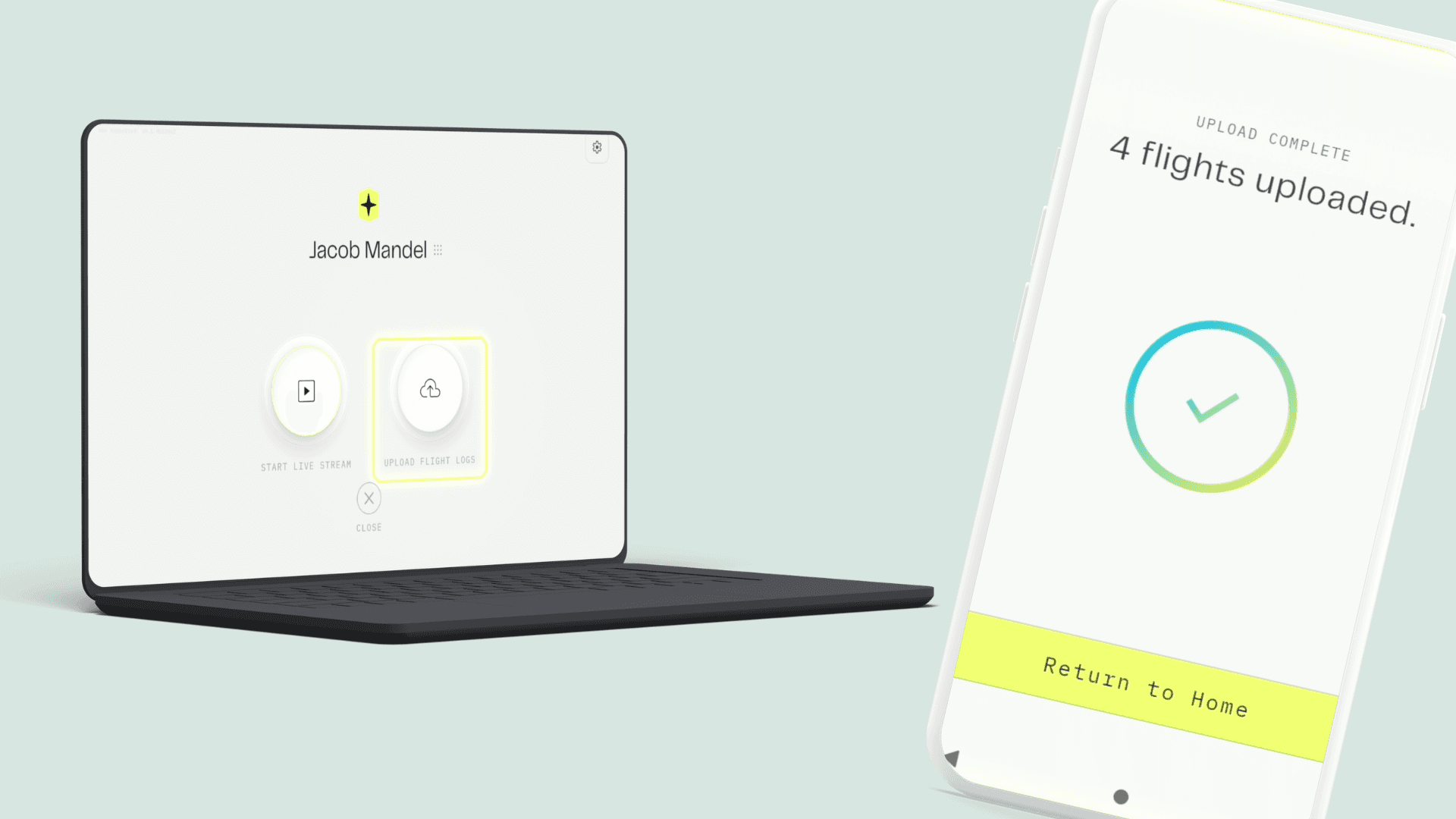
One of the most common questions I've been asked recently is:
"How do I import my flight logs into Nova?"
The good news is that Nova makes it incredibly simple. Whether you're uploading existing logs through Aircast or connecting your drone platform accounts directly, there are multiple ways to ensure your flight records are automatically synced and tracked.
In today's Just Ask Jake, we'll walk through both methods so you can choose the workflow that works best for your operation.
Option 1: Upload Flight Logs Using Aircast
If you've already downloaded Aircast, follow these steps to import your flight logs into Nova.
Step 1: Sign In to Aircast
Launch Aircast and enter your login credentials.
Before selecting Start, choose the Nova workspace where you'd like your flight logs to be imported.
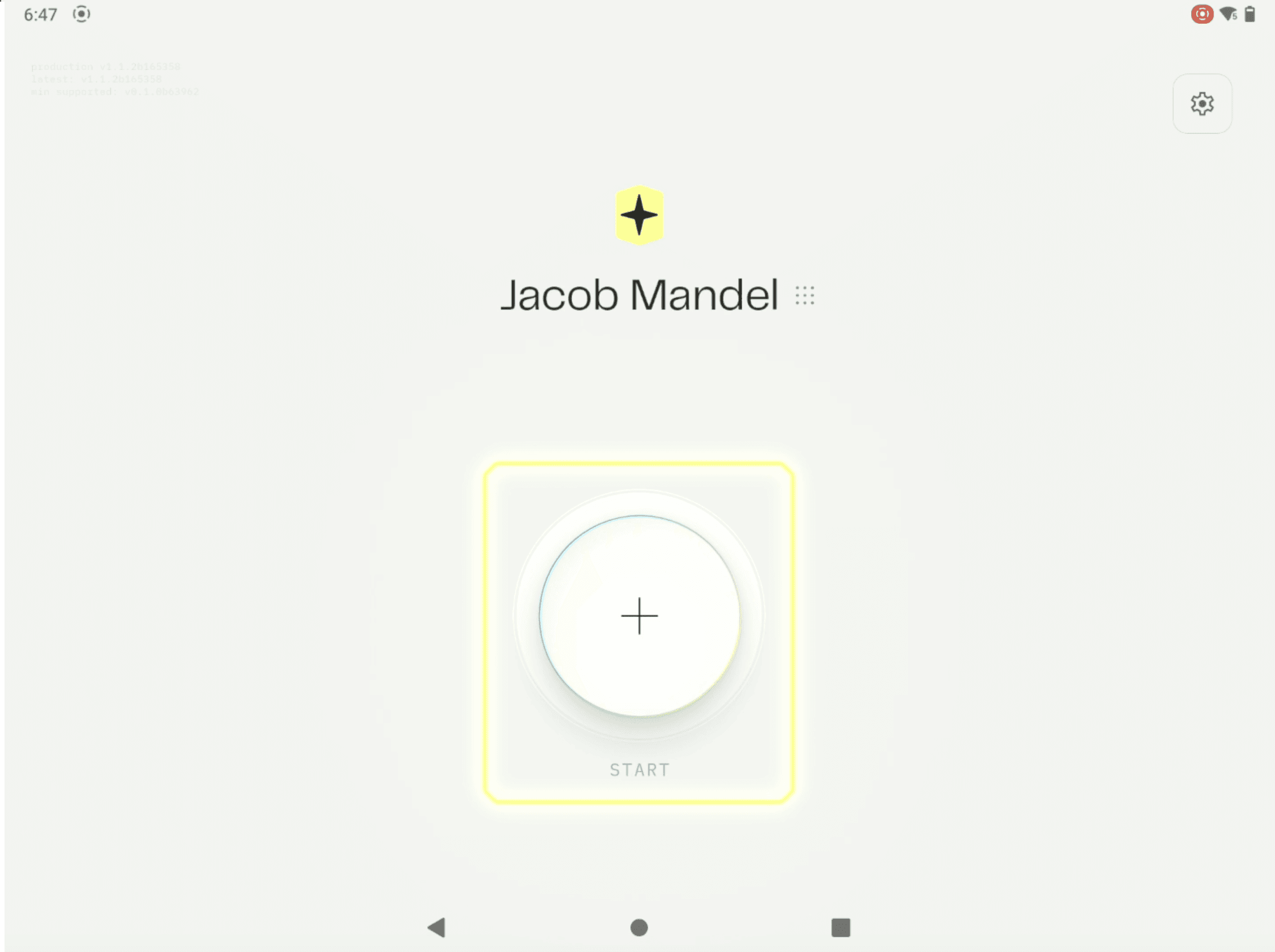
Step 2: Select Upload Flight Logs
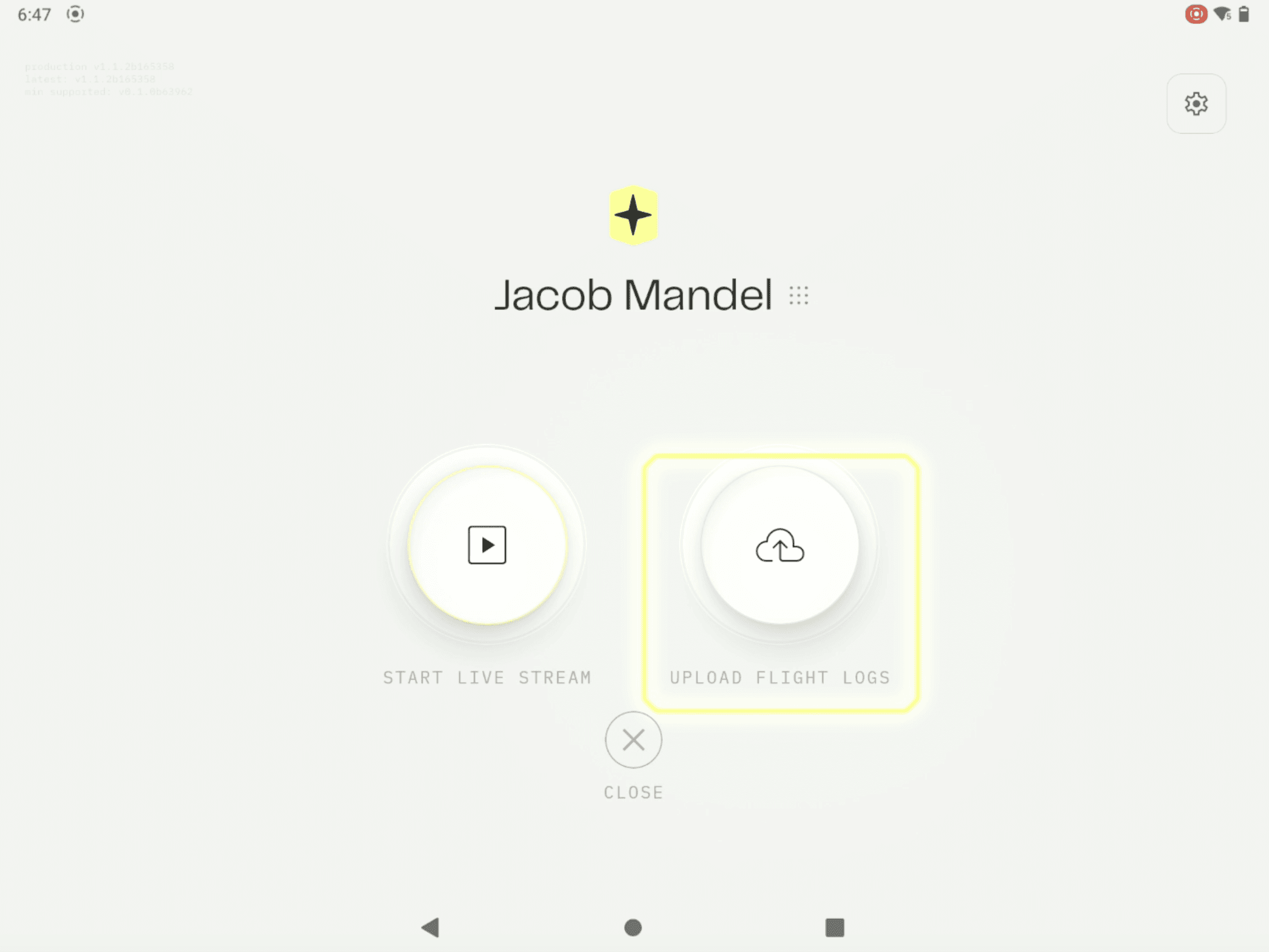
Click Start and you'll be presented with two options:
Start a Live Stream
Upload Flight Logs
Select Upload Flight Logs.
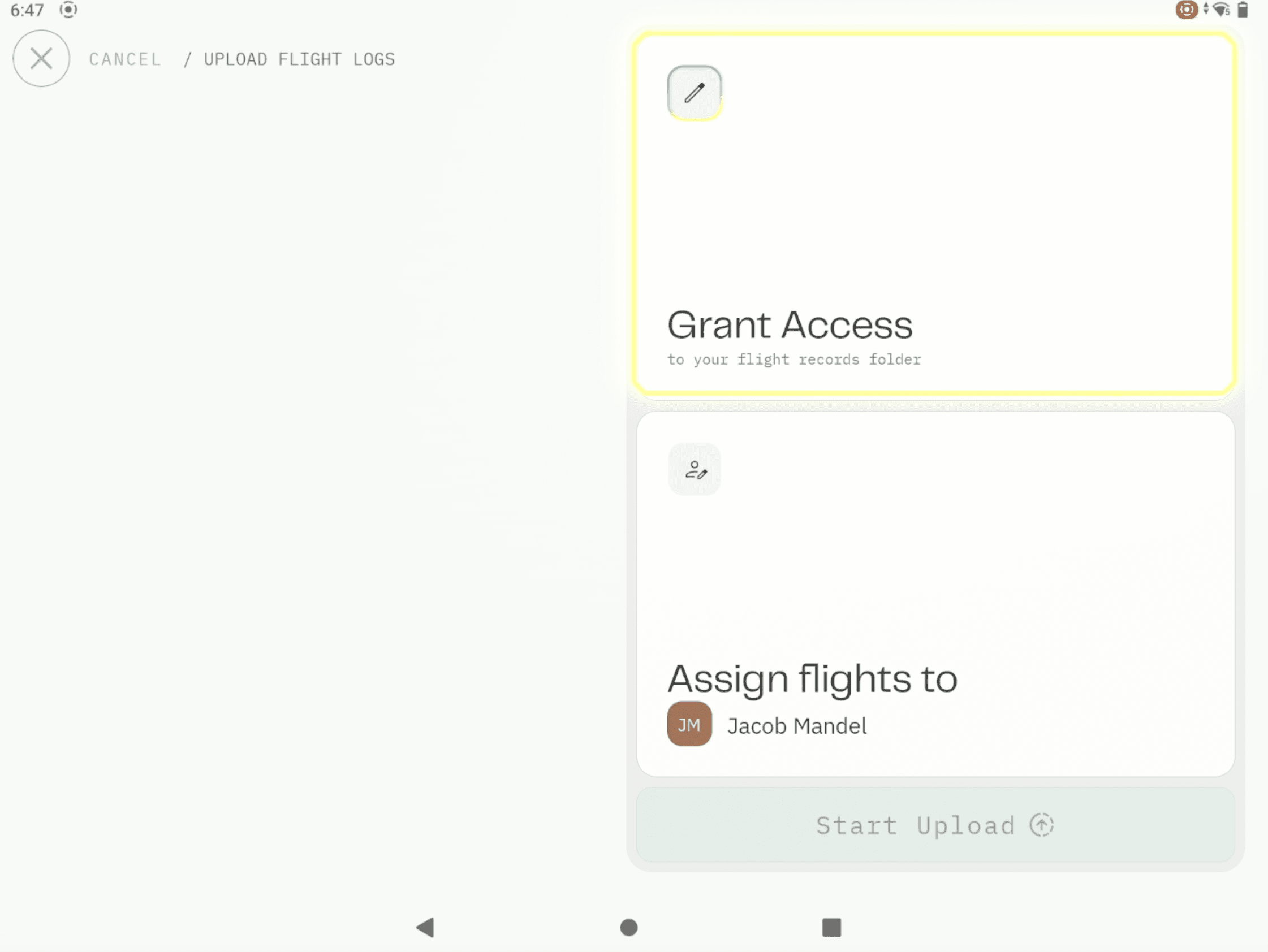
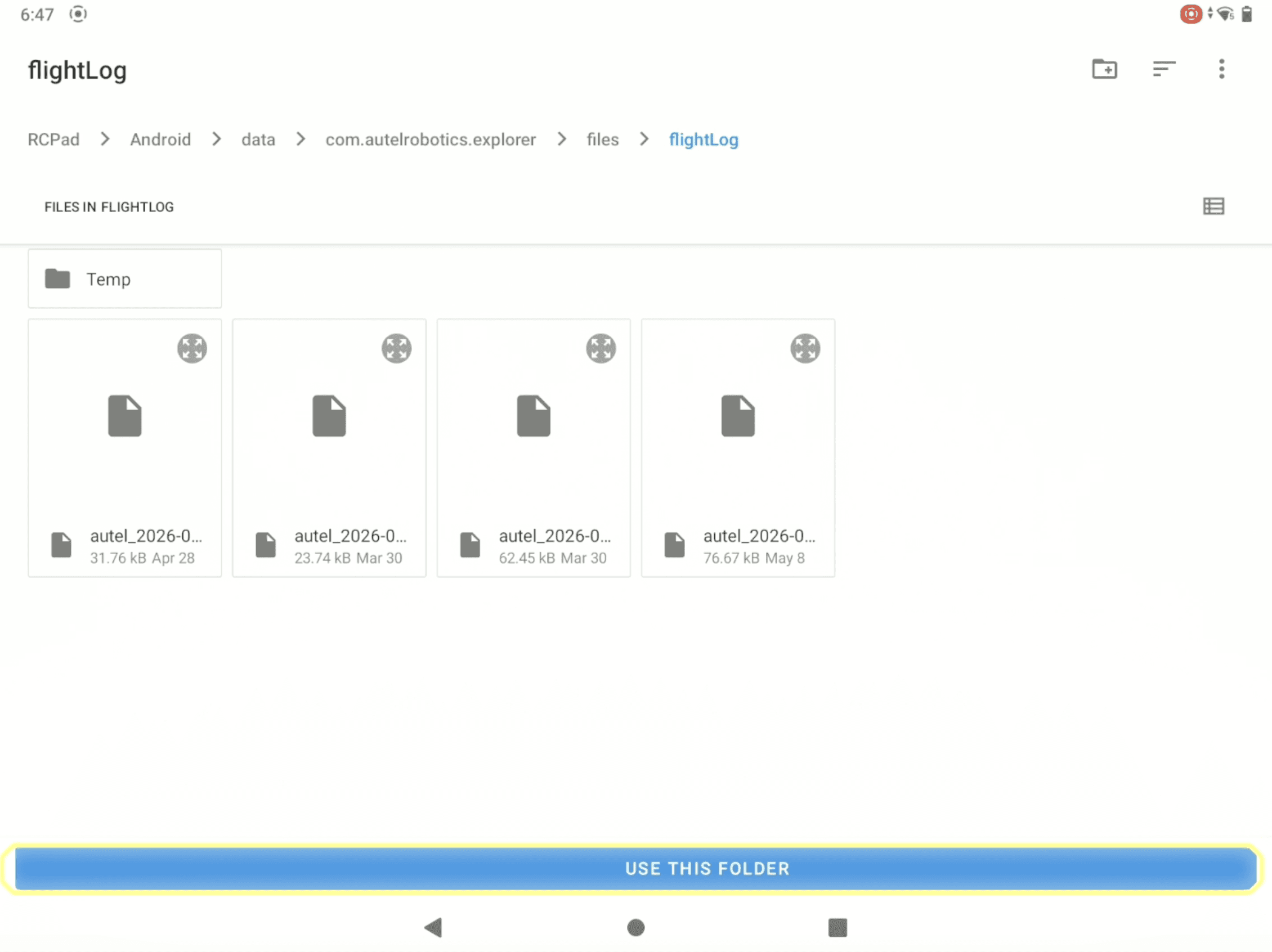
Step 3: Choose Your Flight Log Folder
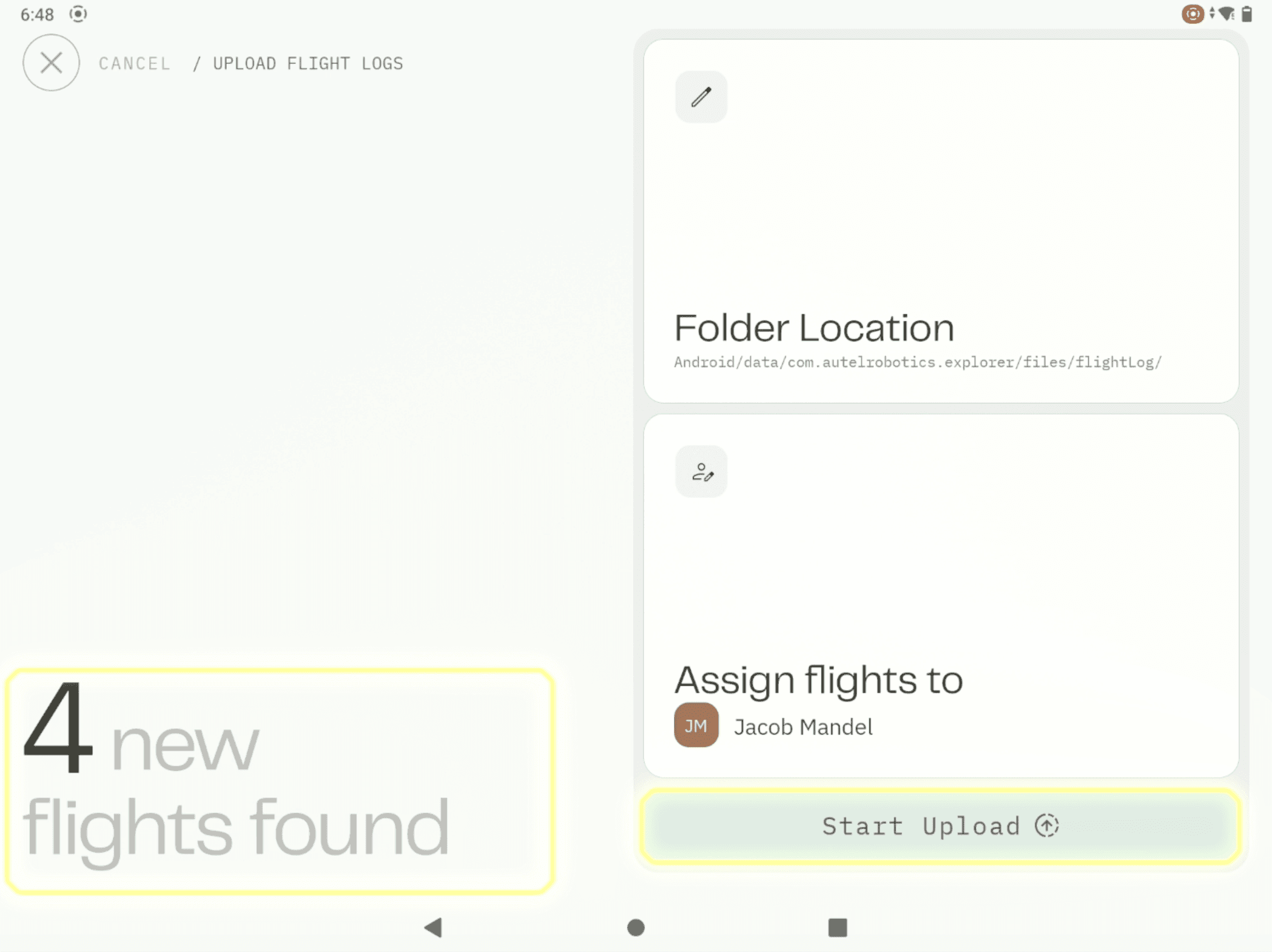
In the top-right corner, select Folder Location.
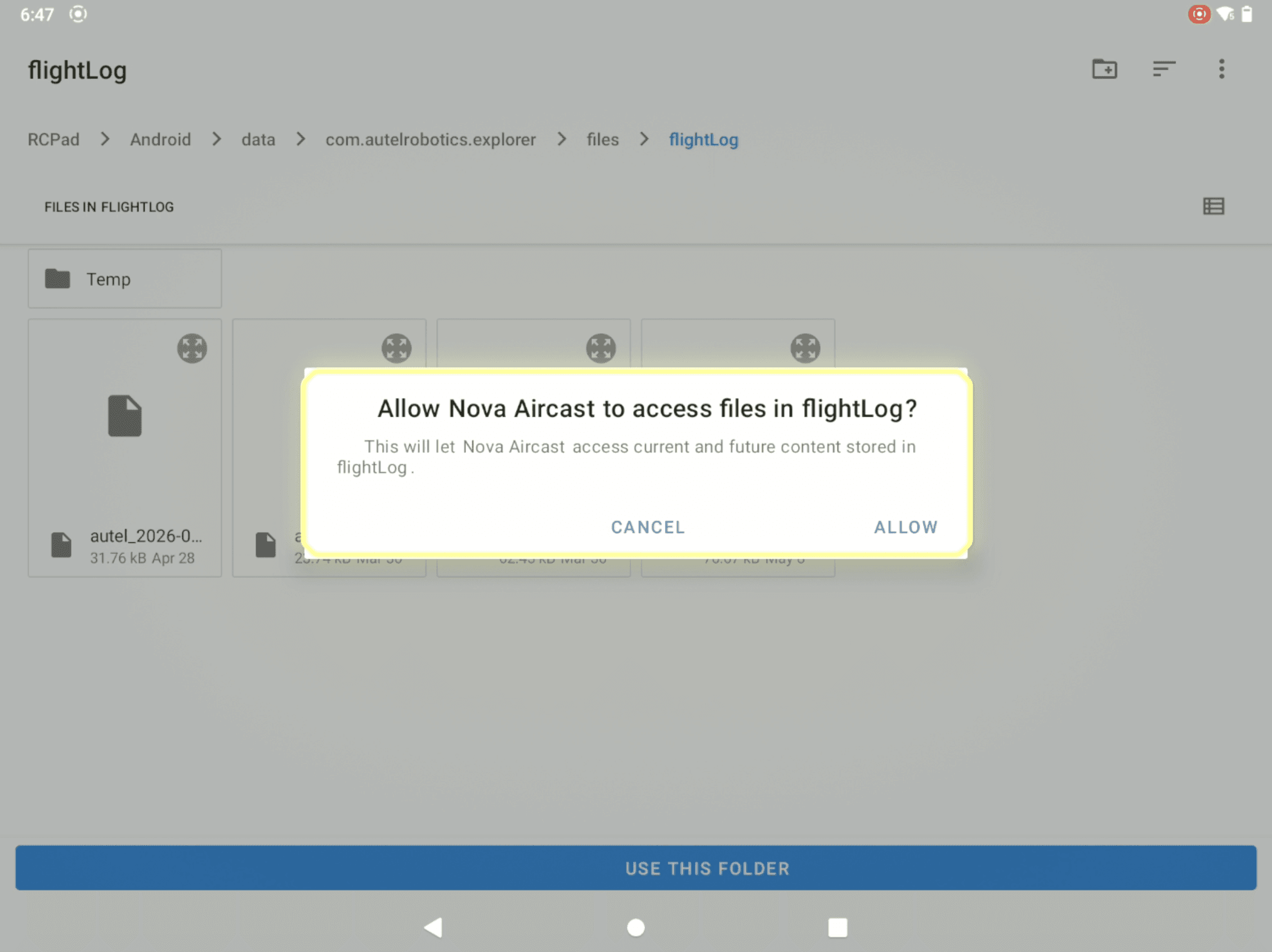
When prompted, choose Allow Access to Disk so Aircast can scan your device for available flight logs.
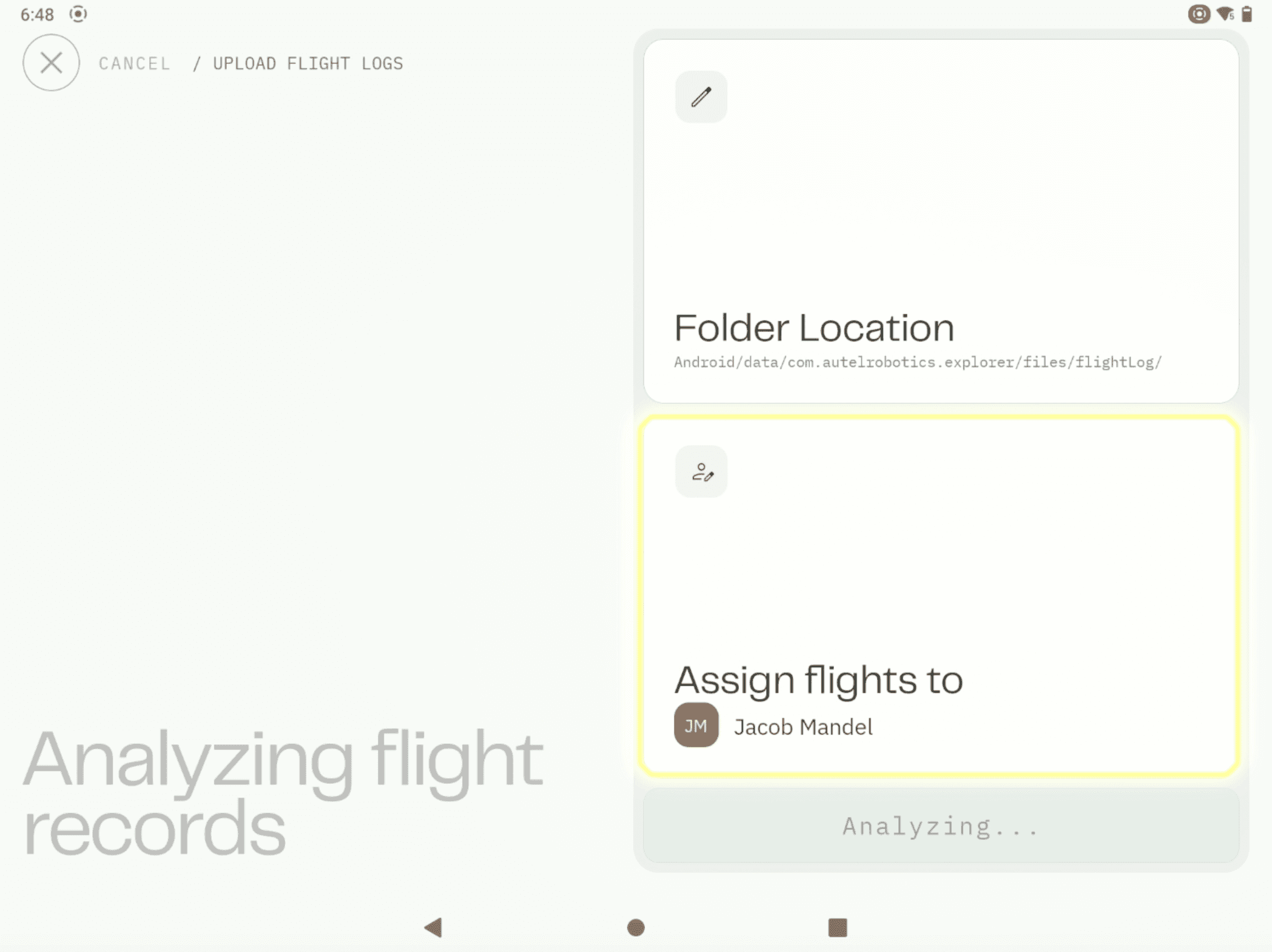
Aircast will begin analyzing and identifying the logs available for upload.
Step 4: Assign Flights to a Pilot
Once the analysis is complete, review the detected flight logs and confirm which pilot each flight should be assigned to.
This helps ensure accurate pilot tracking and reporting within Nova.
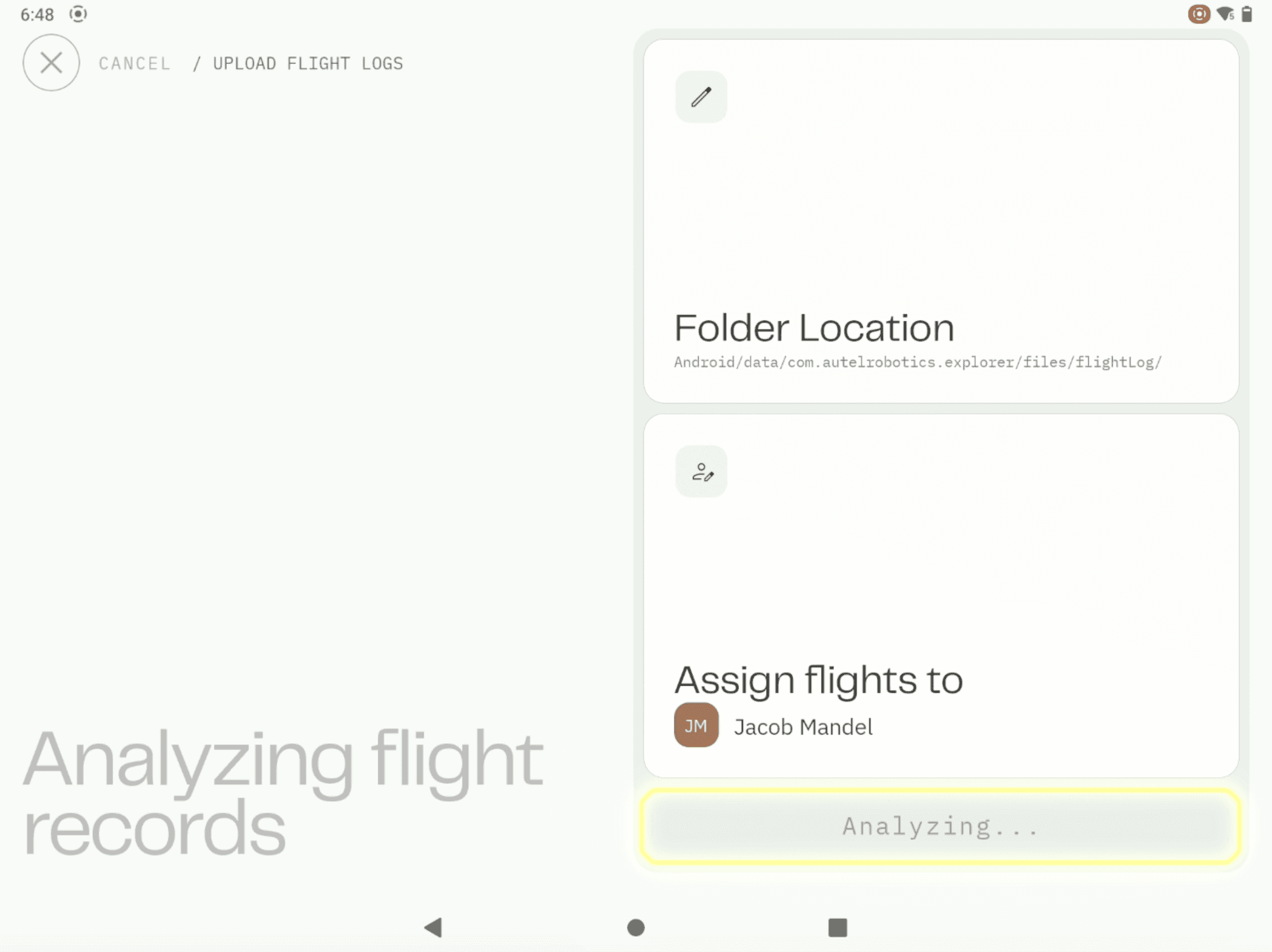
Step 5: Upload Your Logs
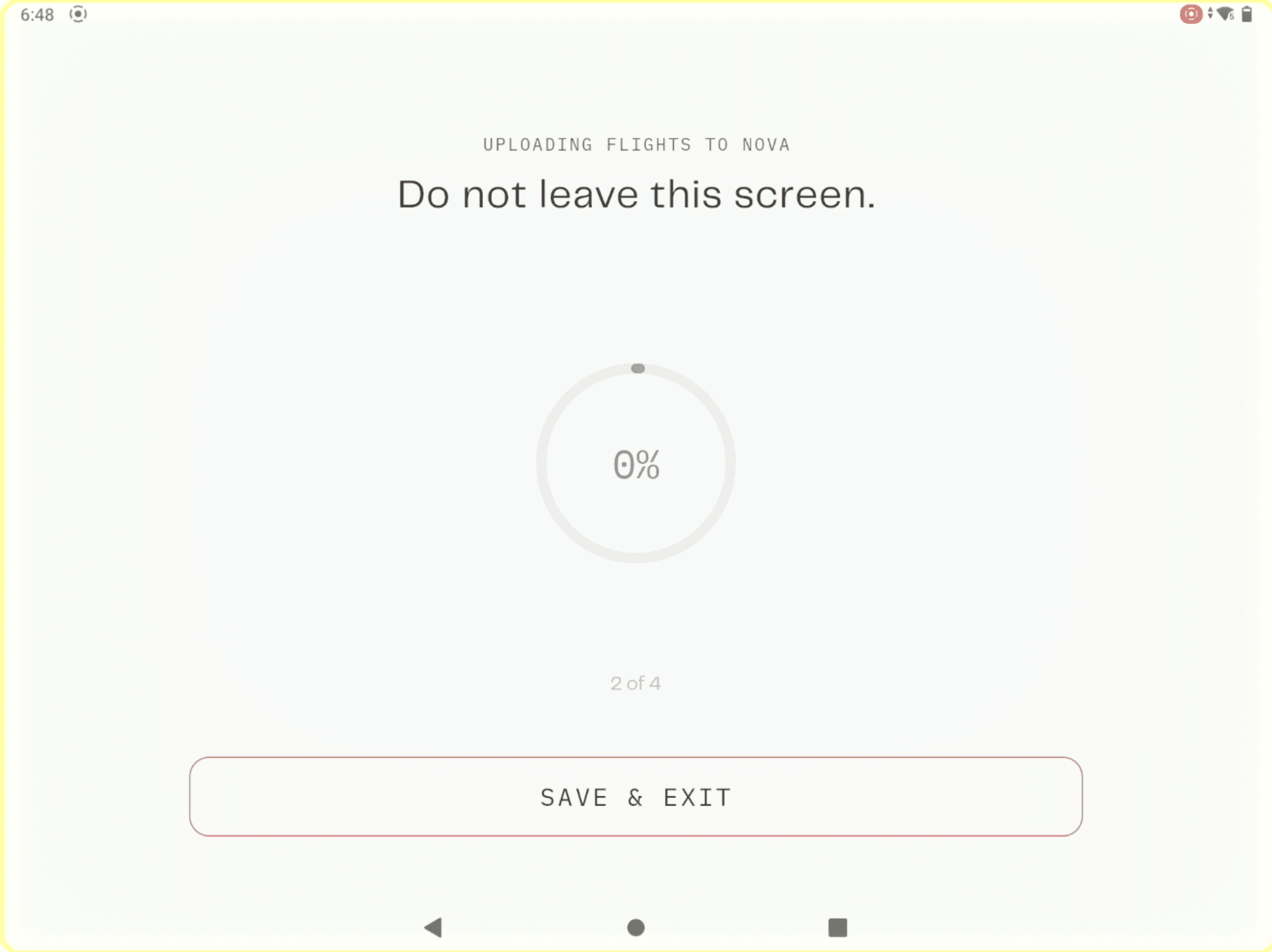
After confirming the pilot assignments, simply click Start Upload.
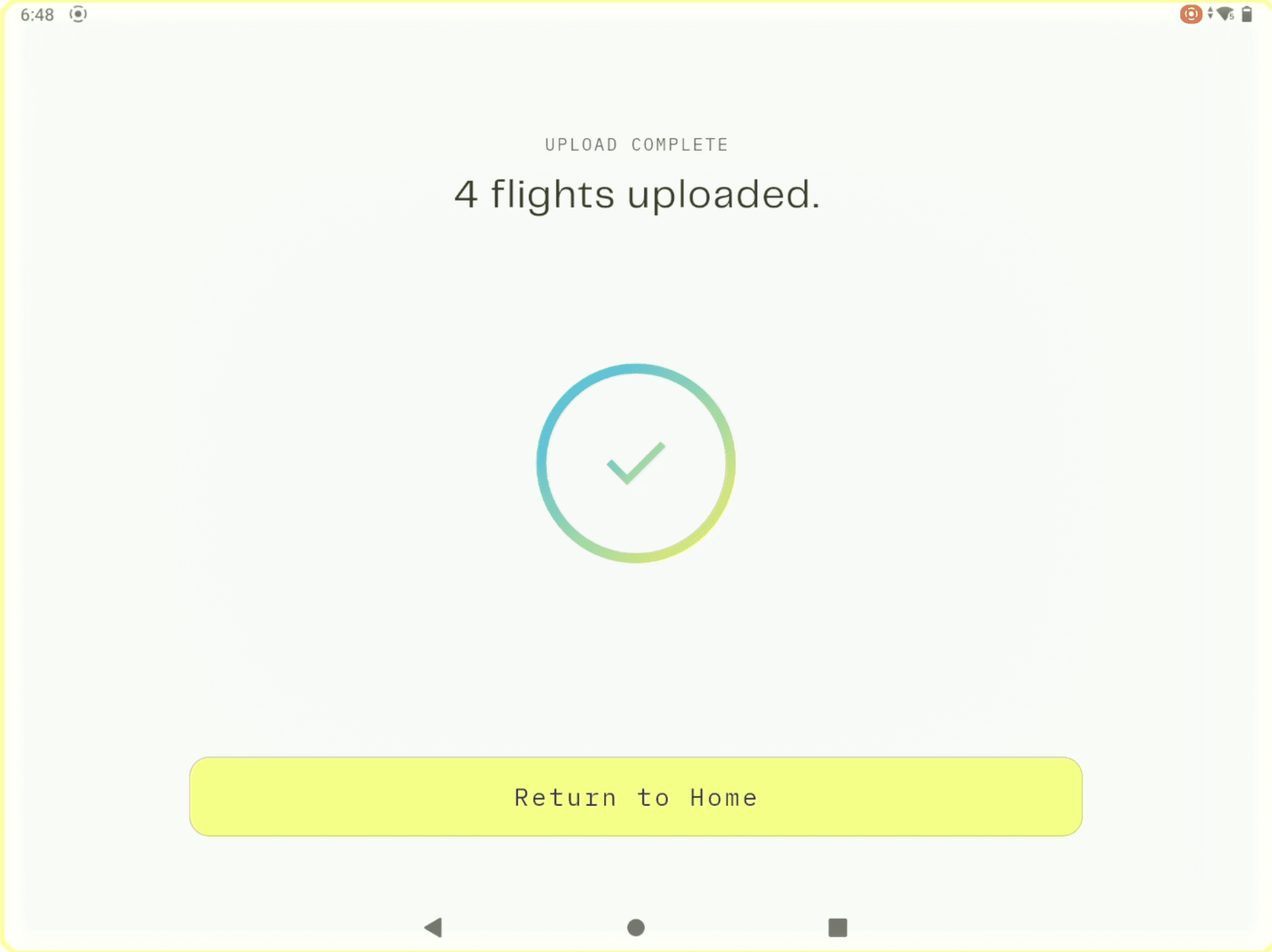
And just like that, your flight logs will be uploaded and associated with your selected Nova workspace.
Option 2: Connect Your DJI, Skydio, or Autel Account
If you'd rather automate the process, Nova can connect directly to supported drone platforms and sync flight logs for you.
Caution: Users in the U.S. cannot link DJI accounts within Nova, it has to be done through the Aircast App.
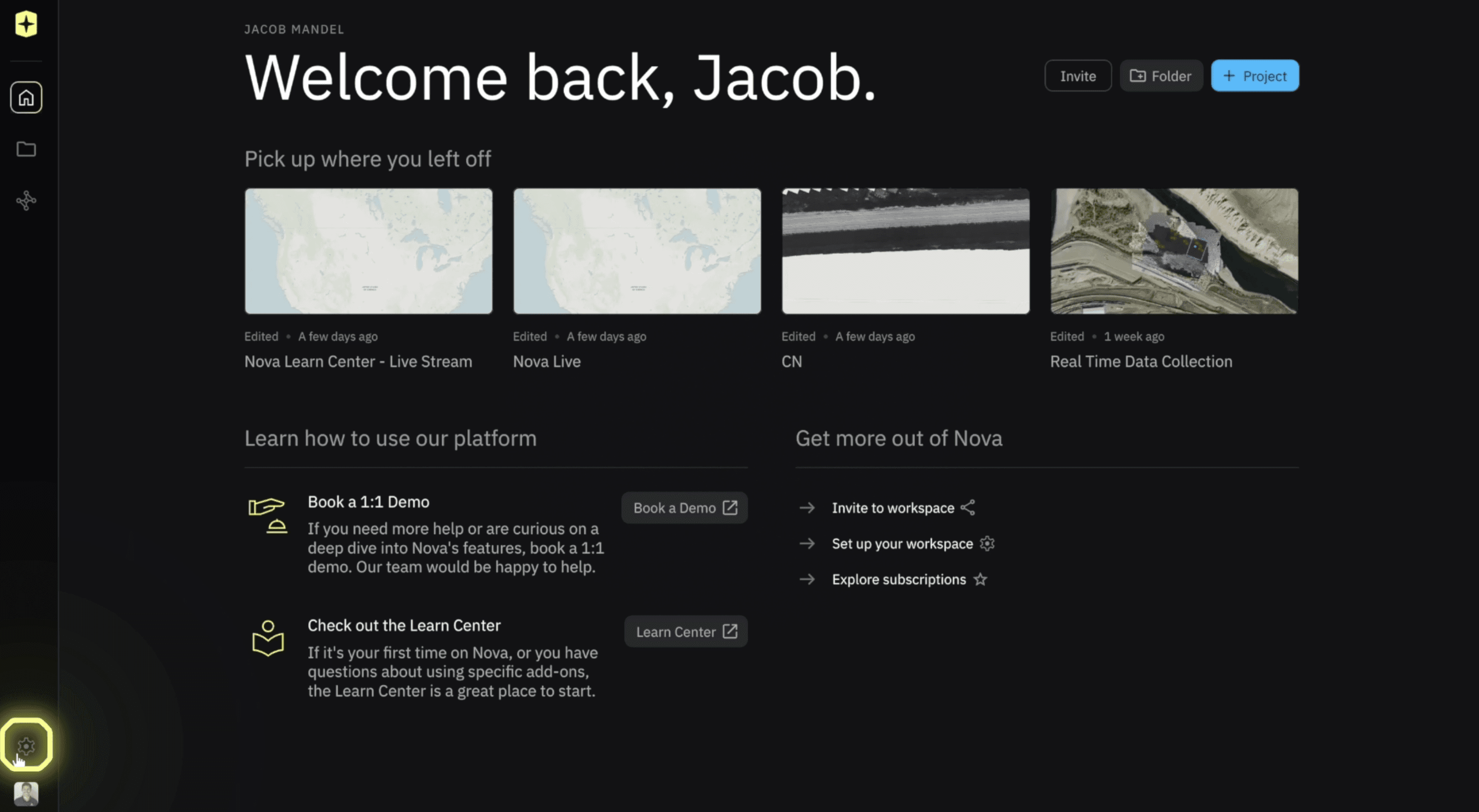
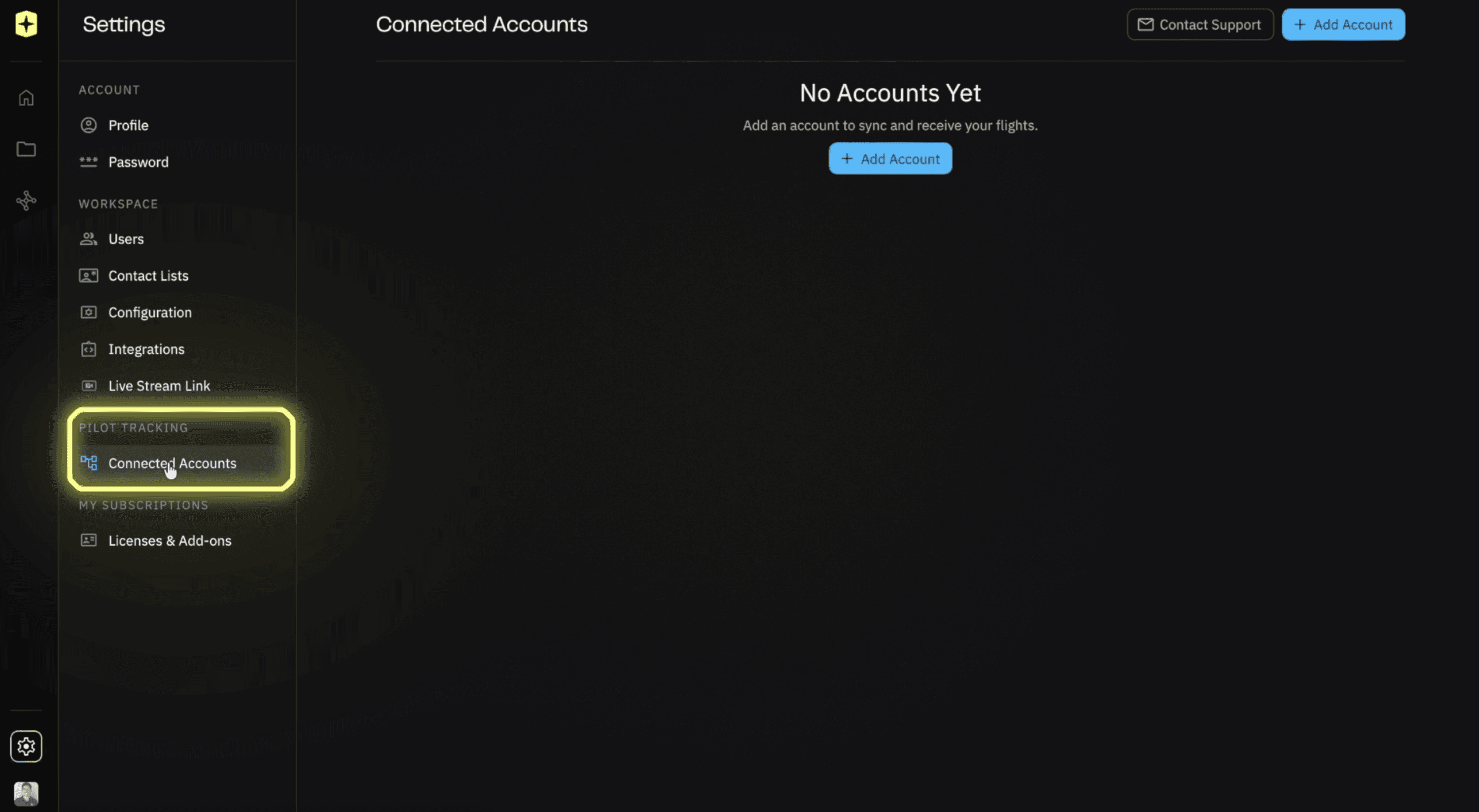
Step 1: Open Settings
From the Nova home screen, click the Gear Icon in the bottom-left corner.
Step 2: Navigate to Pilot Tracking
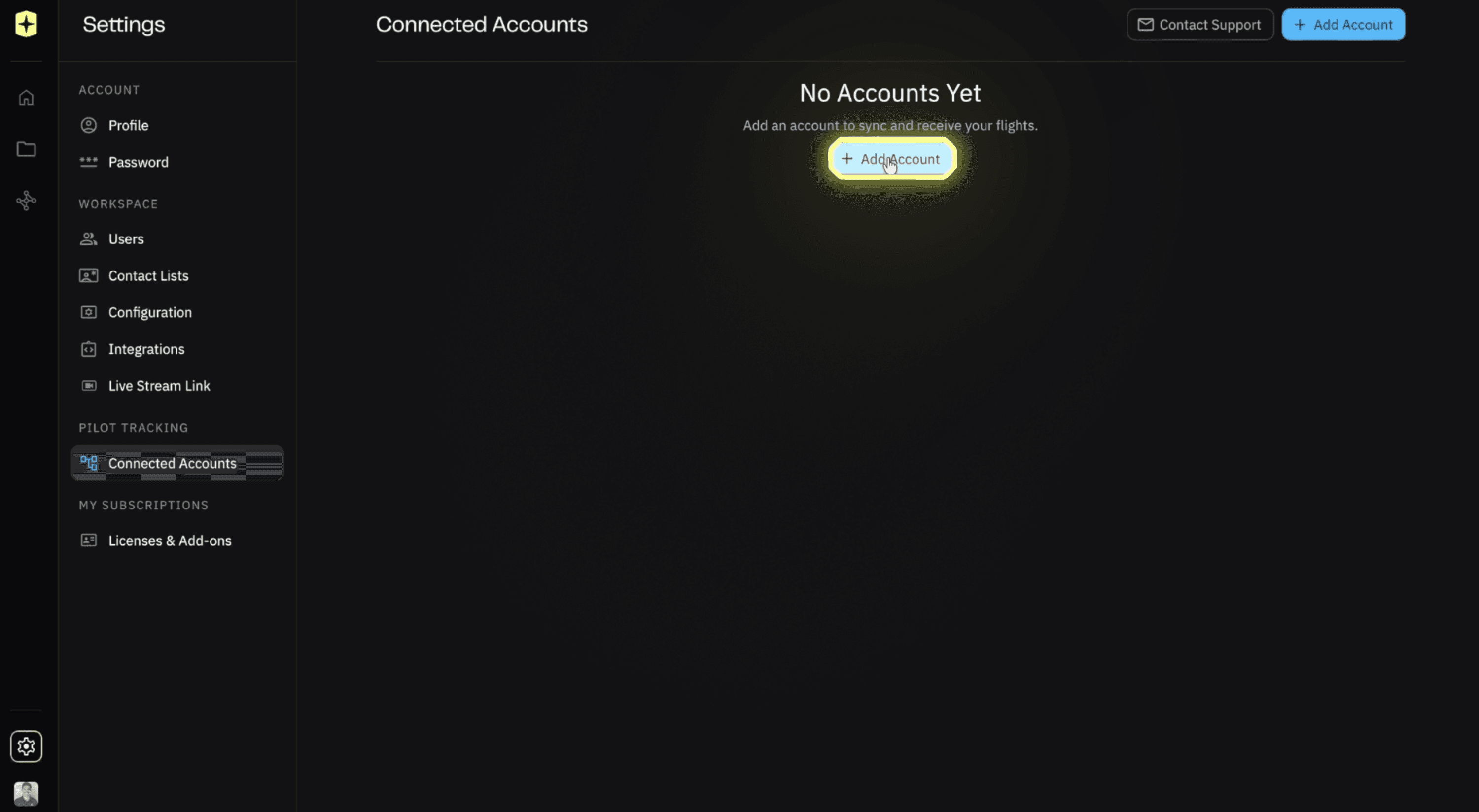
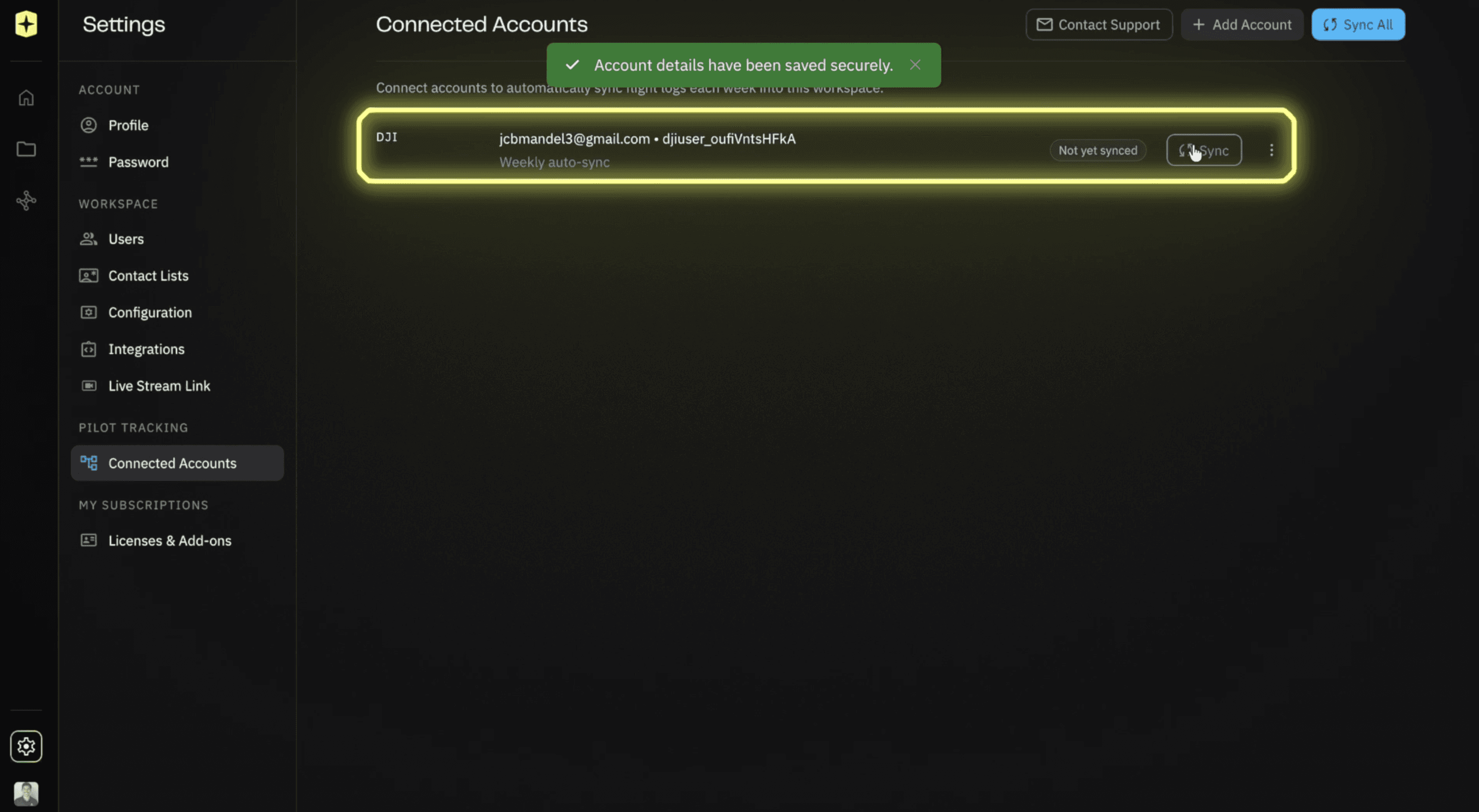
Select the Pilot Tracking tab and click Connect Accounts.
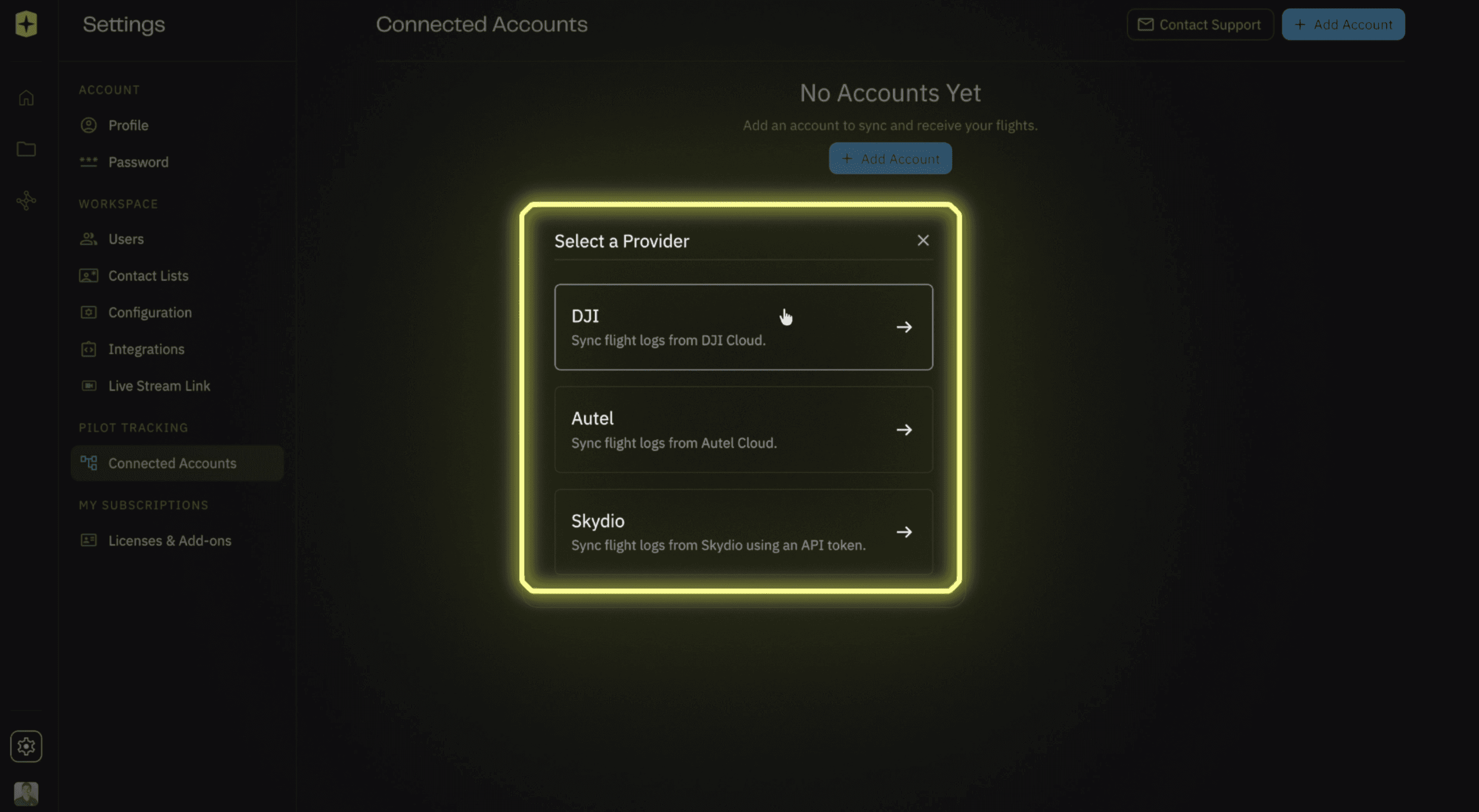
Step 3: Connect Your Platform
You'll see options to connect:
DJI
Skydio
Autel
Enter your account credentials for the platform you'd like to connect.
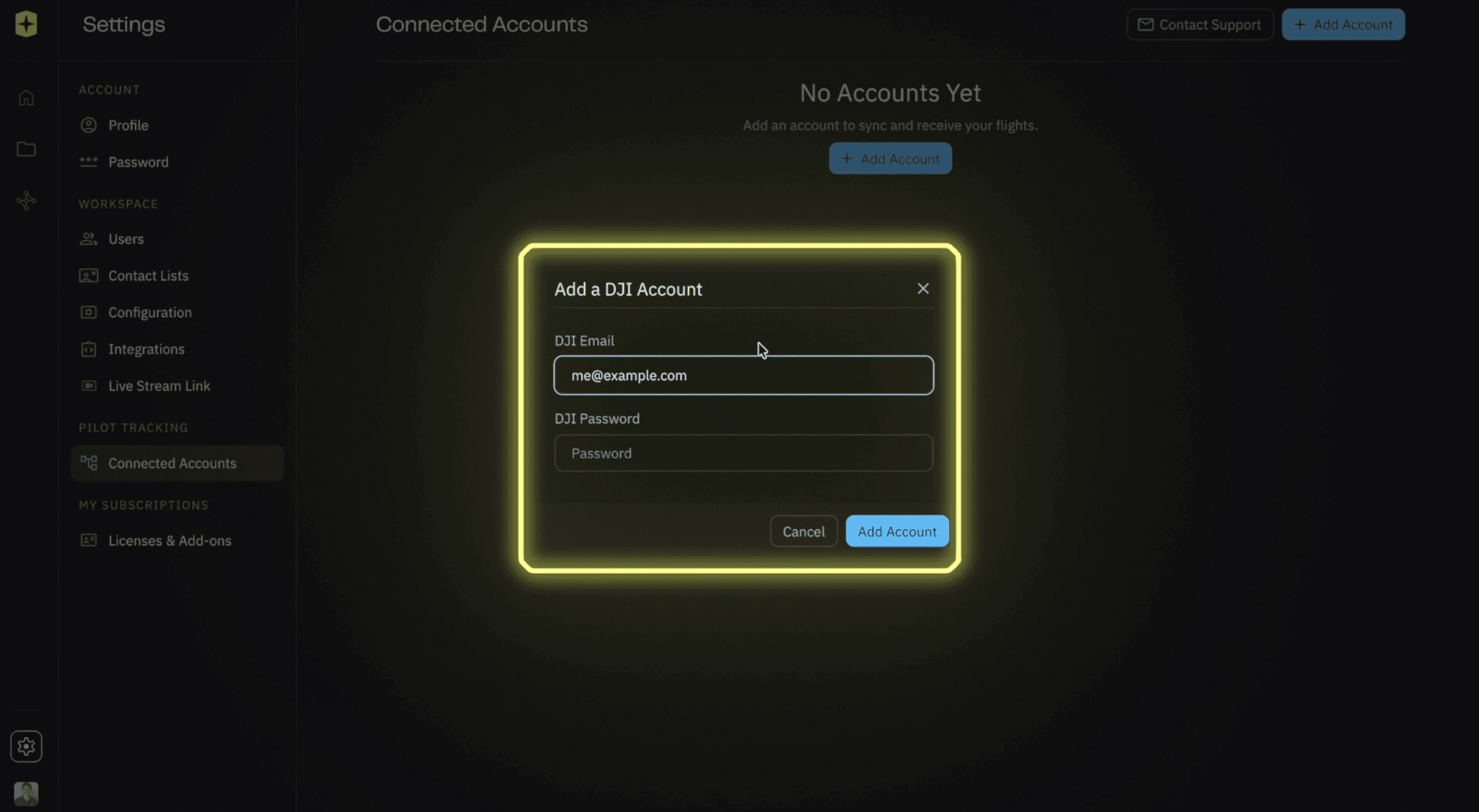
Step 4: Automatic Flight Log Syncing
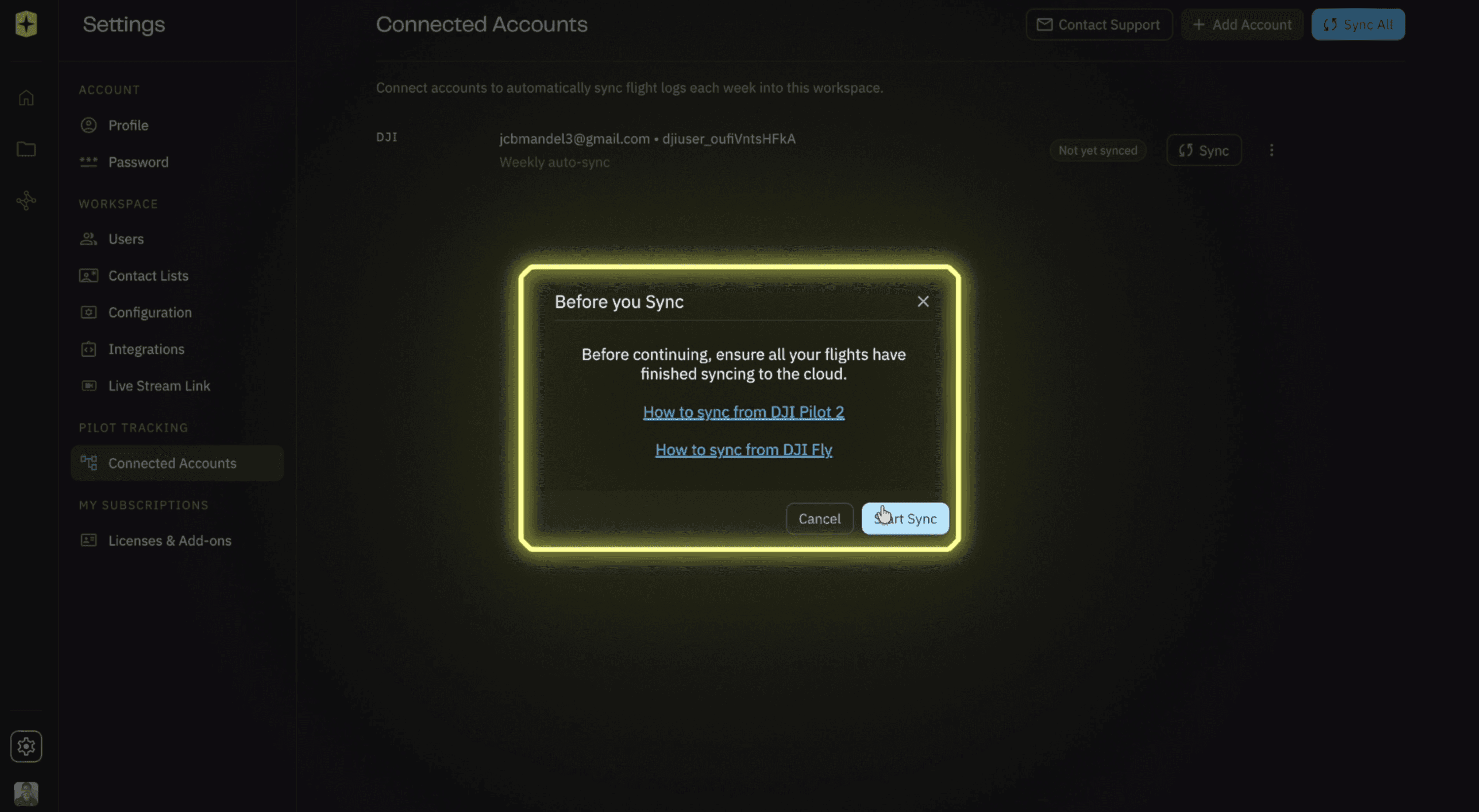
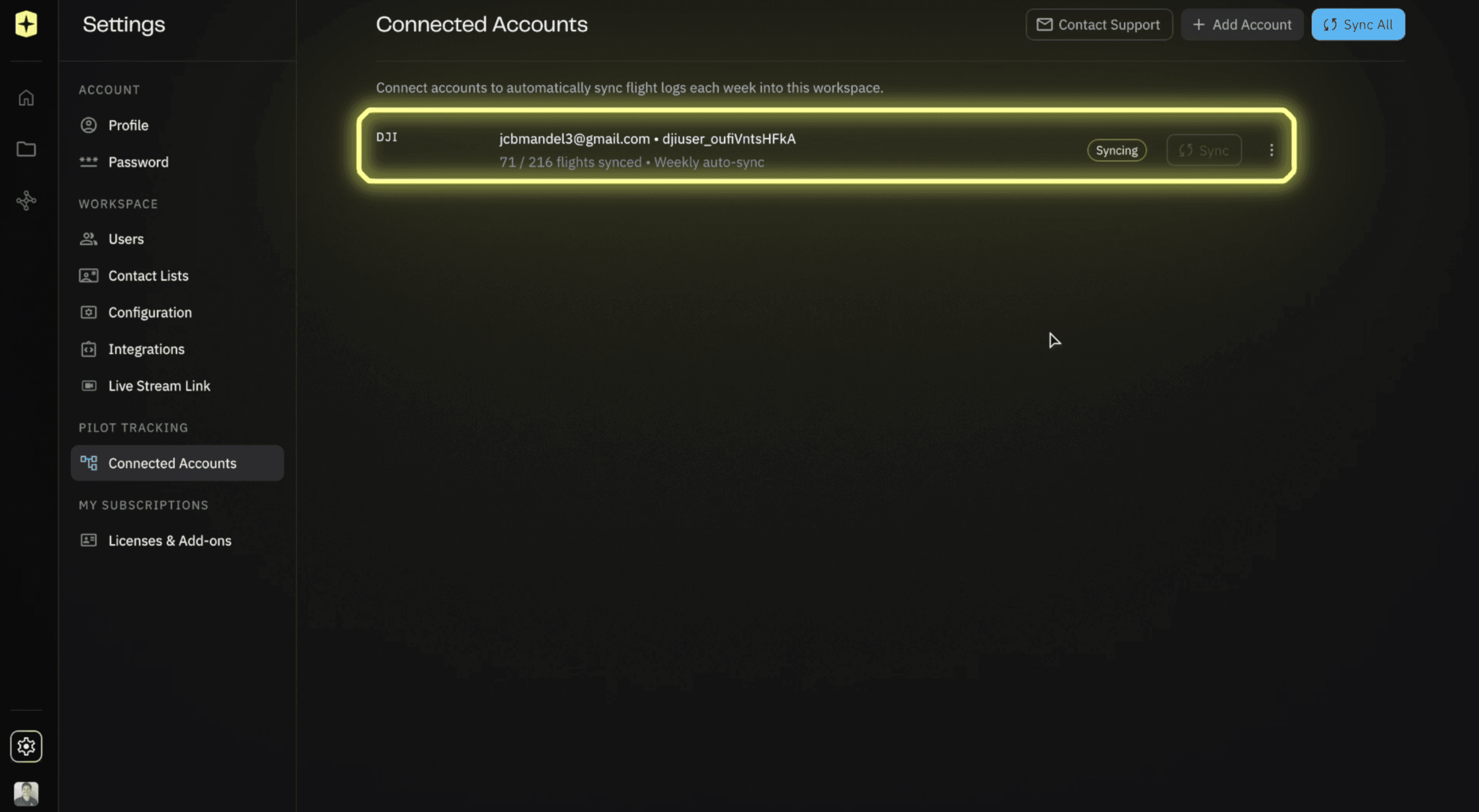
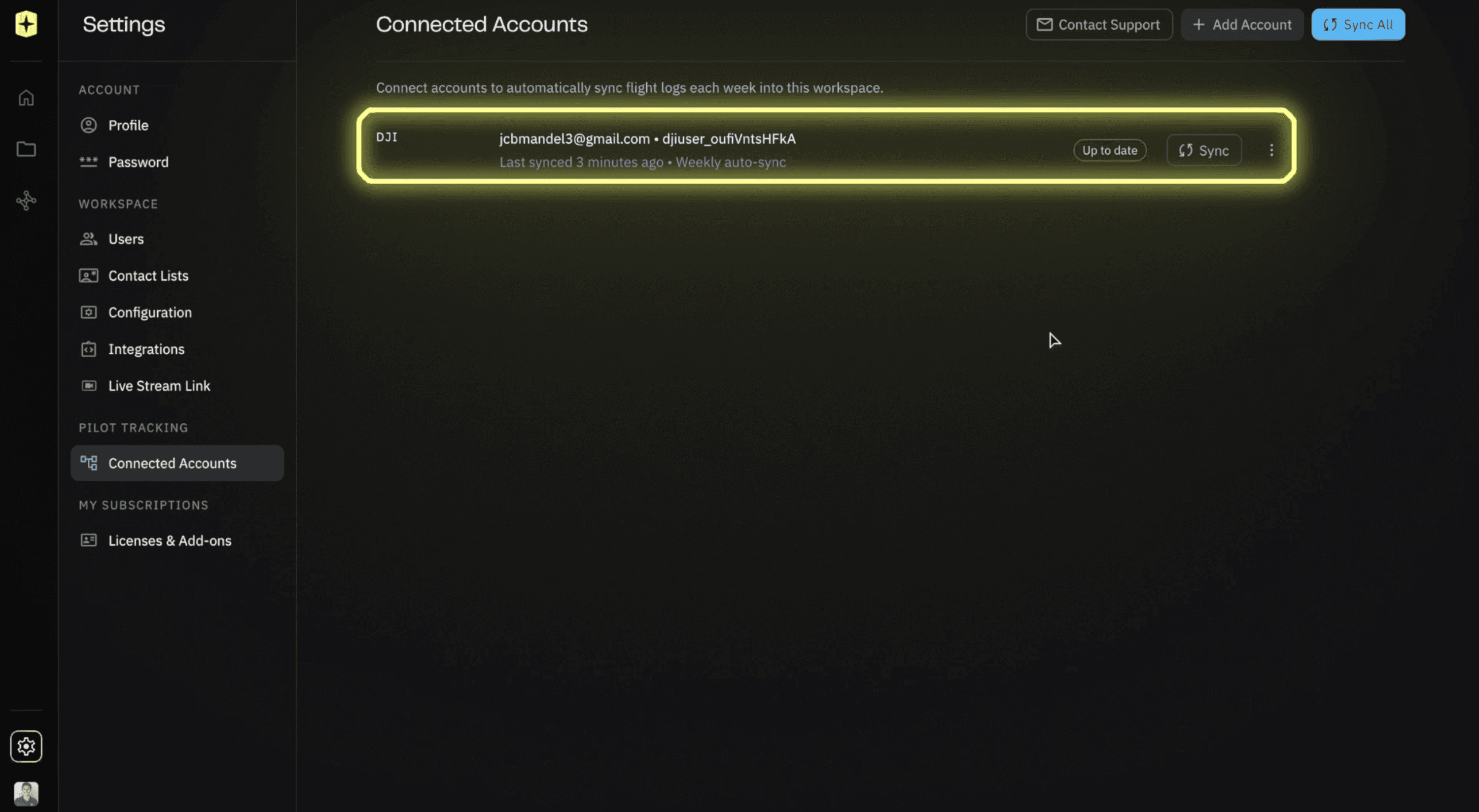
Once connected, Nova will automatically import your flight logs on a daily basis.
No manual uploads. No exporting files. No additional steps.
Just connect your account once and Nova takes care of the rest.
Which Method Should You Use?
Both methods will get your flight logs into Nova, but each serves a different purpose:
Aircast Uploads
Best for:
Importing historical flight logs
Uploading logs from multiple devices
One-time or bulk imports
Connected Accounts
Best for:
Ongoing operations
Automatic flight log syncing
Reducing manual administrative work
Many teams use both methods—Aircast to import historical records and connected accounts to keep future flights synced automatically.
Final Thoughts
Accurate flight records are essential for pilot tracking, compliance, reporting, and operational visibility. Whether you're importing existing logs through Aircast or connecting your DJI, Skydio, or Autel account, Nova makes the process quick and straightforward.
And yes, it really is that easy.
Have a question you'd like featured in a future Just Ask Jake? Let us know, and we may cover it in an upcoming edition.
Start for free today.
Craft the future. Respond to the present.