Back to blog
Tips and Tricks
Ladies and Gentlemen, I’m Jacob Mandel, the Customer Success Manager with Nova. You might be wondering what “Just Ask Jake” is. It’s a weekly blog where I share tips, tricks, and updates on new features Nova offers, all aimed at helping you get the most out of your workflow while maximizing your results.
I’ve flown a ton of fires, rail lines, and urban structures in my day. Between my experience in Wildland and Structural Fire, flying drones, I’ve seen it all. When using Nova’s Orthomosaic tool you have the option to select Urban Mode or General Mode. Choosing the right mode ensures your orthomosaic reflects the reality you saw during flight and gives the folks you’re serving a map they can trust.
Urban Mode: Built for Infrastructure and Detail
Urban Mode is designed for environments where man-made features matter most. Essentially any environment with buildings. Think:
City cores & downtown areas – dense buildings, rooftops, alleys, vertical structures
Residential neighborhoods – homes, streets, sidewalks, fences, yards
Industrial & commercial sites – plants, warehouses, ports, refineries
Transportation infrastructure – roads, bridges, rail yards, interchanges
Large facilities & campuses – hospitals, schools, stadiums, government complexes
Construction & development zones – active builds, demolition sites, site planning
Public safety scenes – urban search, structural fires, collapse zones, incident perimeters
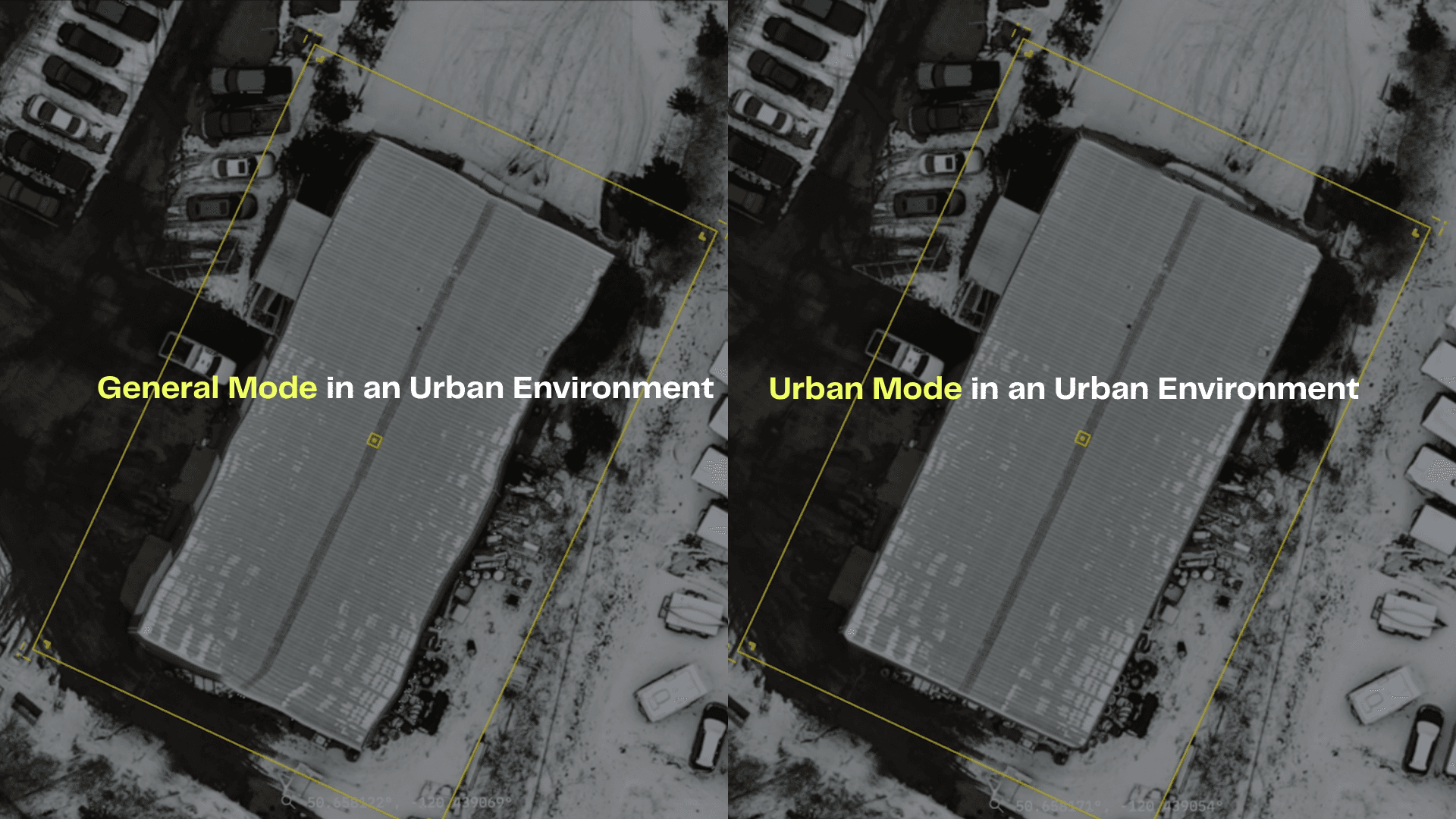
This mode prioritizes clean edges and precise alignment for buildings, roads, and vehicles. The result is a sharper, more accurate map that’s easier to measure, and rely on during reviews or when building reports. If your mission involves documenting positions, distances, or scene layout around infrastructure, Urban Mode helps ensure the map holds up under scrutiny.
General Mode: Optimized for Scale and Terrain
General Mode is best suited for large, open environments where terrain and vegetation dominate the scene, such as:
Wildfire perimeters & burn scars – wide-area mapping of active or post-fire zones
Forestry operations – cut blocks, replanting areas, road networks, canopy analysis
Agricultural land – crop fields, rangeland, irrigation zones
Mountains, valleys & backcountry terrain – landslides, erosion, watershed areas
Parks, reserves & wilderness areas – environmental monitoring, habitat mapping
Fields and large open spaces - really any type of agriculture work
This mode balances speed and clarity, allowing teams to process large areas efficiently without overcomplicating the output. It’s ideal when leadership needs a big-picture view of whatever you’re capturing, whether that’s fire spread, access routes, forestry blocks and terrain impacts aka its fast.
Workflow tip:
Before selecting a mode, pause and ask one question: Where was I flying?
Around buildings, roads, or infrastructure → Urban Mode
Open land, vegetation, or fire ground → General Mode
That single choice can significantly improve the accuracy and usefulness of your final map.
Where to Find the Urban and General Modes in Nova
Step By Step Guide
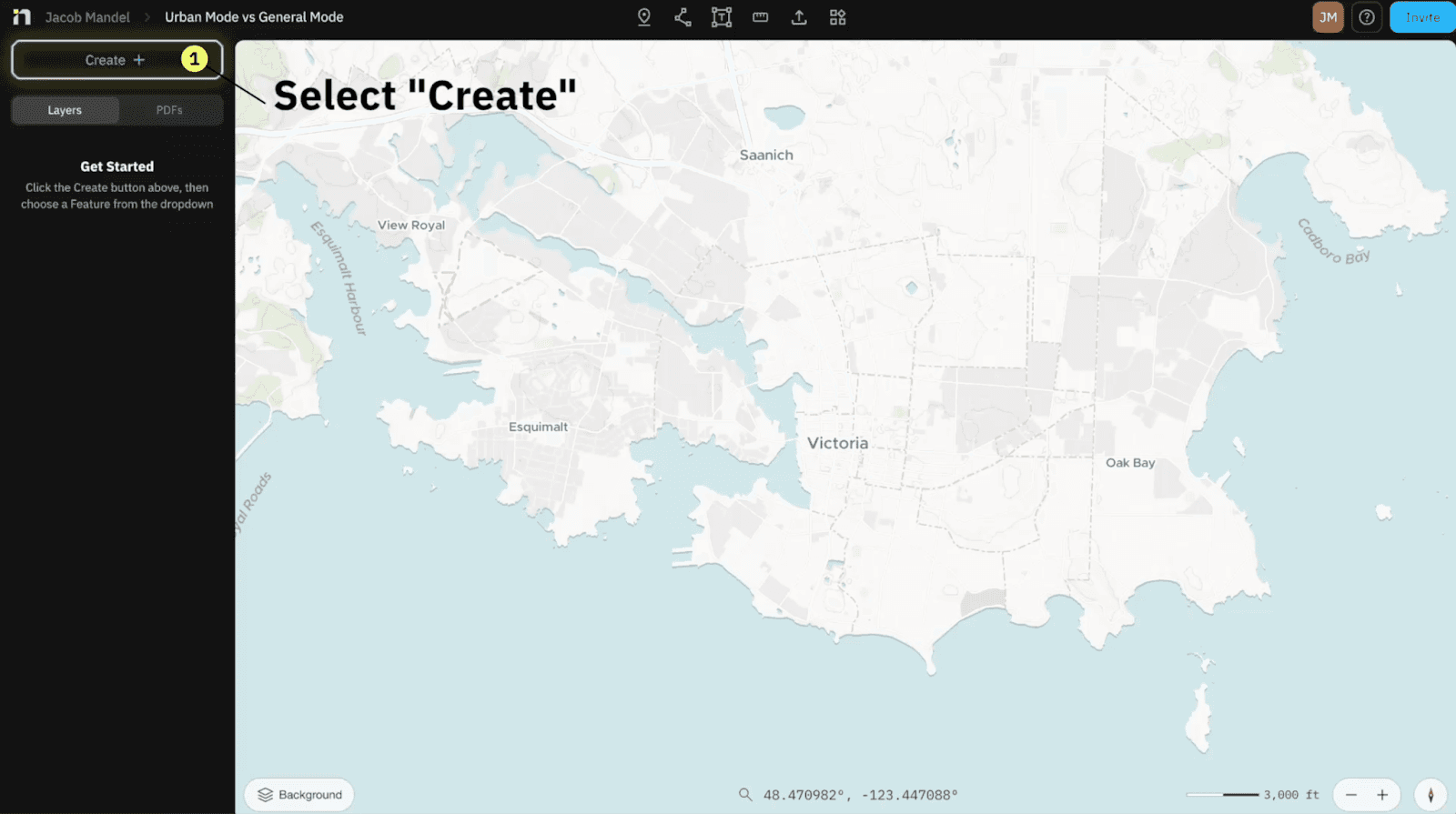
Select “Create”
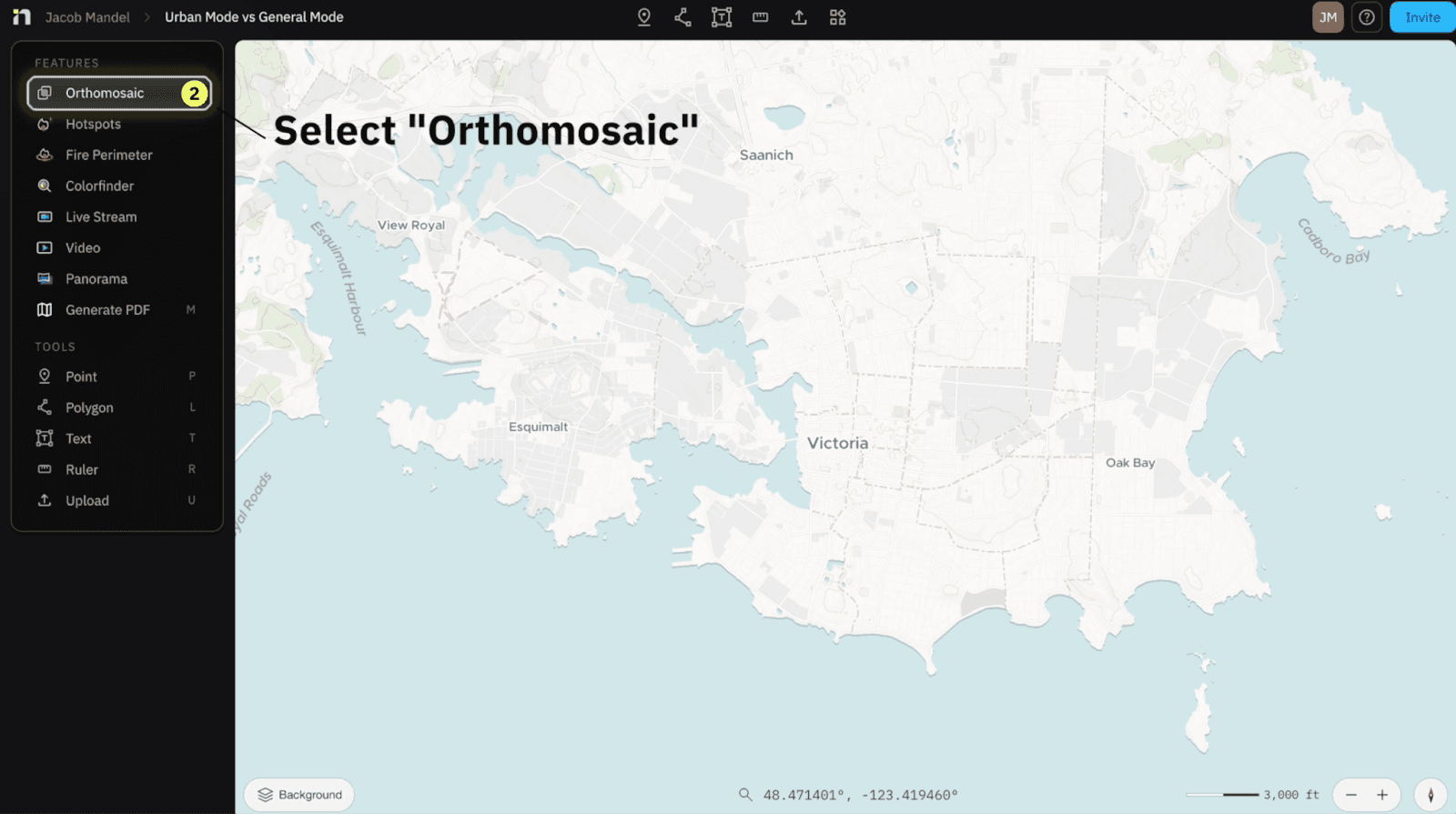
Select “Orthomosaic”
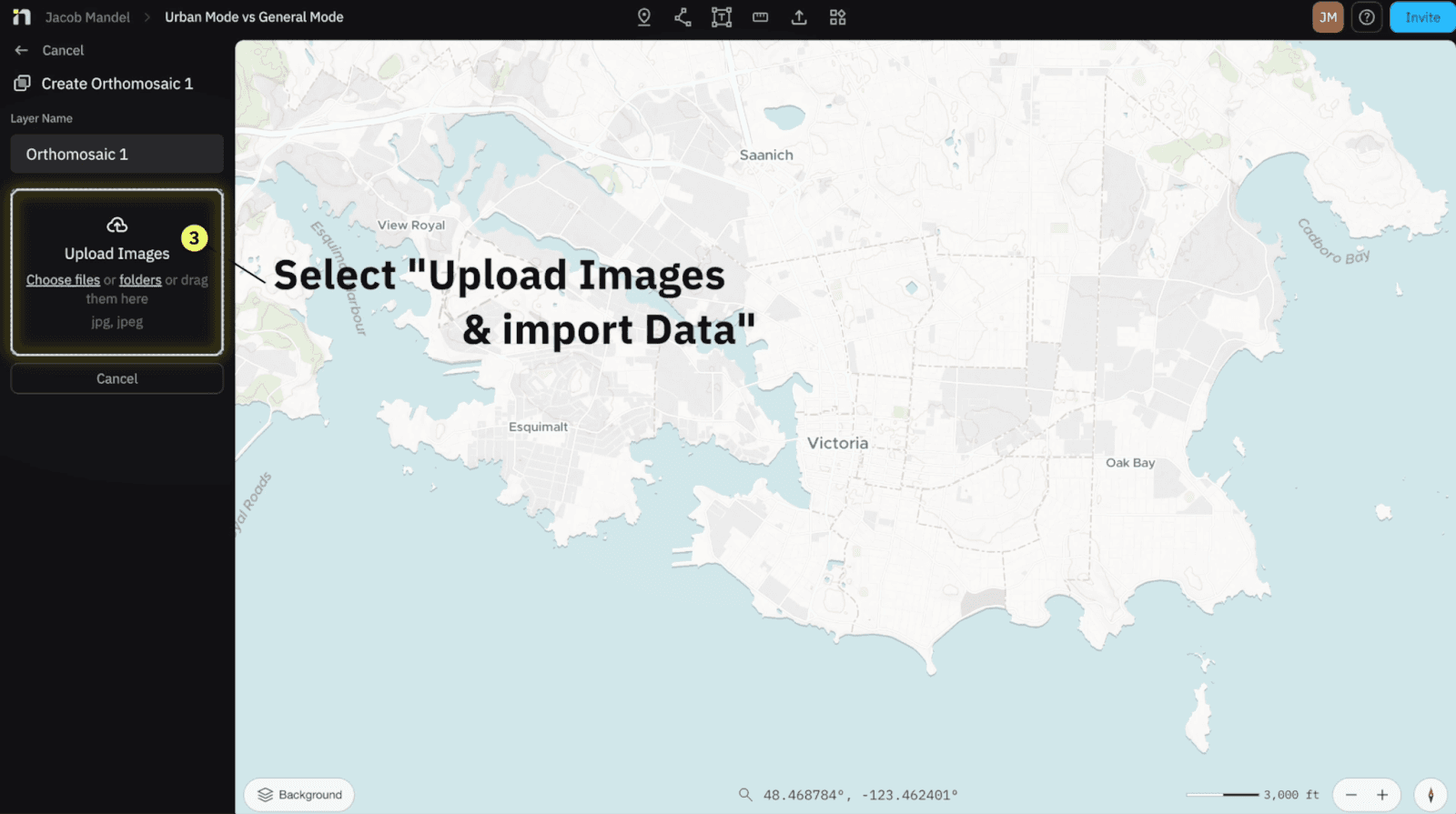
Within Upload Images - Import your Data
Select the ideal “Processing Options” based on your environment - either General Mode or Urban Mode
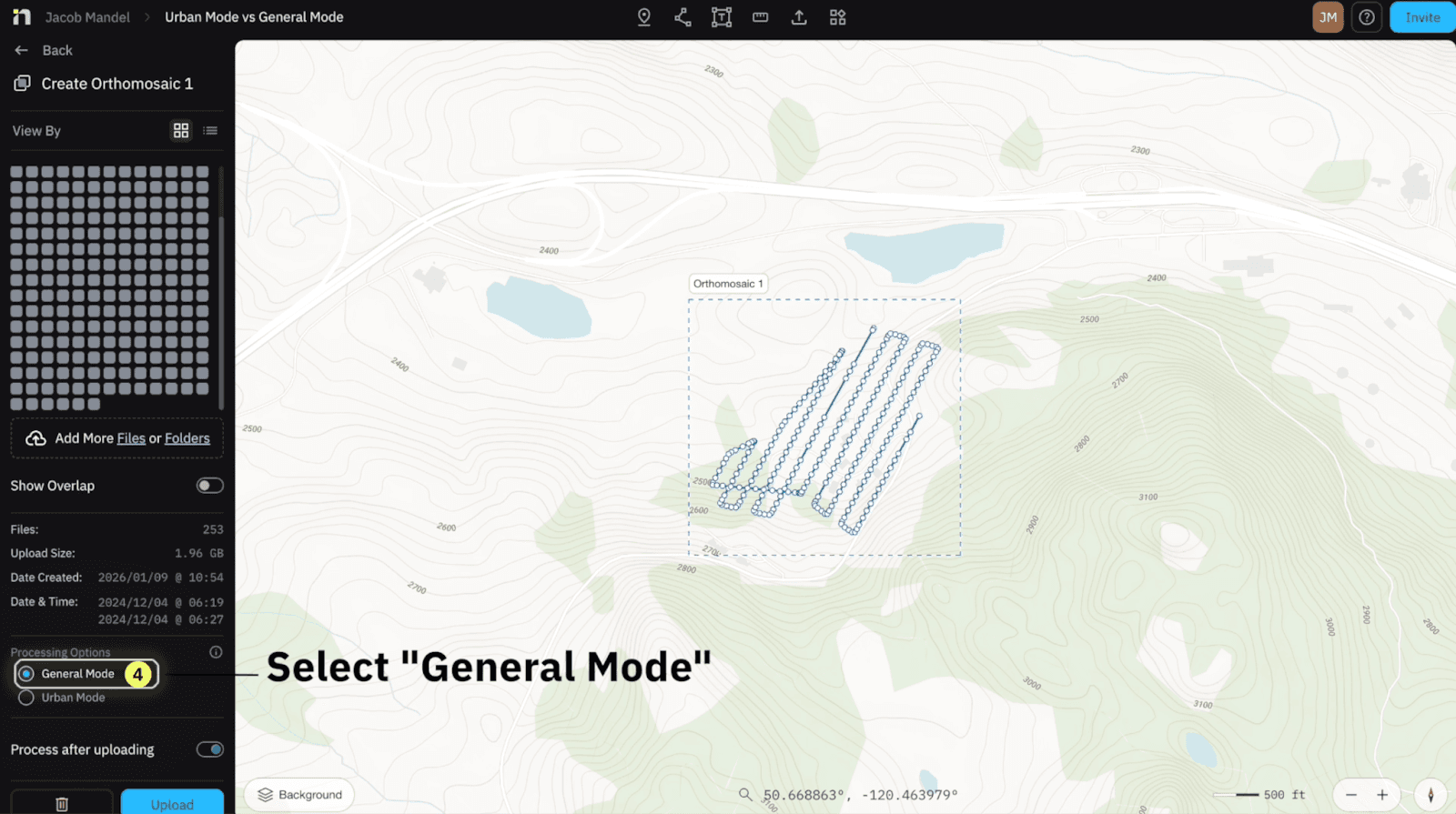
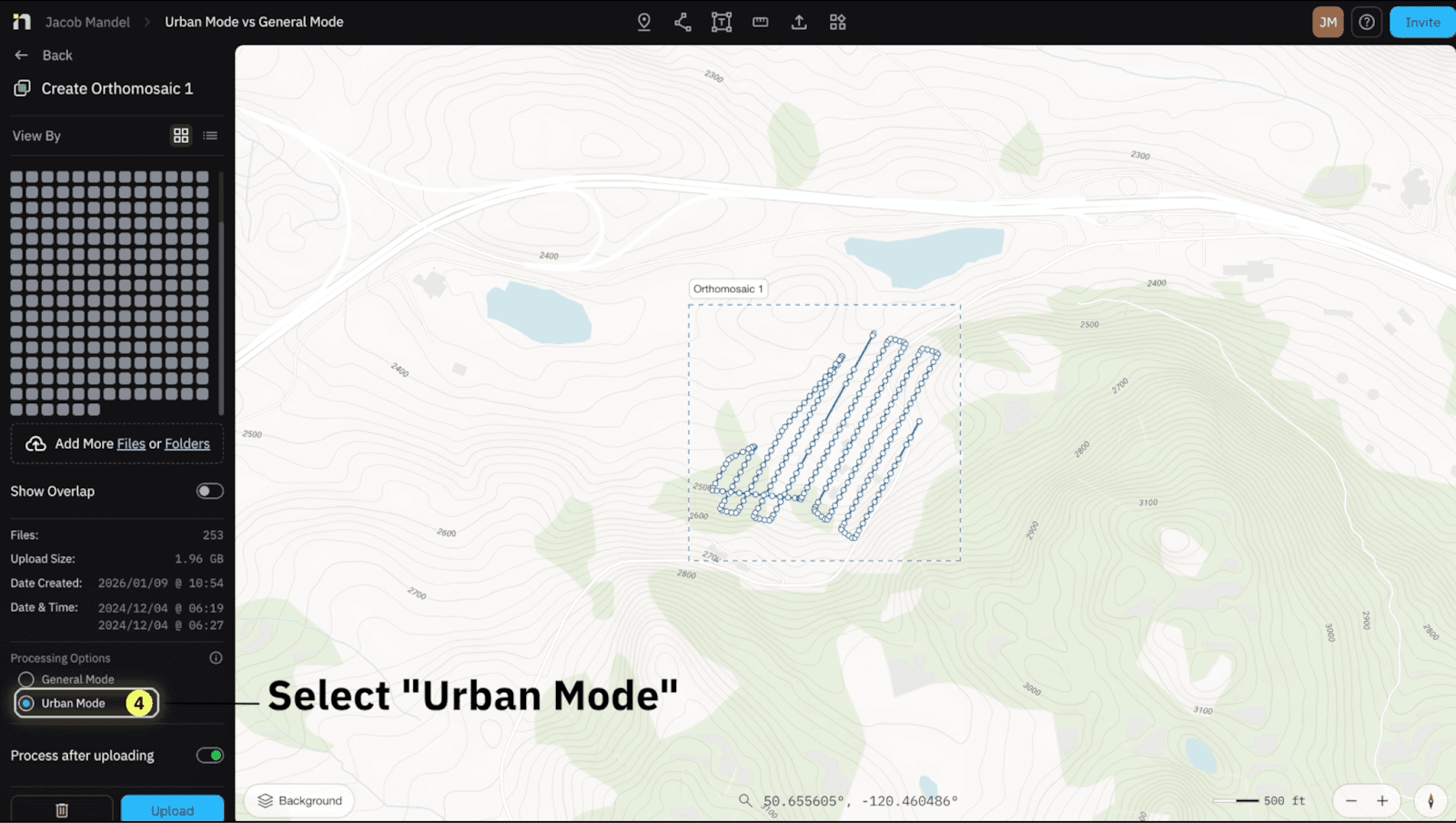
Select “Upload” when you’ve confirmed your Processing Options
They may look similar from a bird's eye view, but as we zoom in we can notice some key differences between the both of them.
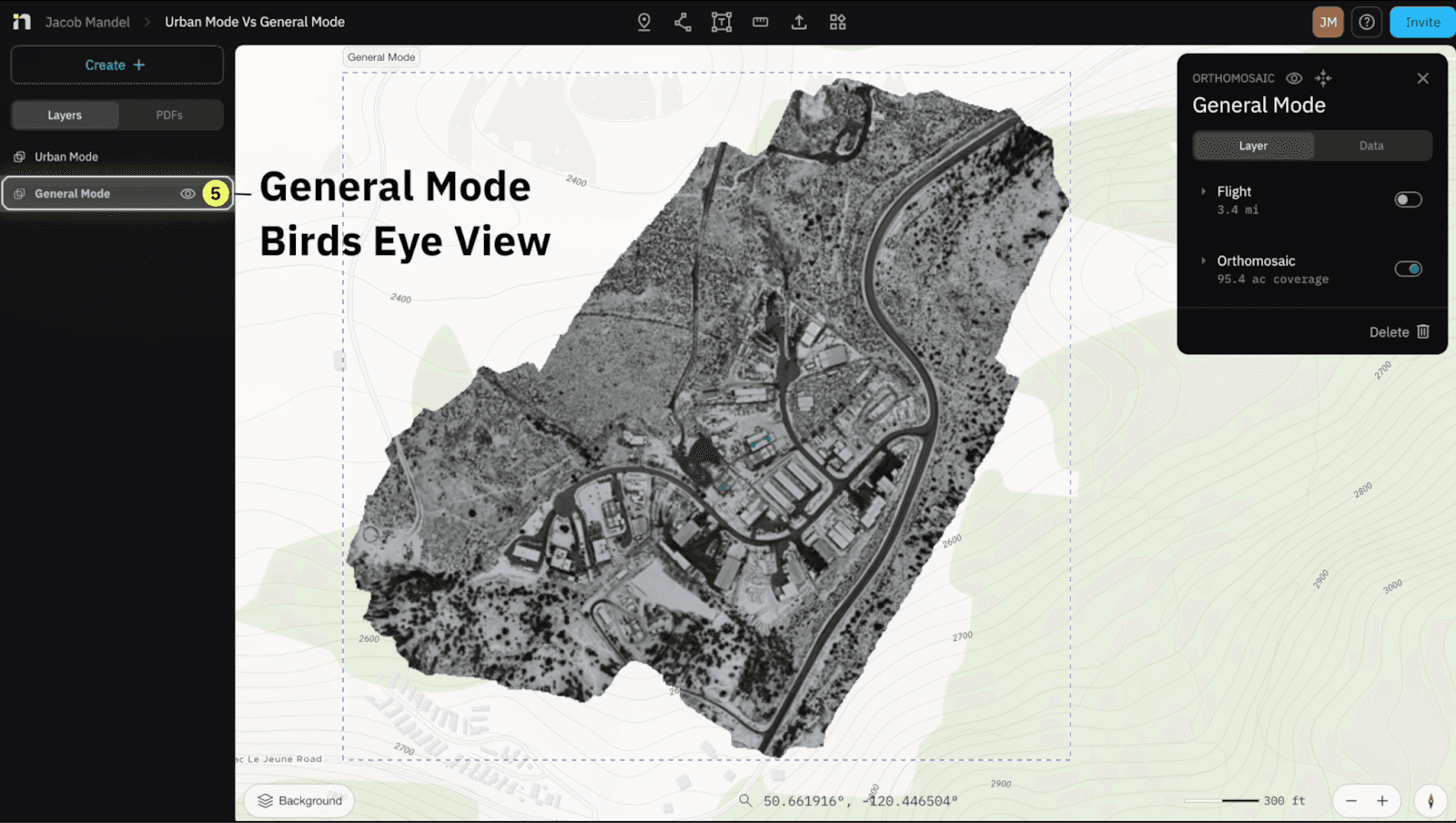
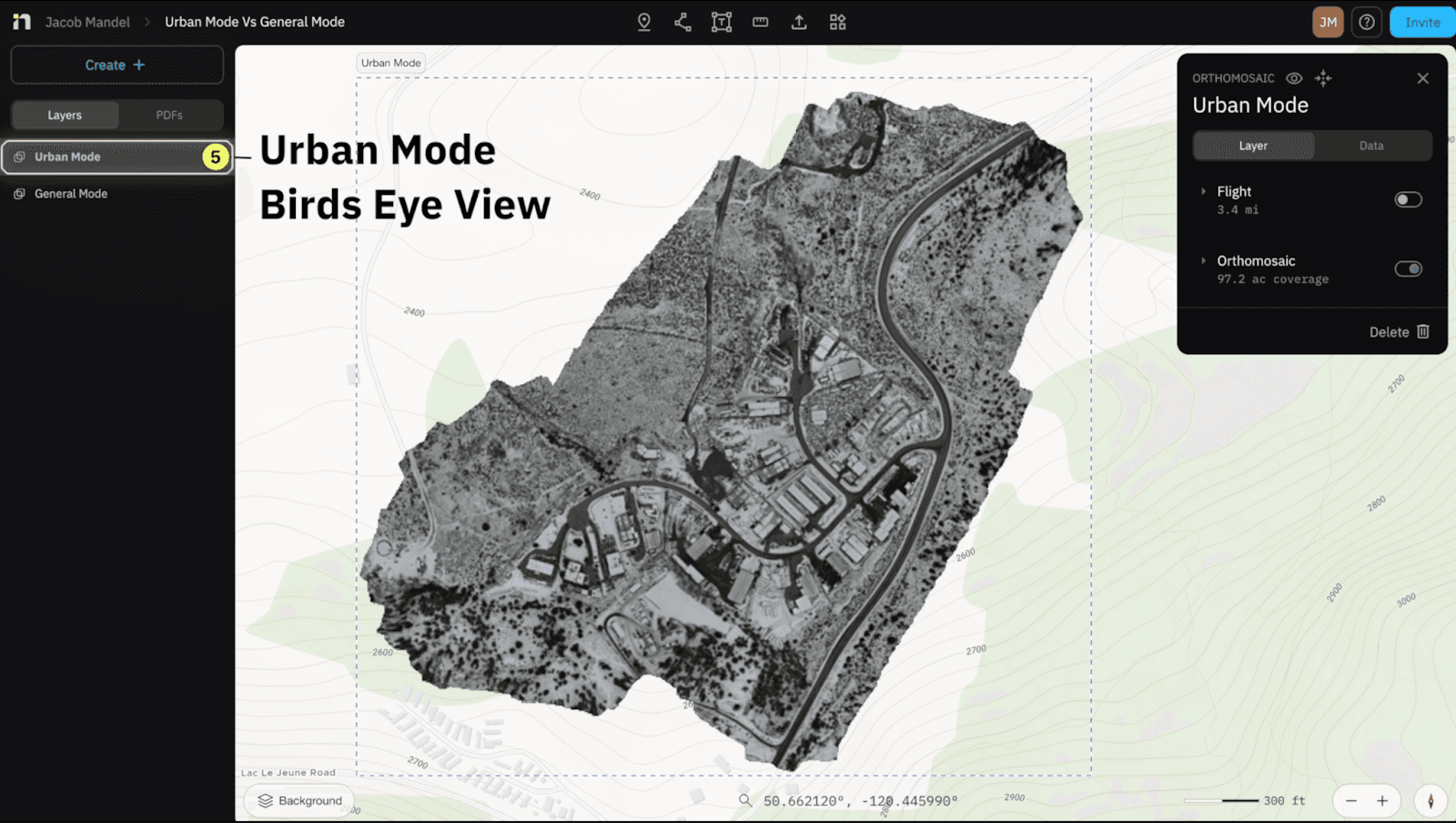
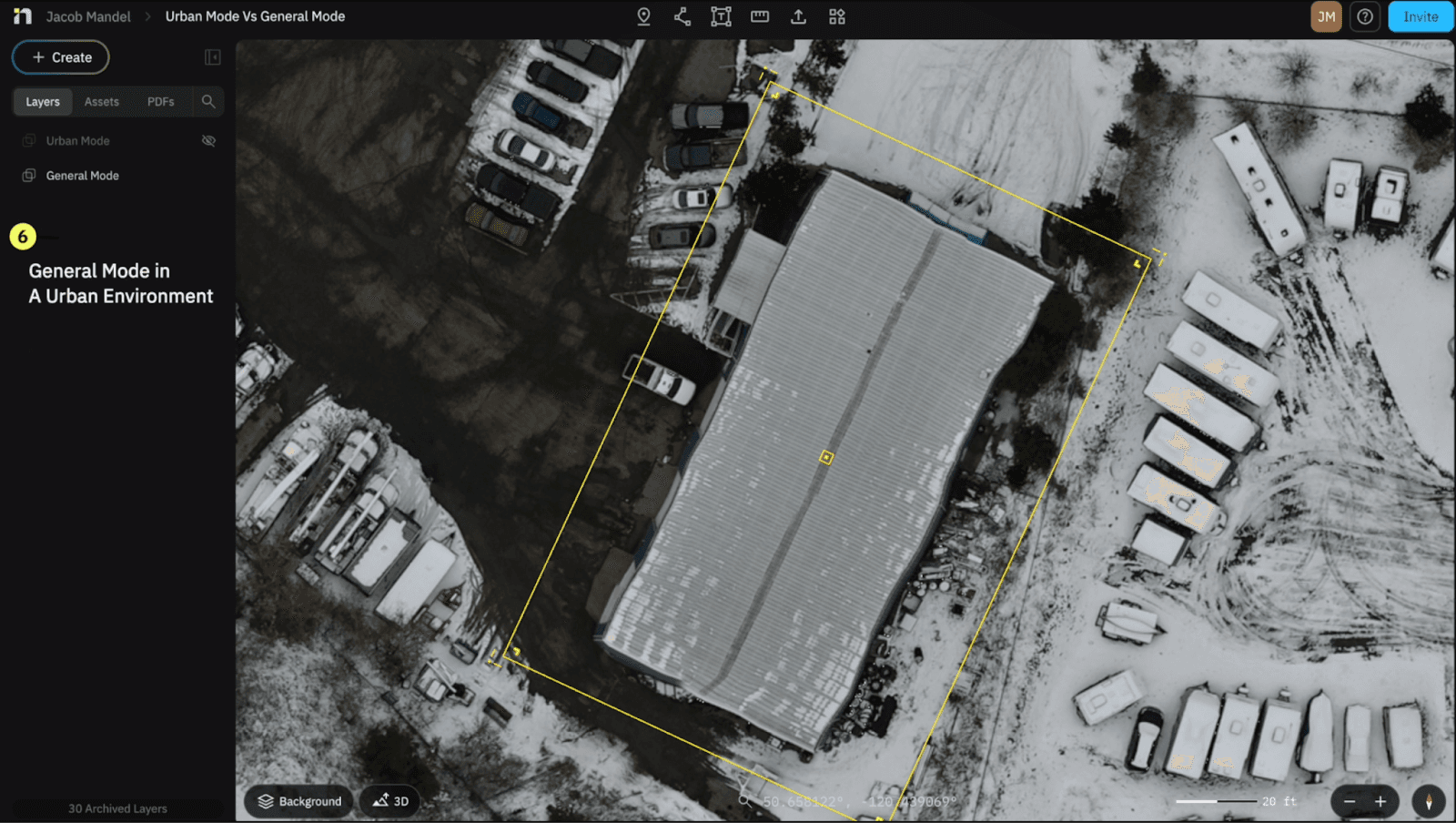
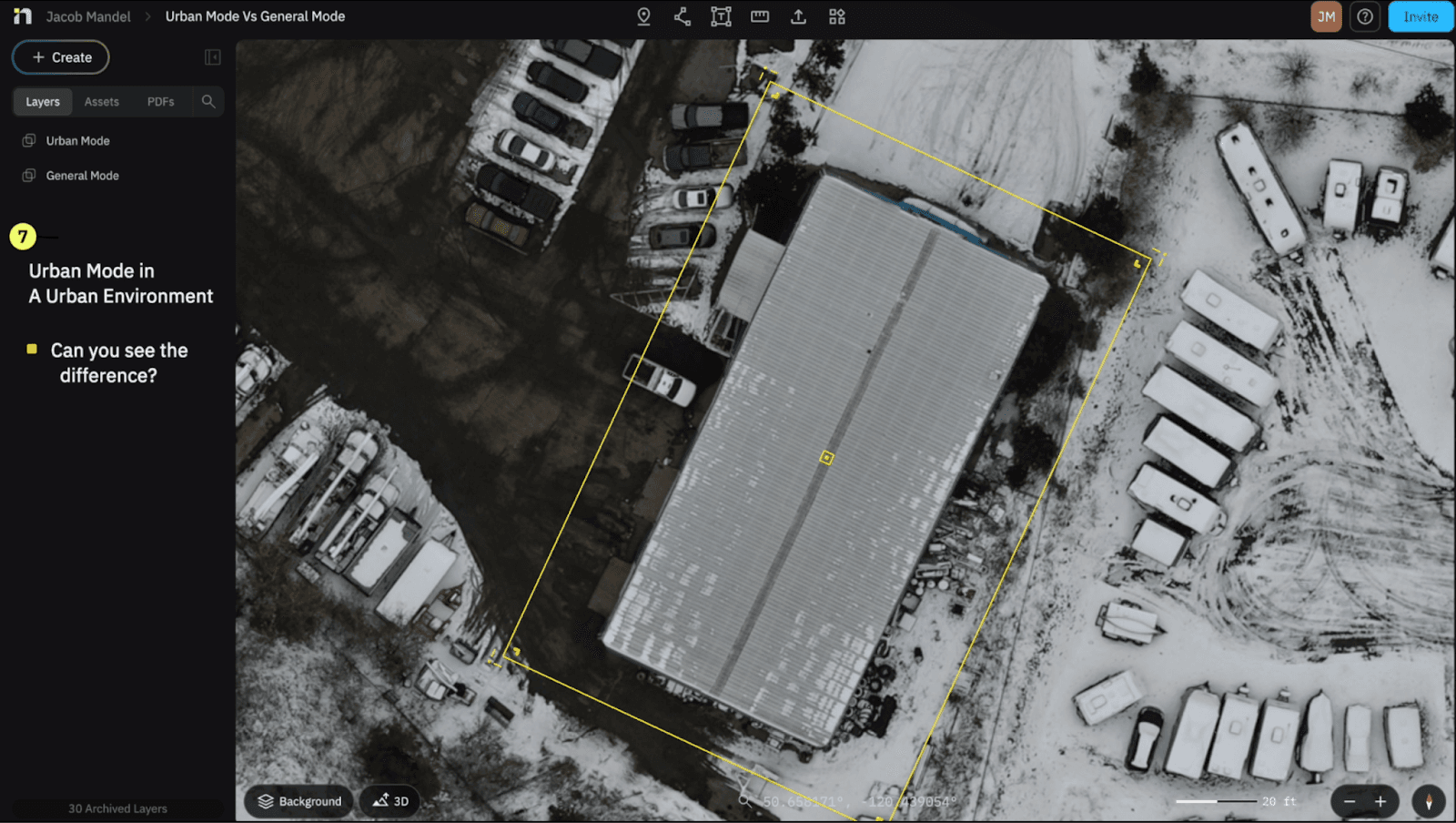
Can I see which Mode I selected after I've processed my Orthomosaic?
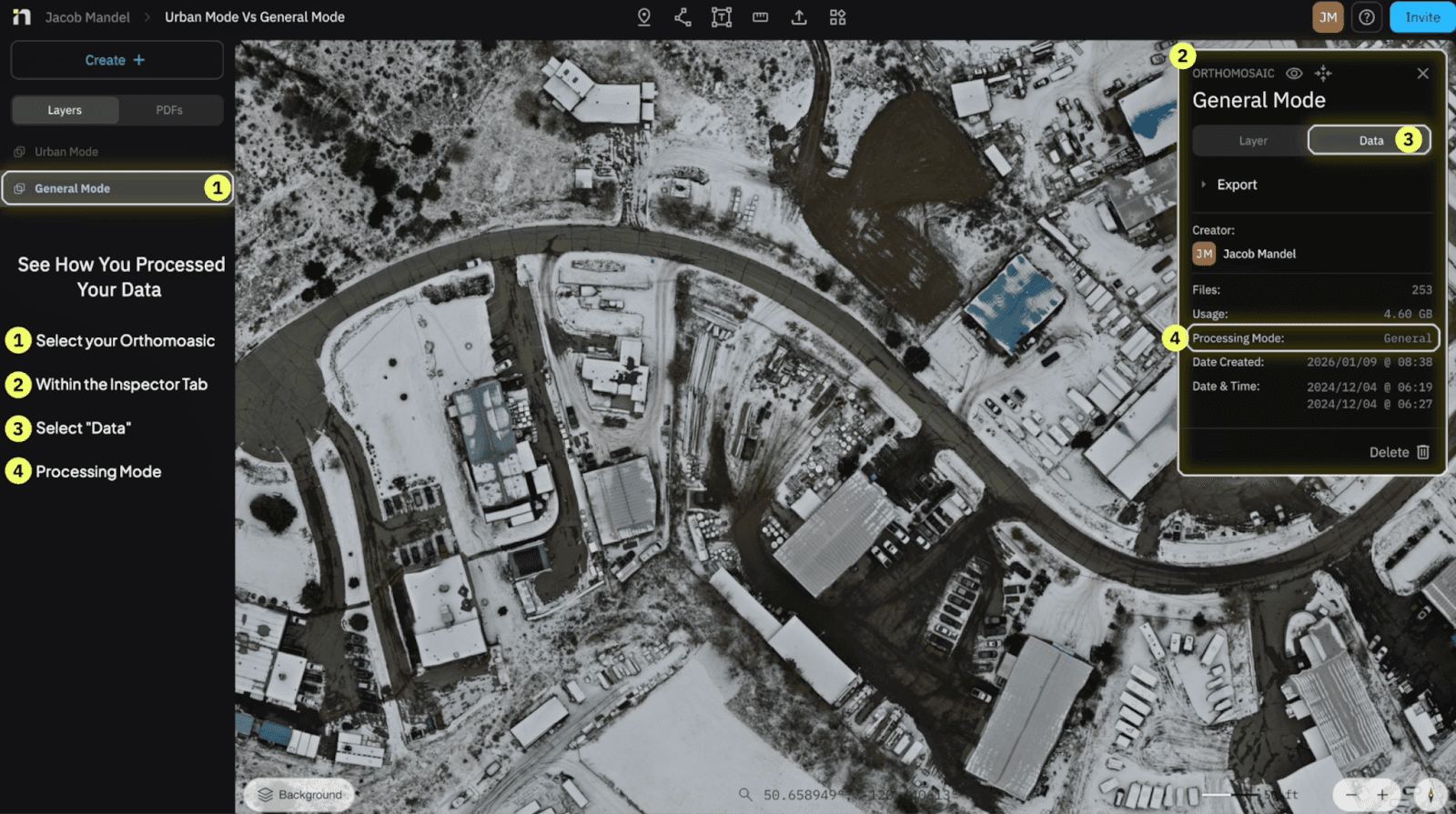
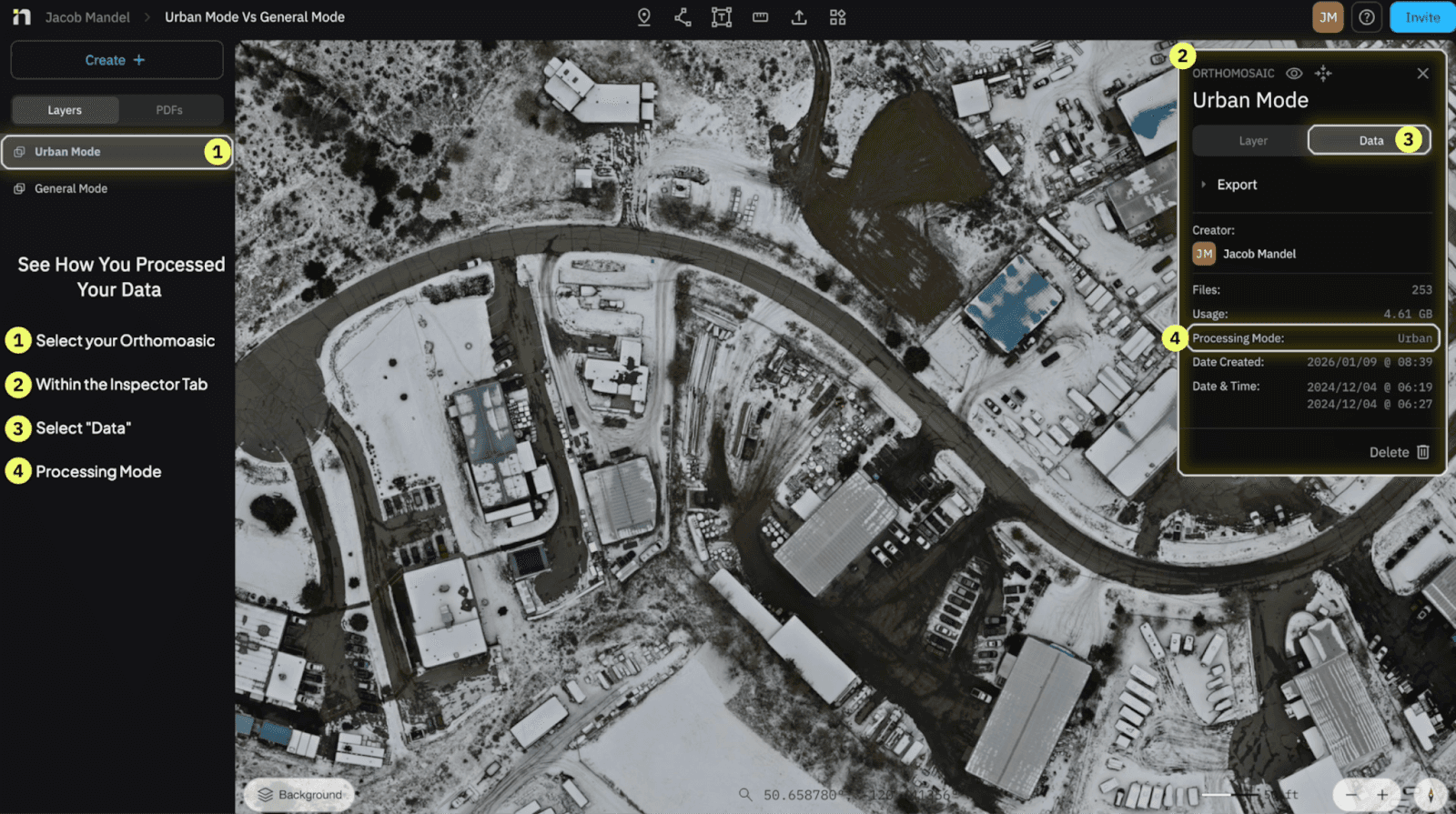
The answer is YES, and here's how
Select on your Orthomosaic in the “Layers Panel” on the Left Side of your screen
The “Inspector Panel” will appear on the top right corner of your screen
Select on “Data”
In between “Usage and Date Created” you will see “Processing Mode” identifying which mode you selected to process in
Have a question you want answered?
Just Ask Jake.
Phone: 289-890-0474
Email: jacob.mandel@mapnova.com
Start for free today.
Craft the future. Respond to the present.