Back to blog
Jan 26, 2026
Tips and Tricks
Can’t I just upload all my IR and RGB Data at once? You can, but it’s unlikely you will get the result you want. In this JAJ we’ll be covering the similarities between Upload Flow for Orthomosaics (RBG) and Hotspots (IR). The four tips we’ll be covering are removing images, checking Overlap, Process after uploading, and uploading vs processing.
Orthomosaic (RGB) - Upload Flow
Removing Images
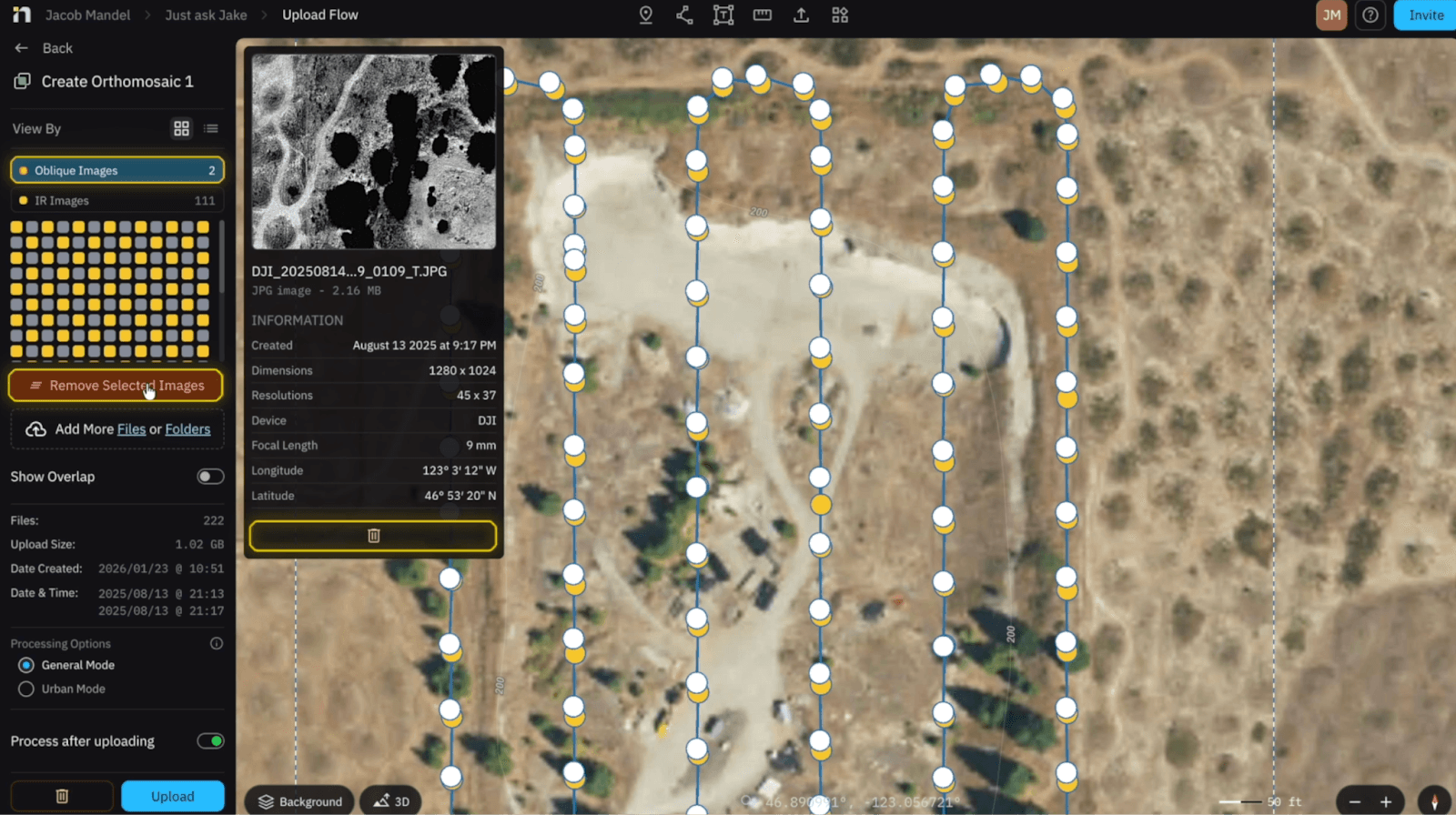
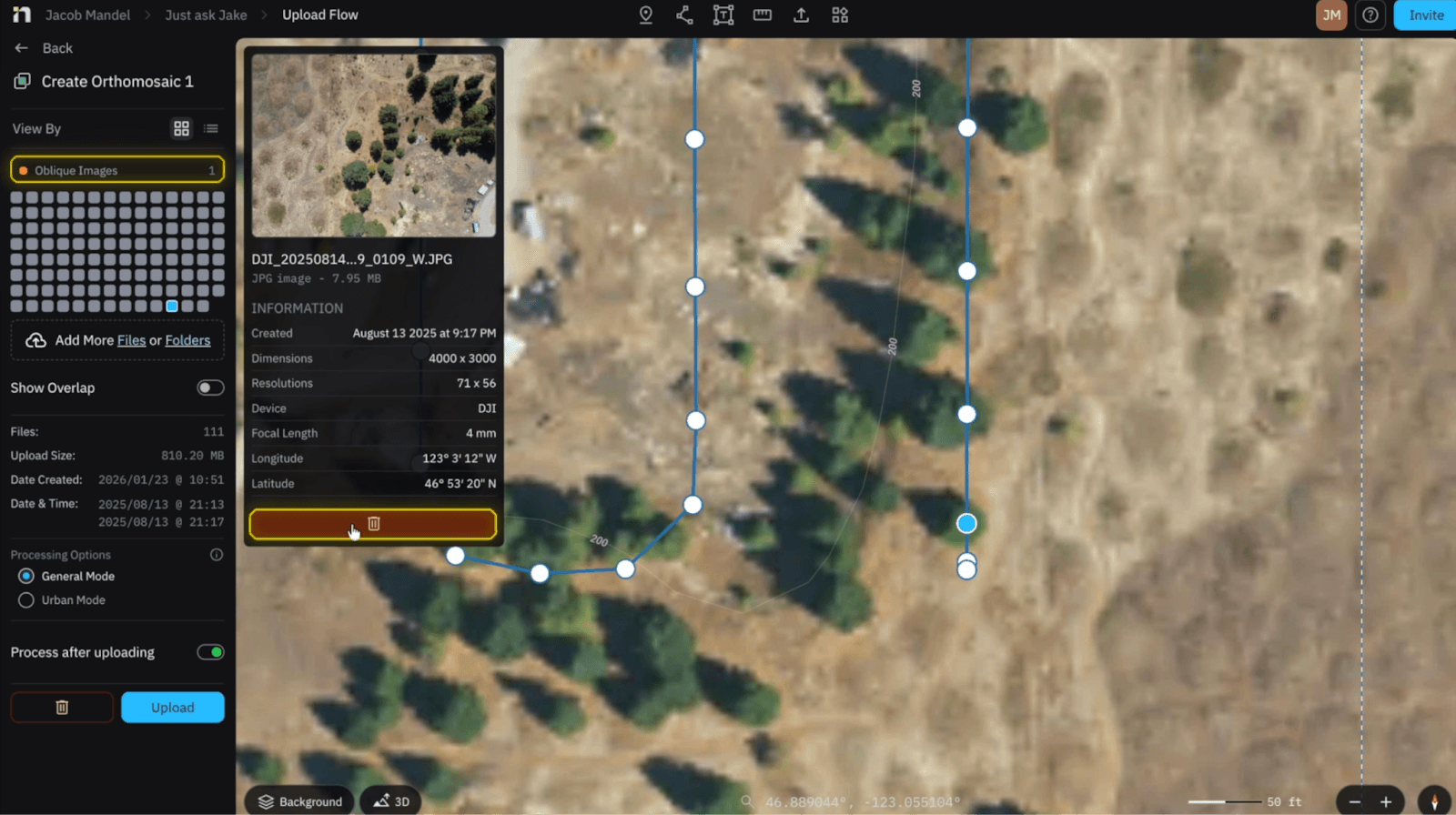
Once your images have been added to Nova, we will prompt you with the correct files (RGB) as well as flagged images (IR and Oblique) if detected. By selecting Oblique Images or IR images you can remove individual files or all of them at once (I would remove them all at once).
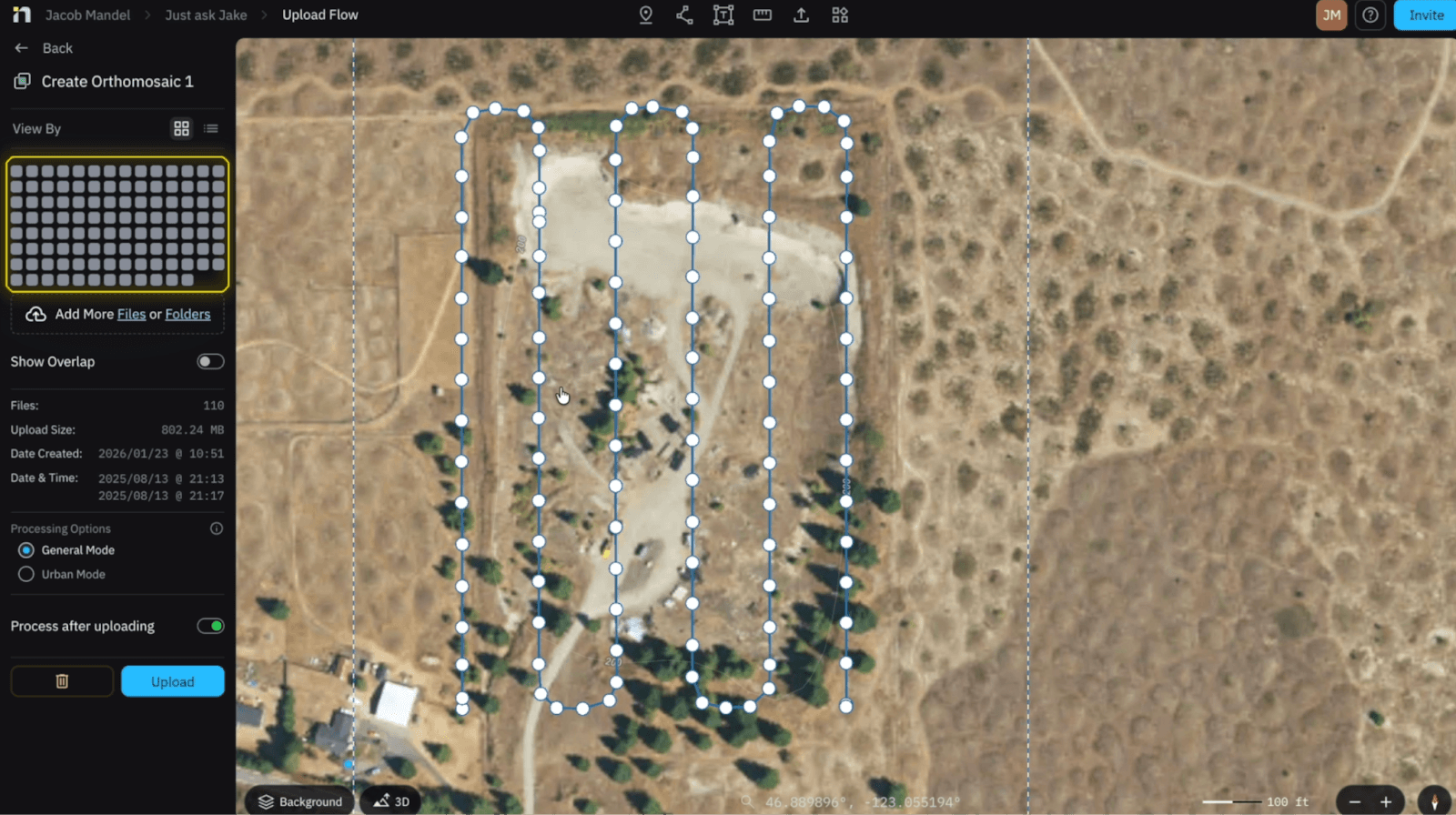
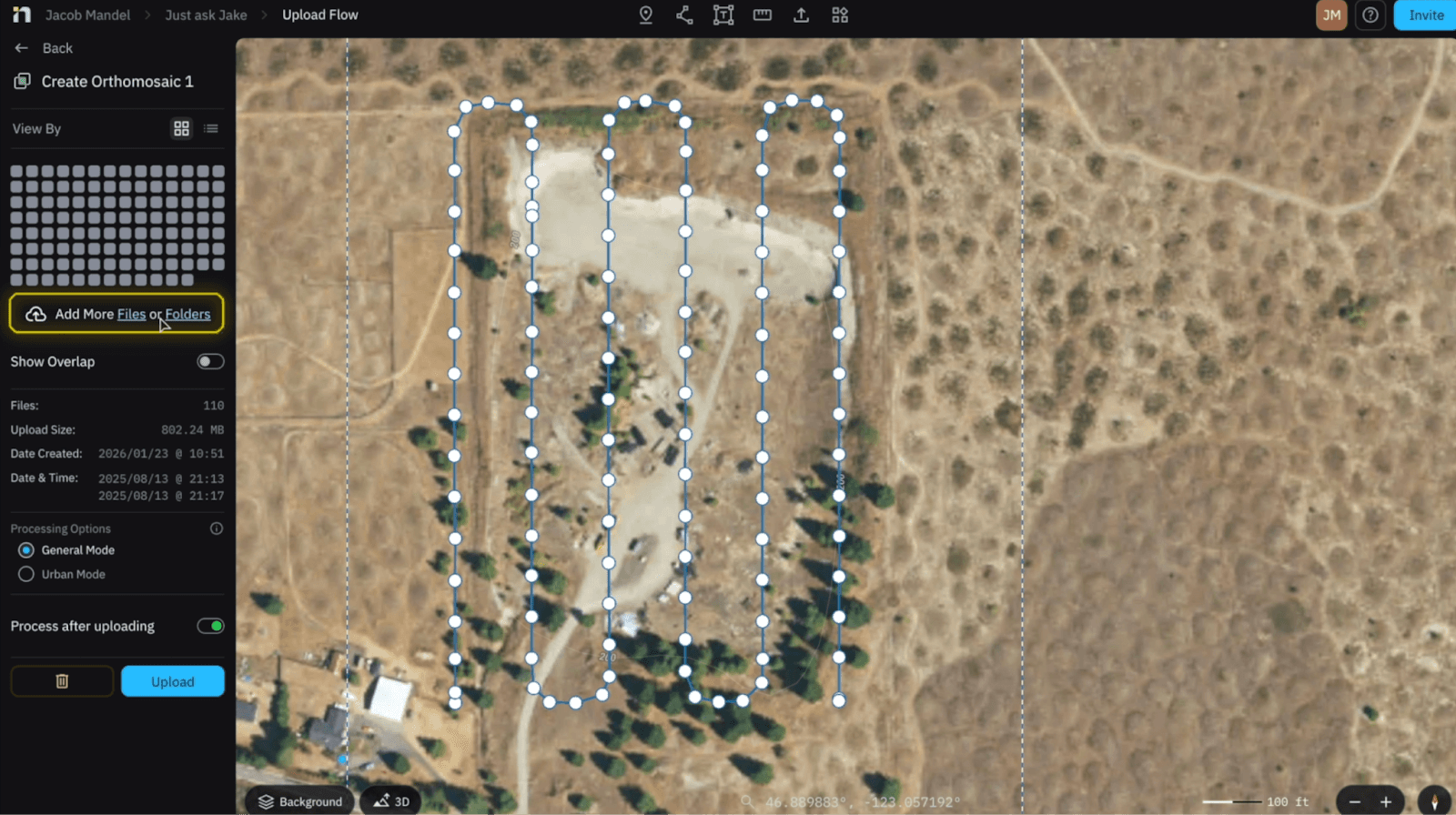
Show Overlap
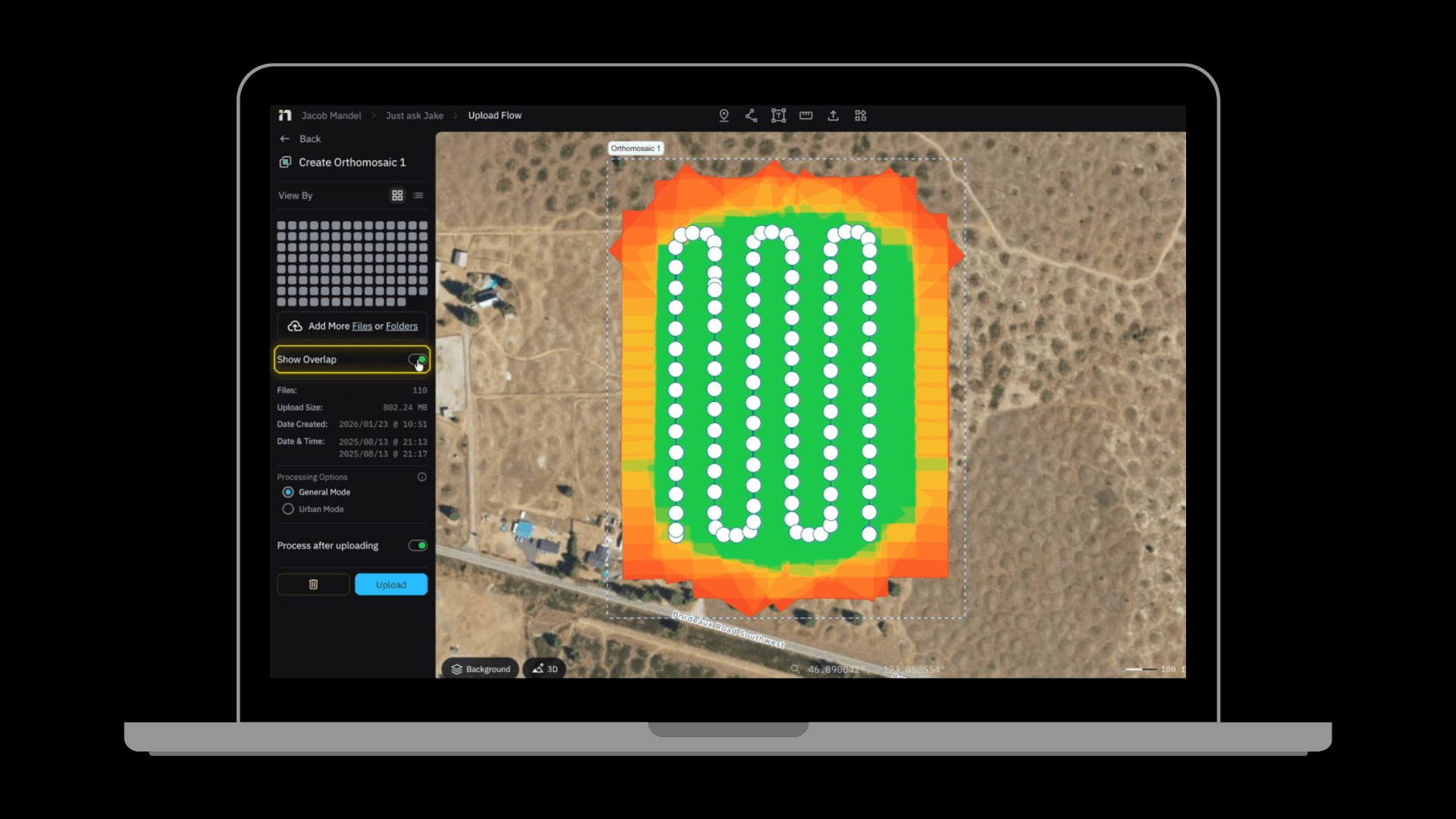
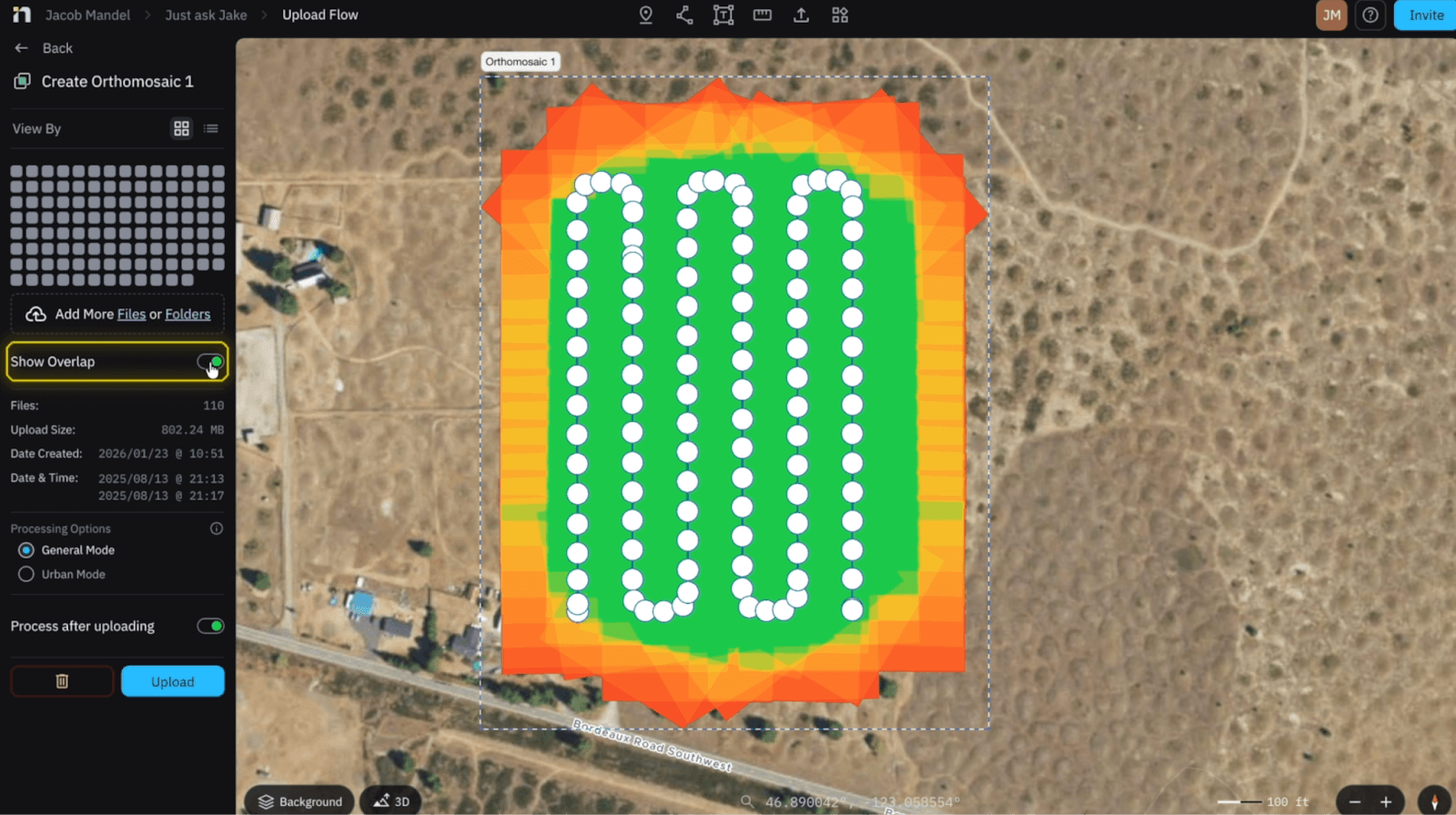
Up next and the most crucial part of the workflow is SHOW OVERLAP. Why is this important you may wonder? By ensuring Overlap we can confirm our orthomosaic will properly stitch together and confirm a high quality product we are all striving for. This is shown with green having sufficient overlap, while red is insufficient. The exterior will always be red due to lack of images it can stitch with.
*Nova works with 80% of sensors. If you notice your sensor isn't compatible contact me directly for a quick solution*
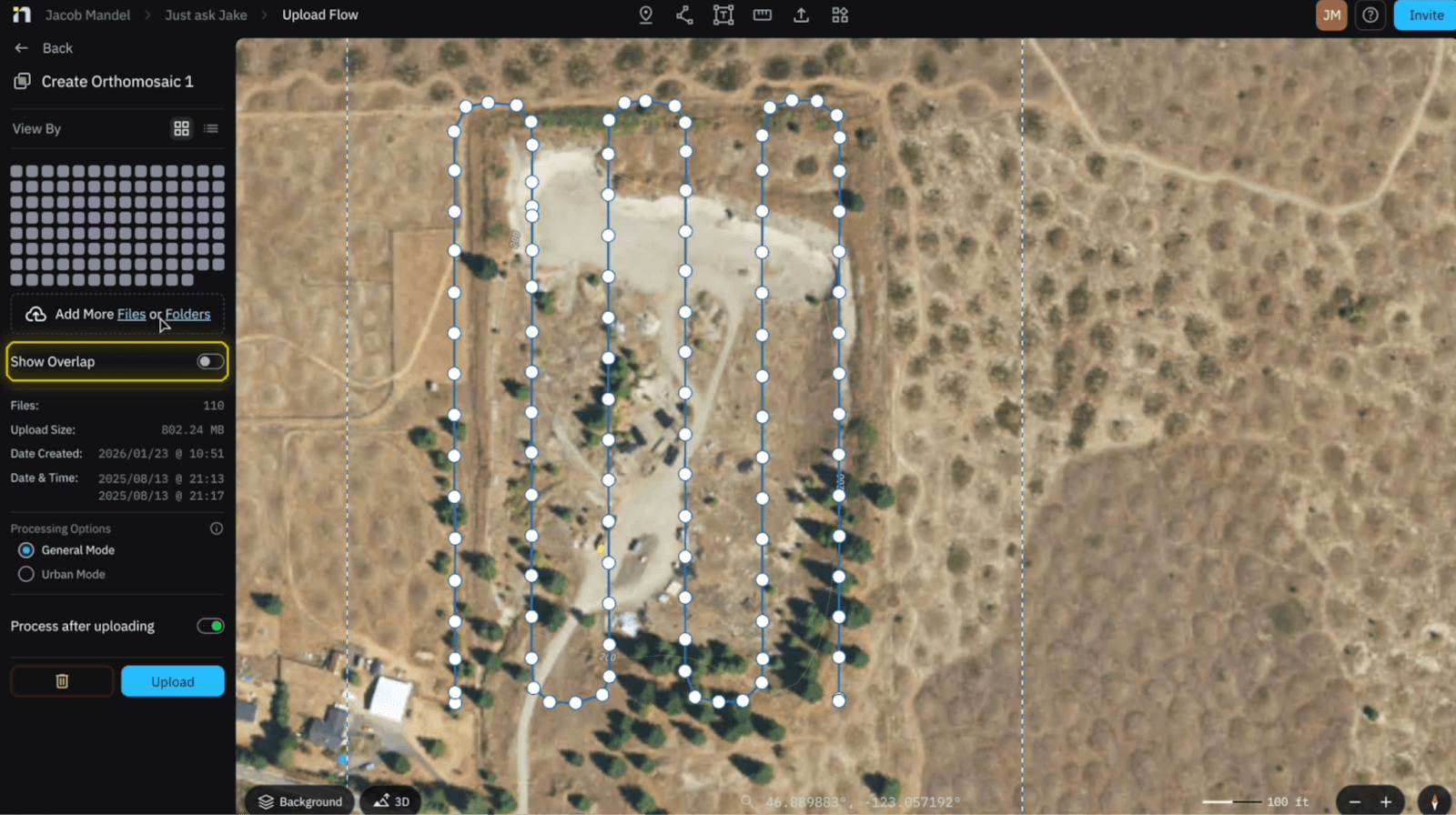
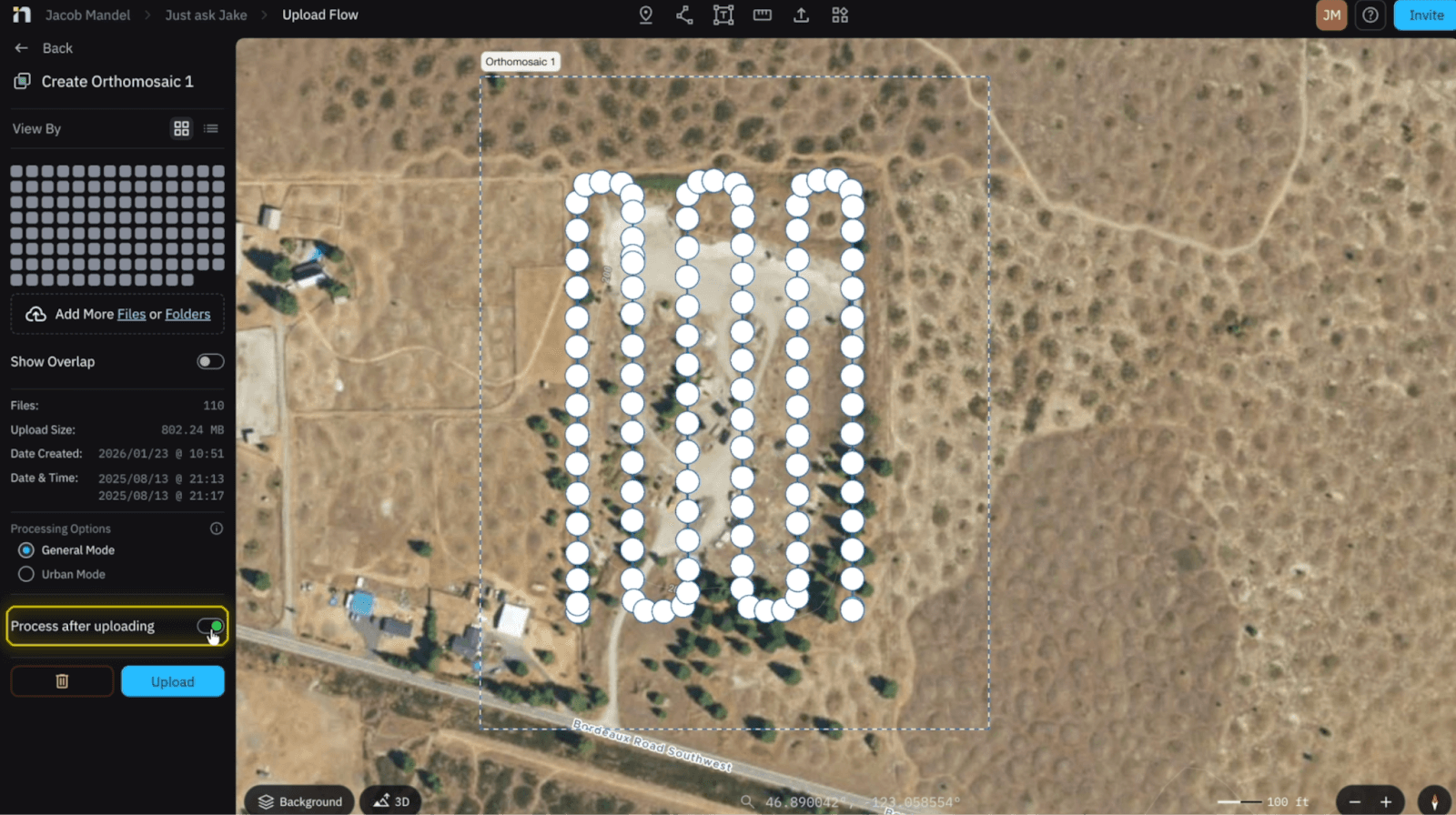
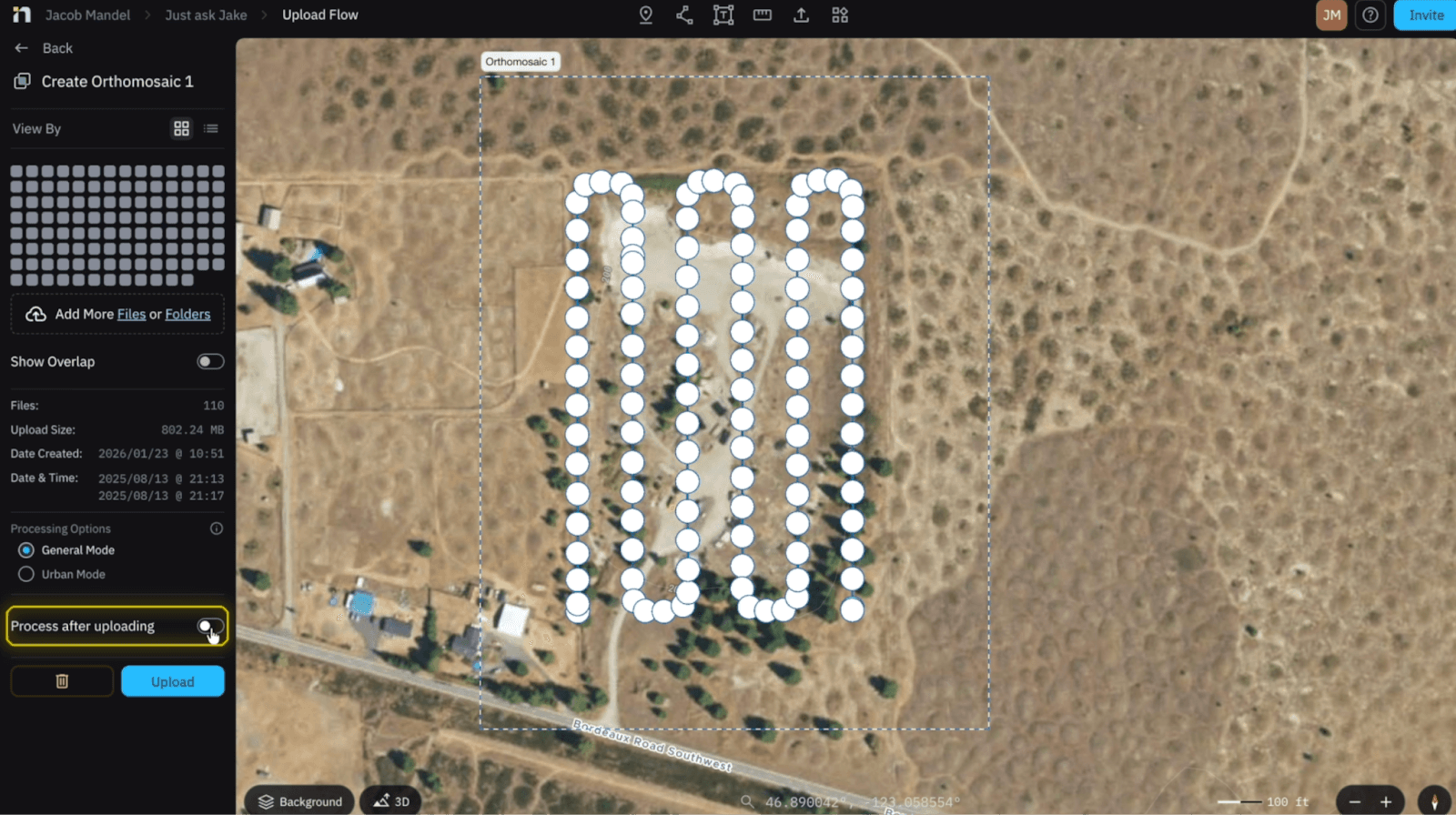
Process after Uploading
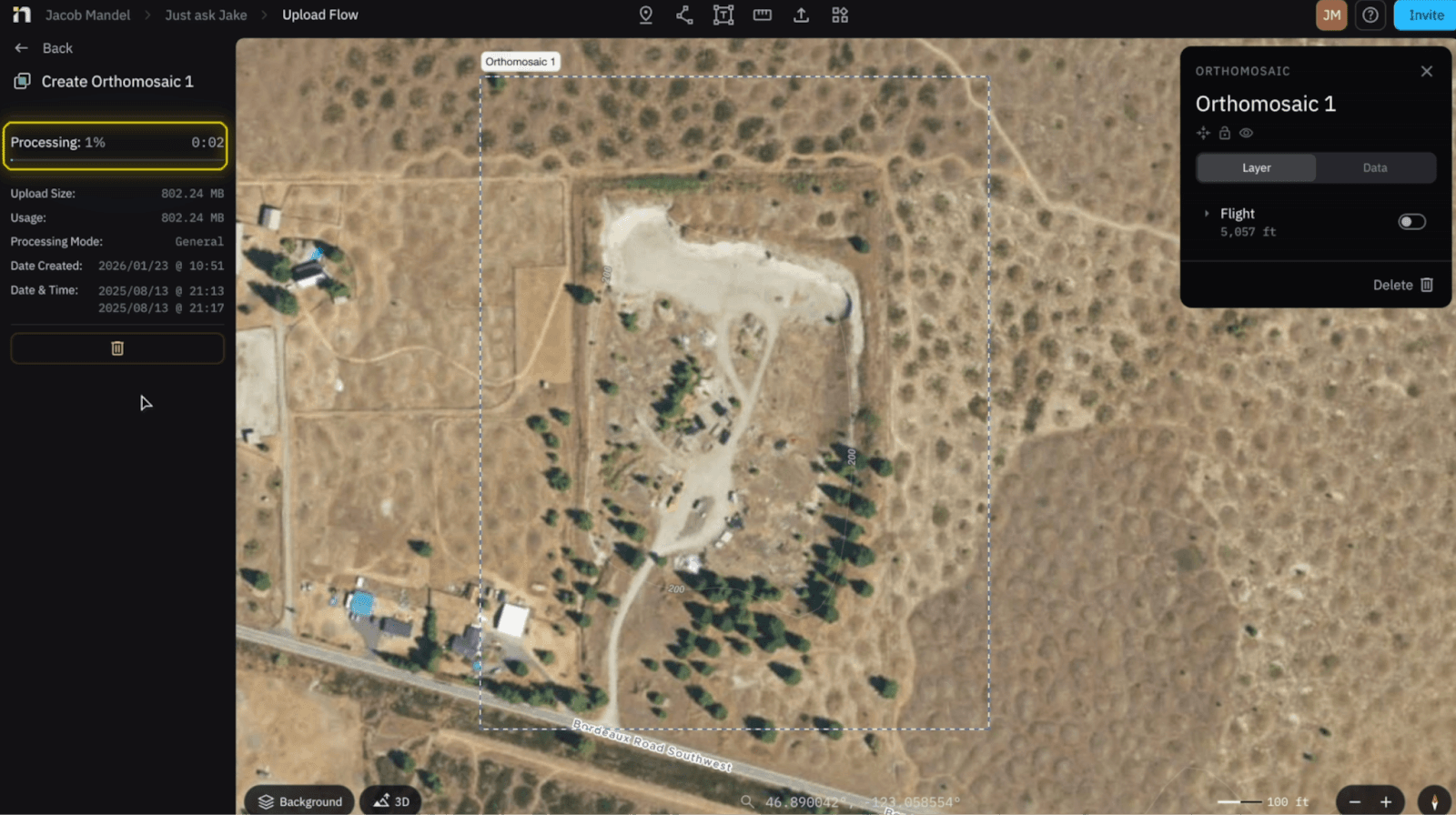
If we are planning on conducting another flight we can disable the “Process after uploading” button which allows us to upload our data to the cloud and add more flights so we obtain one orthomosaic versus multiple small ones.
Upload vs Processing
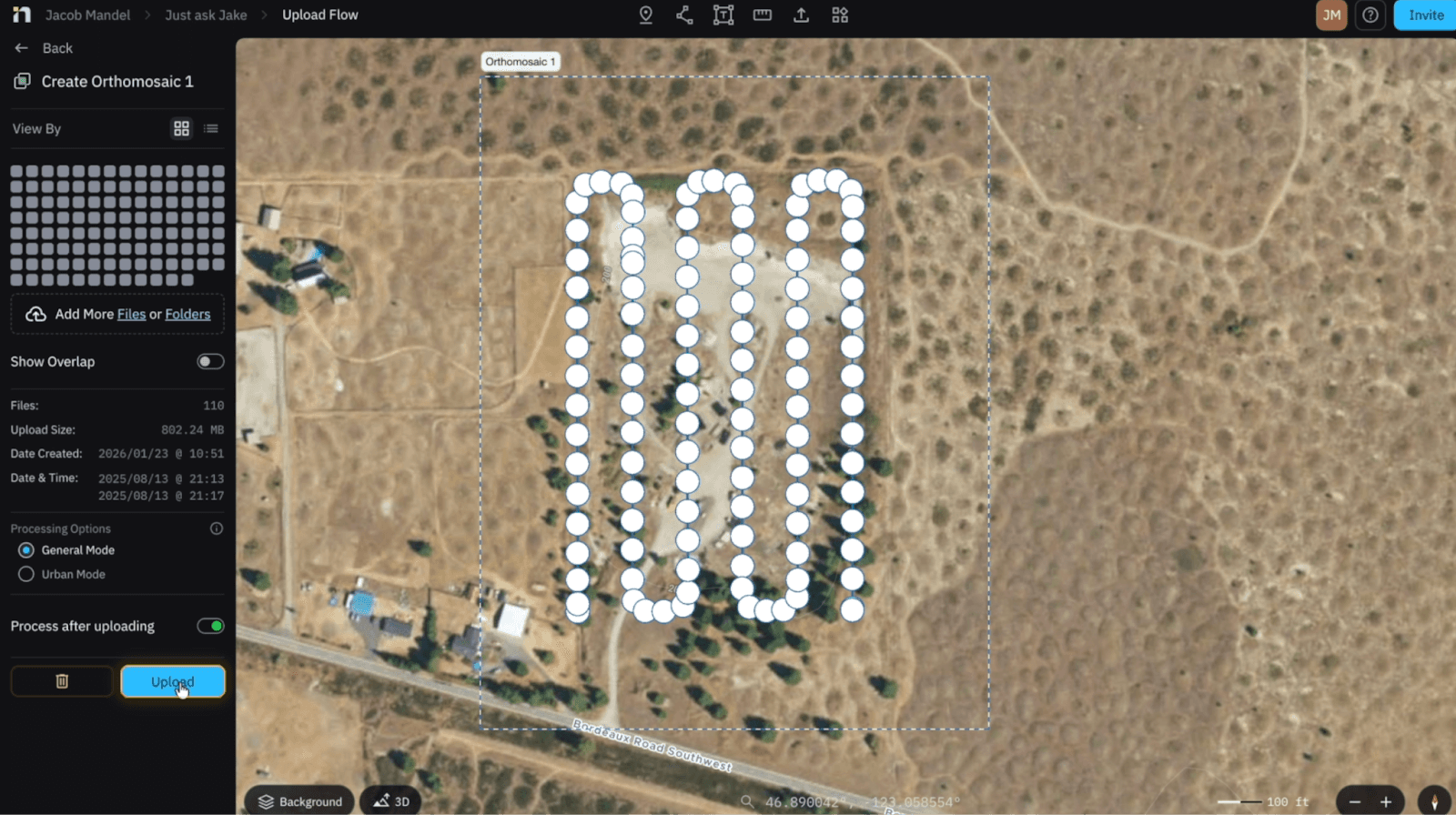
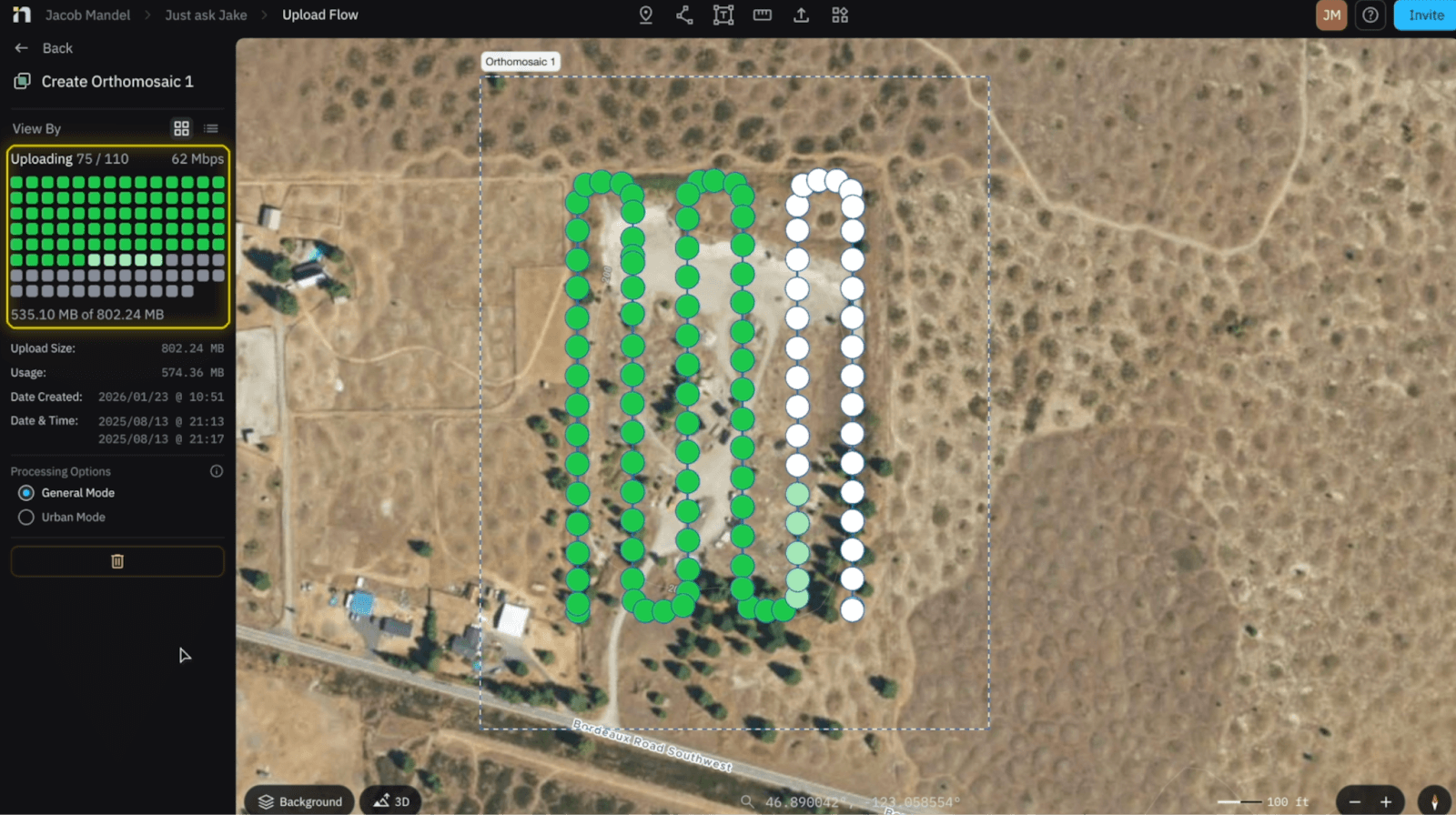
When all our data is confirmed, select “Upload” to begin uploading to the cloud. One thing to note - within the uploading phase we want to stay within the project. If we leave or close the tab the images upload will stop, and not all photos will be added to produce the ortho. When in processing you can leave the project, close the tab or computer while Nova stitches your Orthomosaic together.
Hotspot (IR) - Upload Flow
Removing Images
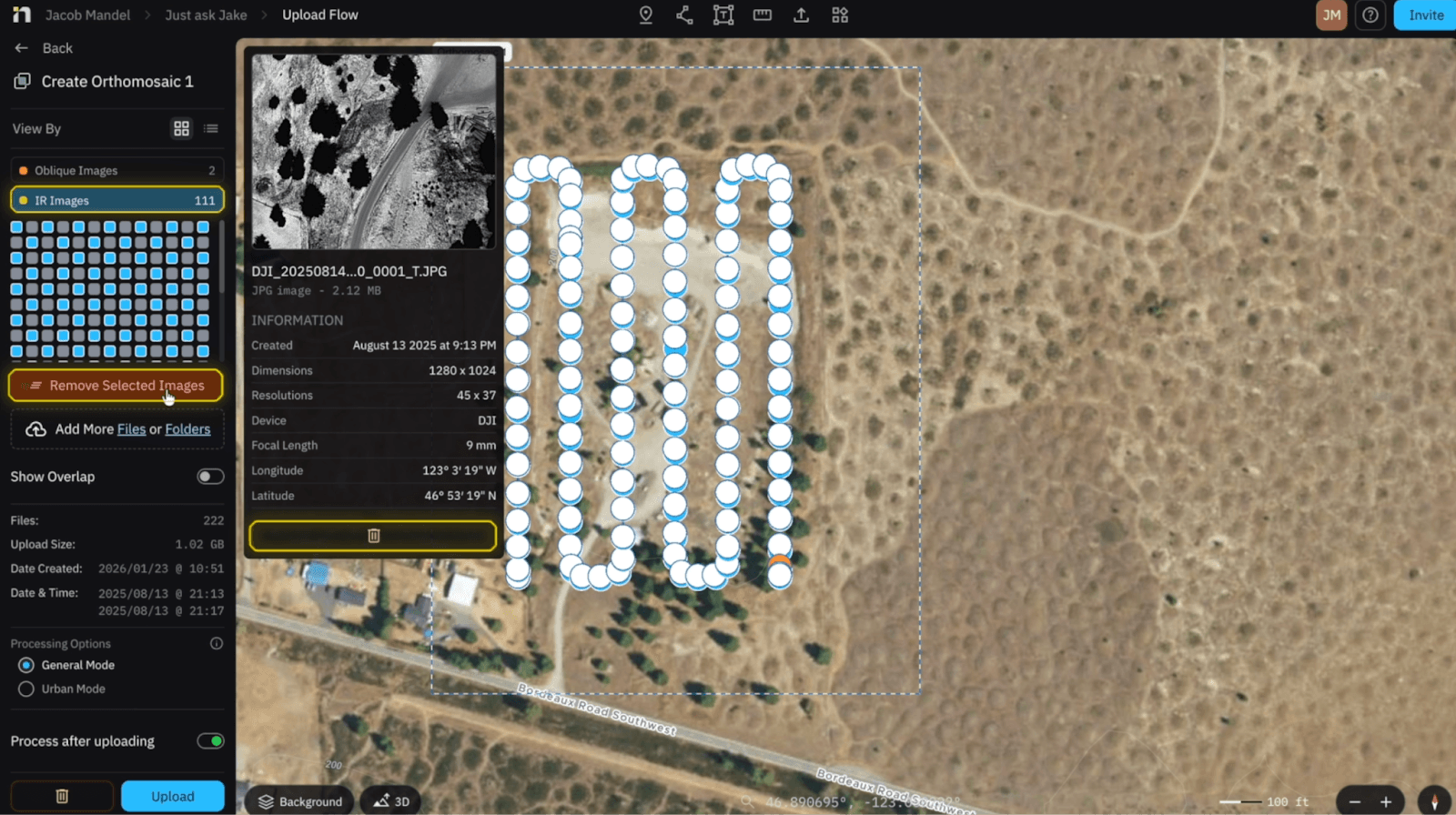
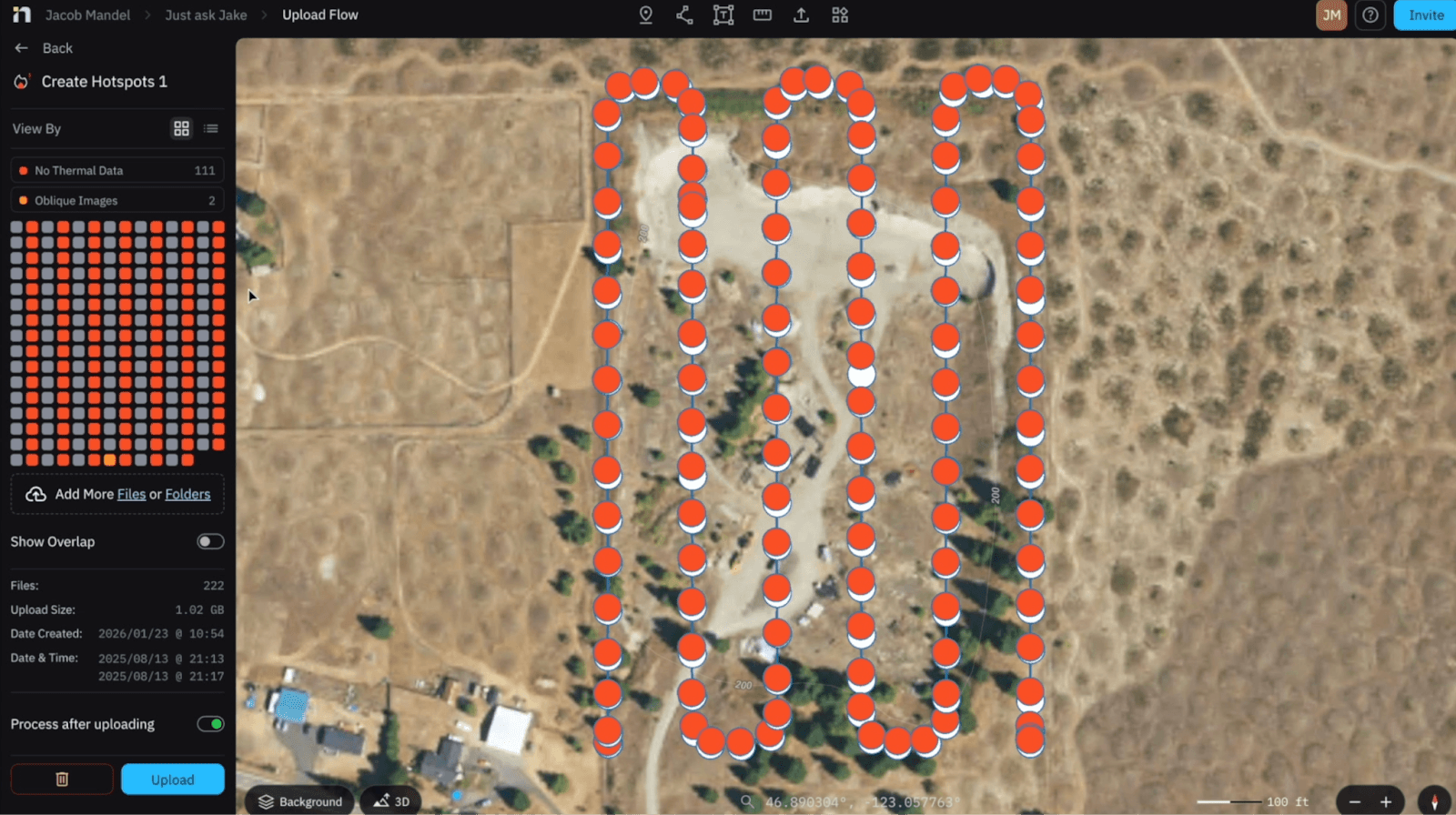
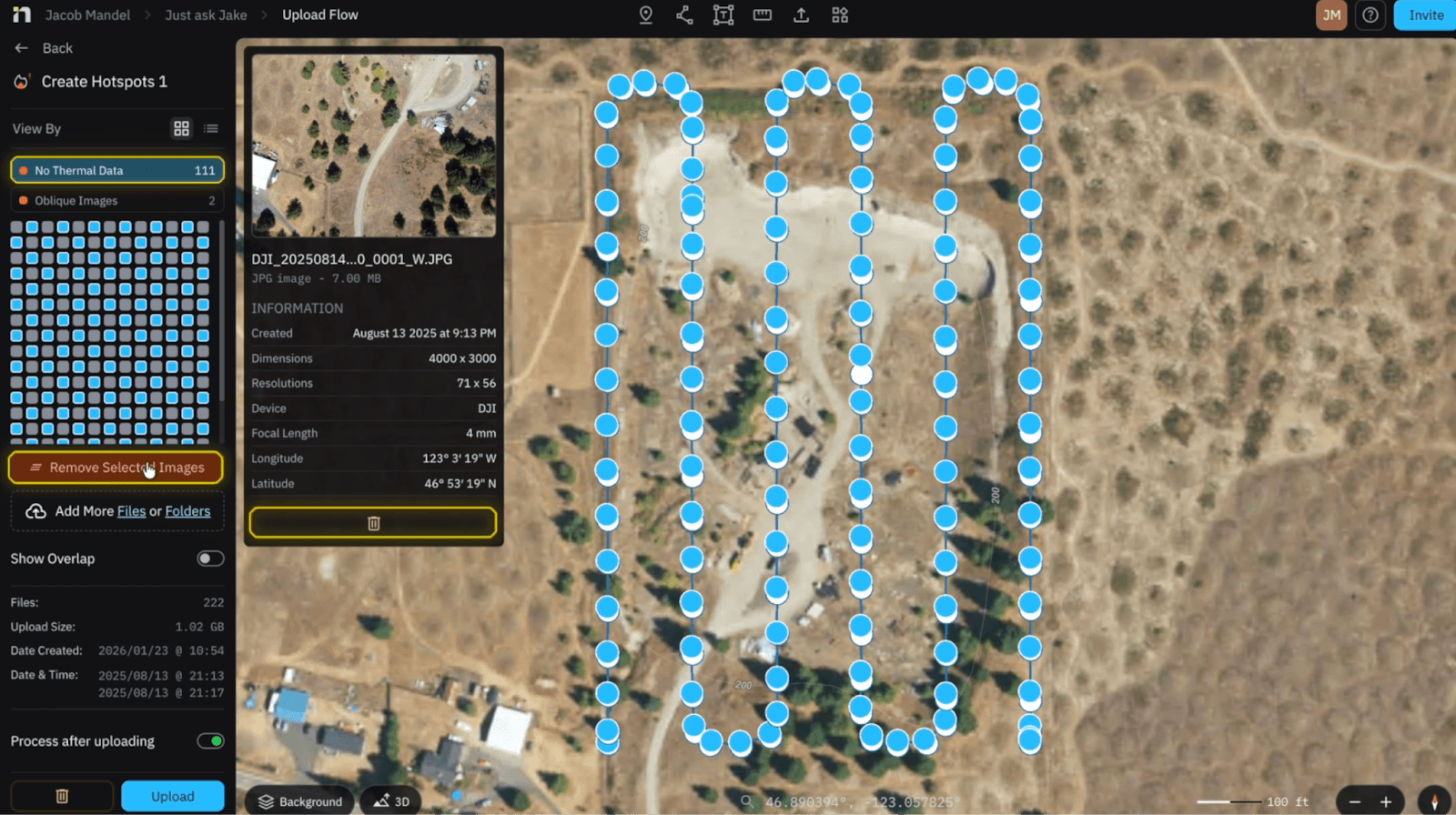
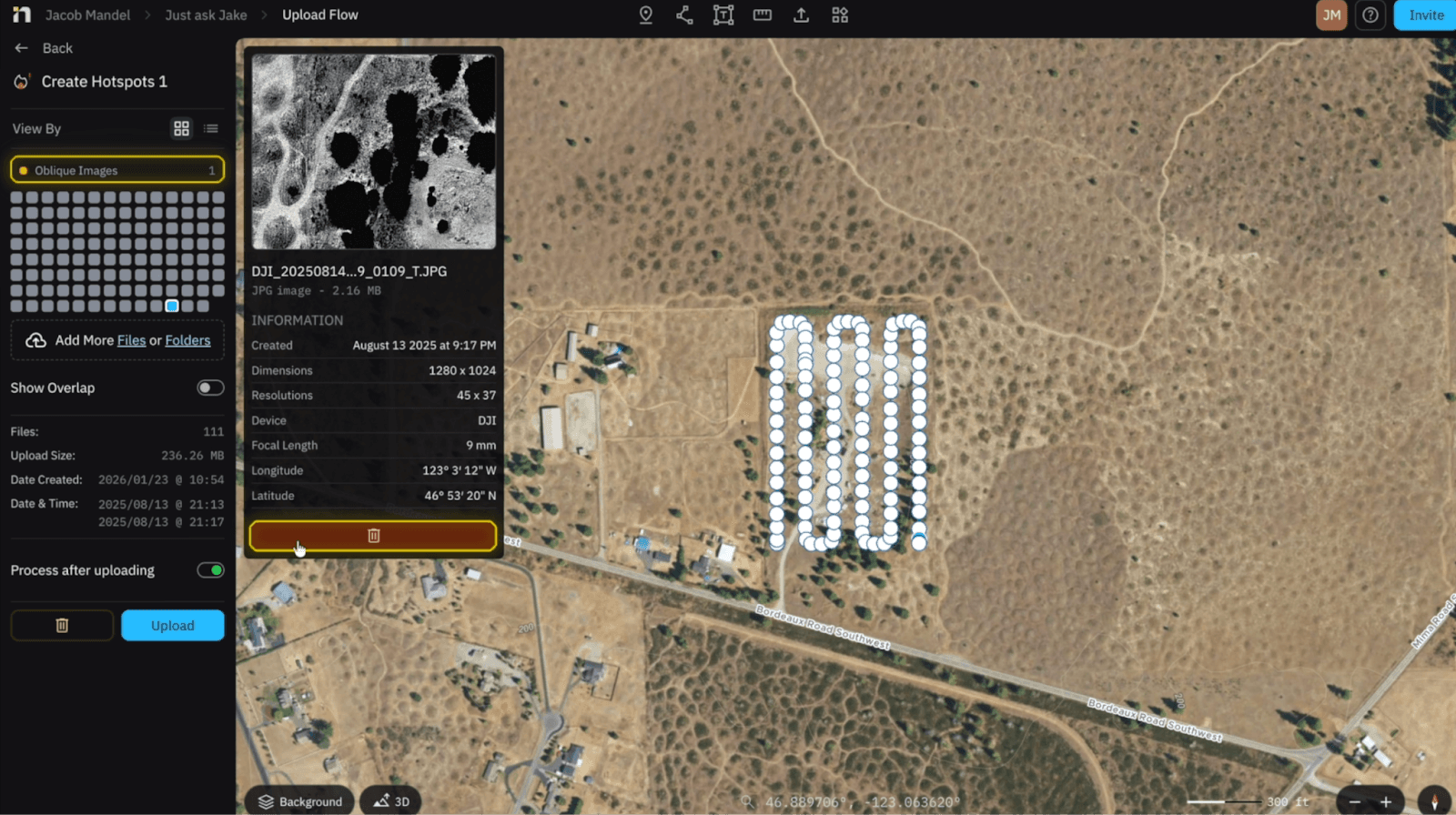
Once your images have been added to Nova, we will prompt you with the correct files (IR) as well as flagged images (RGB and Oblique) if detected. By selecting Oblique Images or IR images you can remove individual files or all of them at once (I would remove them all at once).
Workflow similarities
From here on the workflow is identical to Orthomosaics, you can reference that workflow with the steps above.
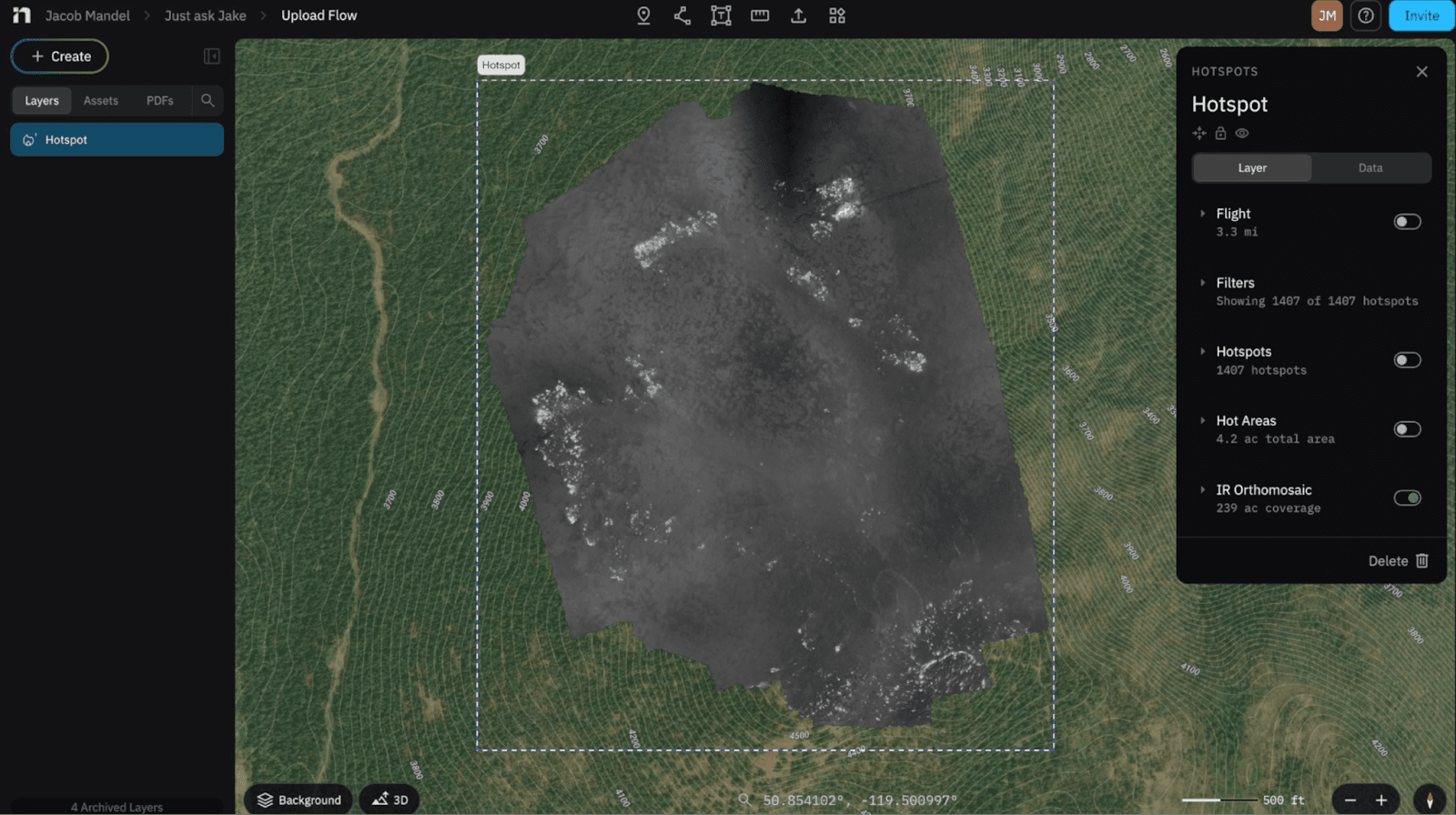
Orthomosaic View
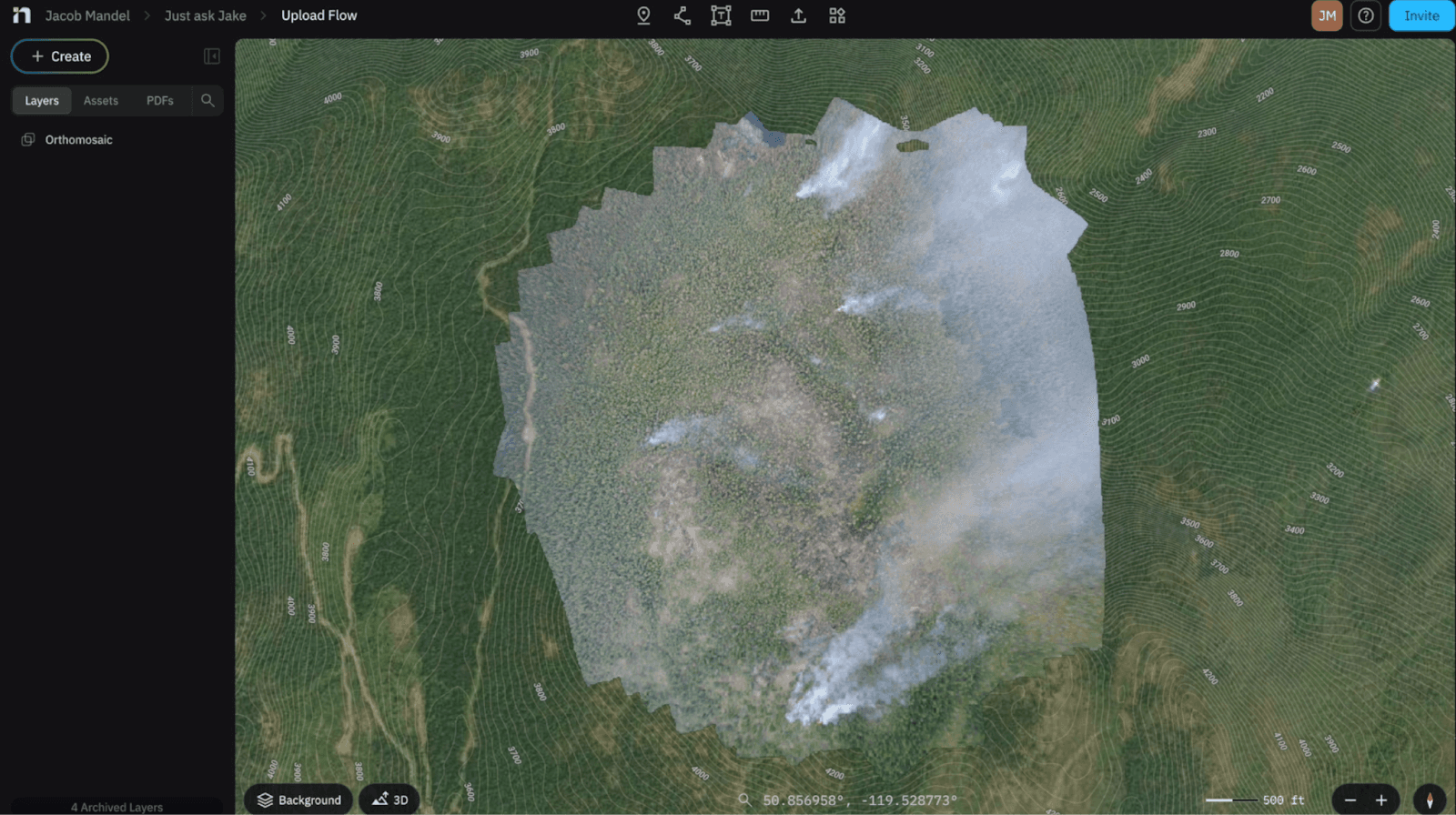
IR Orthomosaic
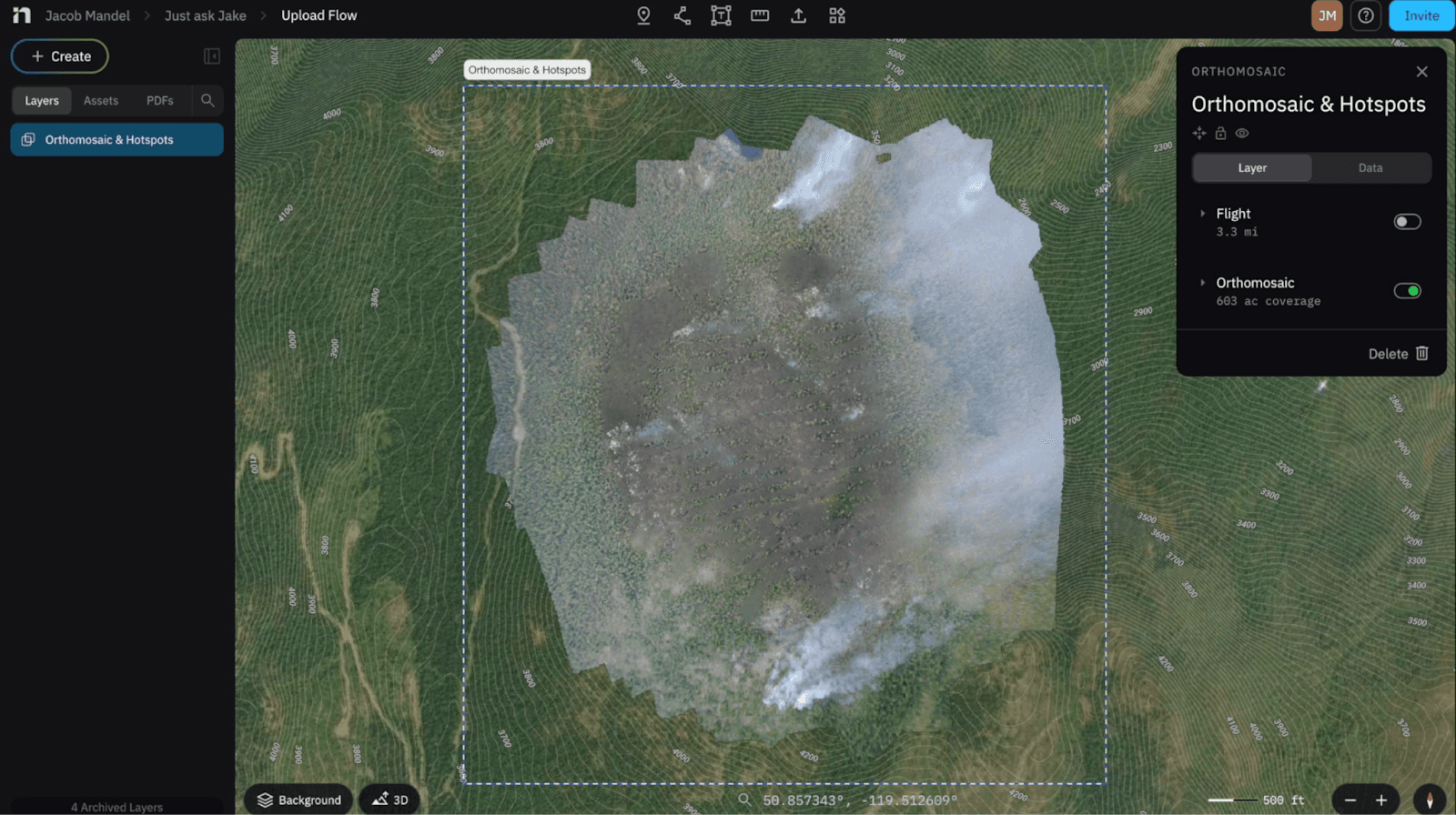
Orthomosaic and IR Merged NOT GOOD
Have a question you want answered?
Just Ask Jake.
Phone: 289-890-0474
Email: jacob.mandel@mapnova.com
Start for free today.
Craft the future. Respond to the present.